Get a CSS Selector or XPath
When the browser does not provide a compatible helper extension, obtain a CSS selector or XPath from the Elements panel in browser developer tools and paste it into an RPA element location field.
Open Developer Tools
- Open the target page in the browser profile used by the workflow and reproduce the page state where the action occurs.
- Right-click the element that the workflow will click, type into, or read.
- Click Inspect. The browser opens the Elements panel and selects the corresponding HTML node.

Confirm that the highlighted HTML node is the intended element. Selecting a parent container or inner icon can make the workflow target the wrong object.
Account names, order numbers, and other business data may appear in HTML attributes or text. Hide sensitive information before capturing a screenshot or sharing a selector.
Copy a Location Value
Right-click the selected HTML node in Elements, open Copy, and select the required value.
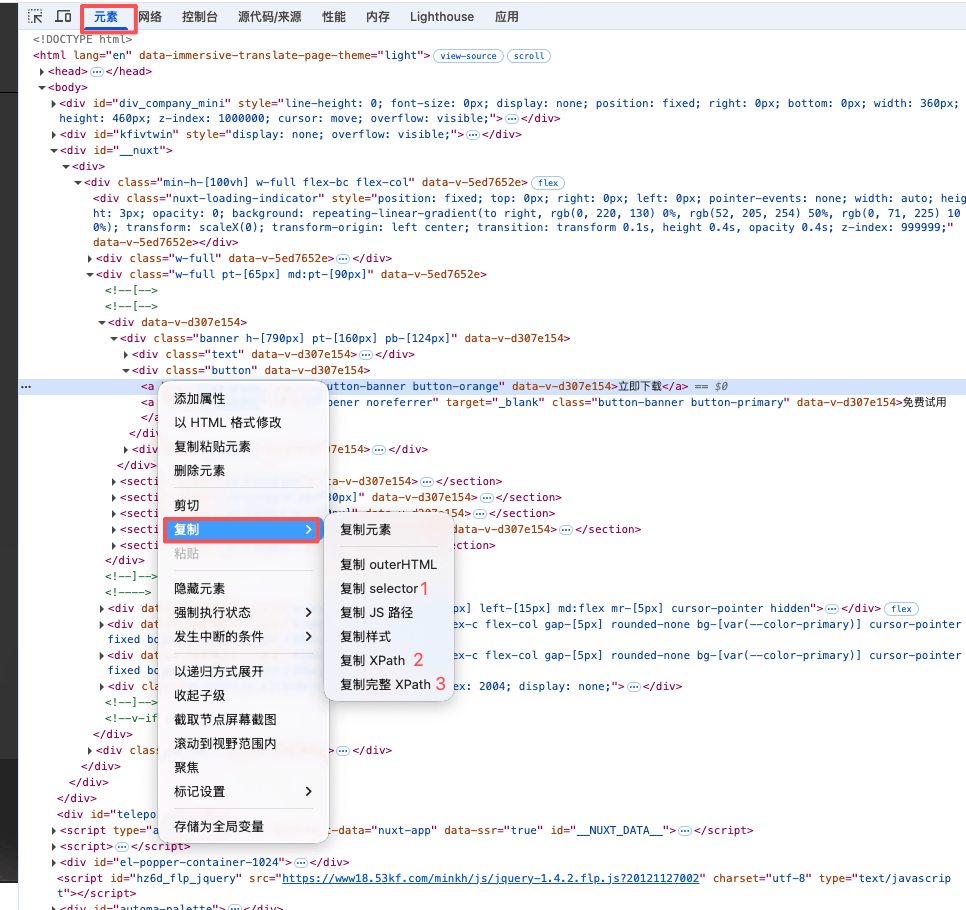
| No. | Action | Description |
|---|---|---|
| 1 | Copy selector | Copies a CSS selector to paste after selecting CSS Selector in the node |
| 2 | Copy XPath | Copies the browser-generated XPath to paste after selecting XPath |
| 3 | Copy full XPath | Copies an absolute path from the document root. It breaks easily after structural changes and should be a temporary last resort |
Names can vary by browser version or UI language, such as Copy selector, Copy XPath, and Copy full XPath.
Validate the Result
Validate that the copied value consistently matches the target:
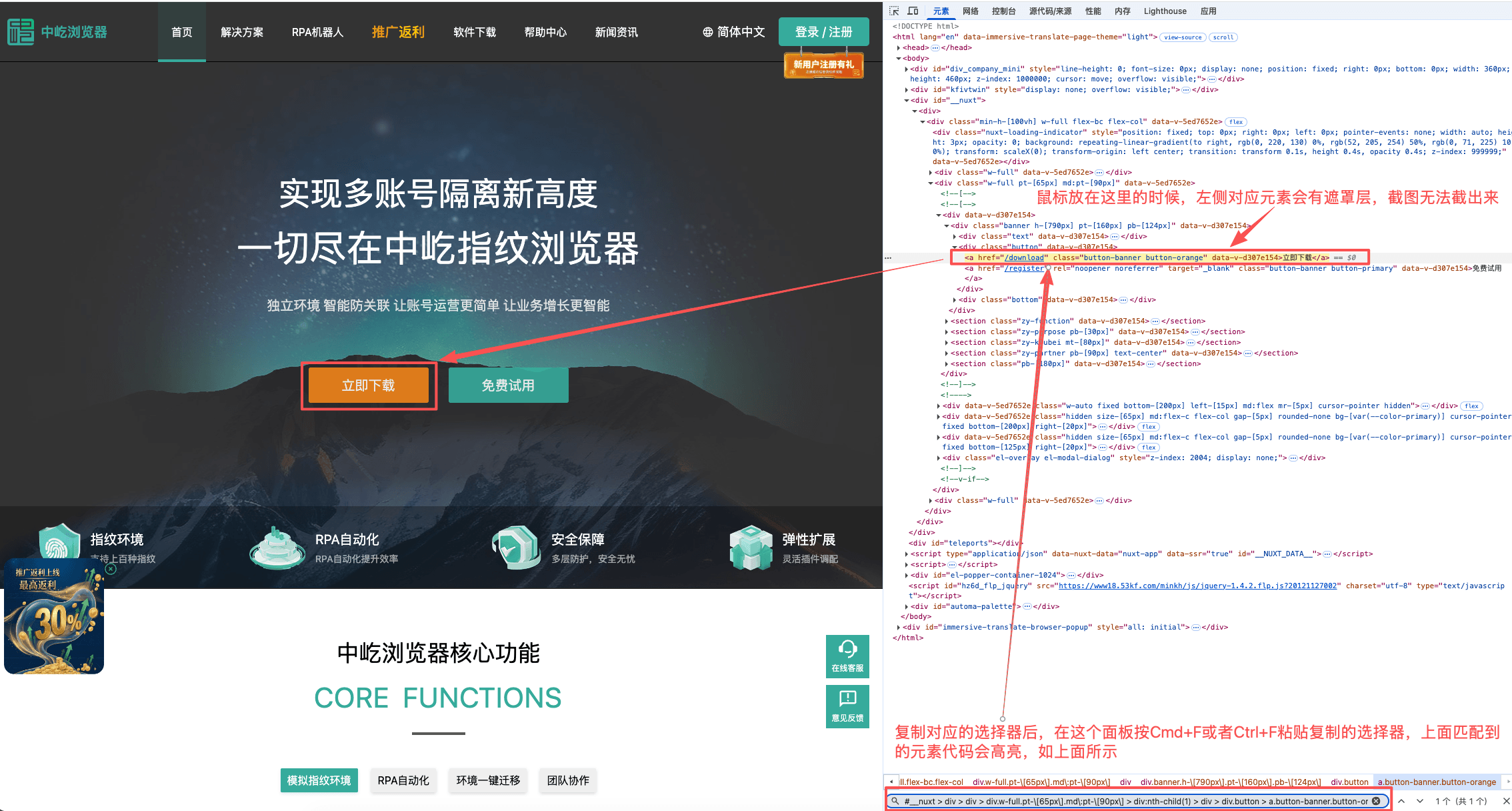
- Press
Command + Fon macOS orCtrl + Fon Windows in Elements. - Paste the CSS selector or XPath.
- Check the match count and highlighted node. A single correct match can generally be used directly.
- For multiple matches, configure a fixed index in RPA or make the location more precise.
- Paste the value into the corresponding RPA field and debug the node.
Improve Location Stability
Automatically generated values are a starting point and may break after a page update:
- Prefer CSS selectors with a stable
id,name, ordata-*attribute. - Avoid generated class names, dynamic indexes, and long hierarchy paths.
- Prefer relative XPath using stable attributes over full XPath.
- Display dynamic content such as a dialog or dropdown before inspecting and copying it.
- Revalidate after page structure or login state changes.
See Select a Location Method for selector rules, Select a Matching Element for indexes, and Use a Saved Element Object for element variables.