Add Custom Proxies
Custom Proxies is designed for proxy services that provide a fixed host, port, username, and password. Add one proxy manually or import several at once. Supported protocols are HTTP, HTTPS, and SOCKS5; the current IP protocol is IPv4 only.
Add One Proxy
Open Custom Proxies, click Add Proxy, and enter a name and connection information. You can click Test Proxy before saving.
| Field | Description |
|---|---|
Name | Required; identifies the proxy in lists and profile selectors |
Proxy protocol | HTTP, HTTPS, or SOCKS5; must match the provider's protocol |
IP lookup service | Currently supports ip2location |
IP protocol | Currently supports IPv4 only |
Host:port | The host can be an IPv4 address or domain; the port must be an integer from 1 to 65535. Pasting host:port into the host field fills both fields |
Username, Password | Optional; leading and trailing spaces are removed when entered, pasted, or saved |
Assigned profiles | Select existing profiles while saving |
Notes | Record a purpose or provider; never enter a password |
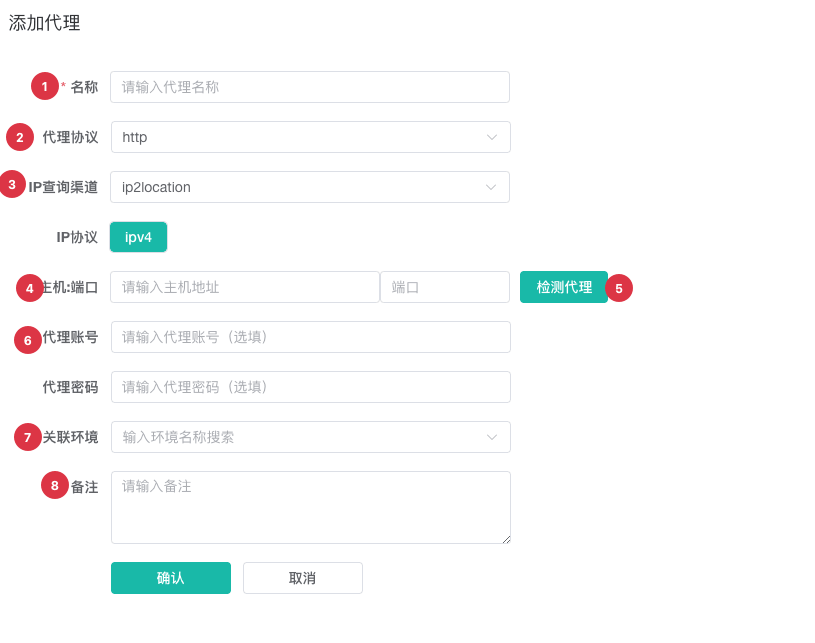
| No. | Feature | Description |
|---|---|---|
1 | Name | Required before the proxy can be saved |
2 | Proxy protocol | Must match the provider's proxy protocol |
3 | Lookup and IP protocol | Select an IP lookup service; the current IP protocol is IPv4 |
4 | Host and port | Host can be IPv4 or a domain; port range is 1-65535 |
5 | Test Proxy | Runs a local test with the current form values |
6 | Authentication | Enter when required by the provider; both fields are optional |
7 | Assigned profiles | Assign the new proxy directly to one or more existing profiles |
8 | Notes | Store only nonsensitive usage information |
Testing an individual proxy requires the desktop client. If it fails, keep the form open, correct the host, port, protocol, or credentials, and test again.
Add Proxies in Bulk
Click the arrow next to Add Proxy and select Batch Add. Enter one proxy per line, up to 500 at once. Only IPv4 is supported. Records without a protocol prefix use the Default Proxy Protocol; you can also add a protocol at the beginning of a line.
192.168.0.1:8000
192.168.0.1:8000:username:password{business note}
proxy.example.com:8000:username:password
socks5://192.168.0.1:8000{residential proxy}
https://192.168.0.1:8000
The format is host:port[:username[:password]][{note}]. Notes can contain up to 40 characters. An ASCII colon in the username or password creates an invalid number of fields; use credentials without colons or add that proxy individually.
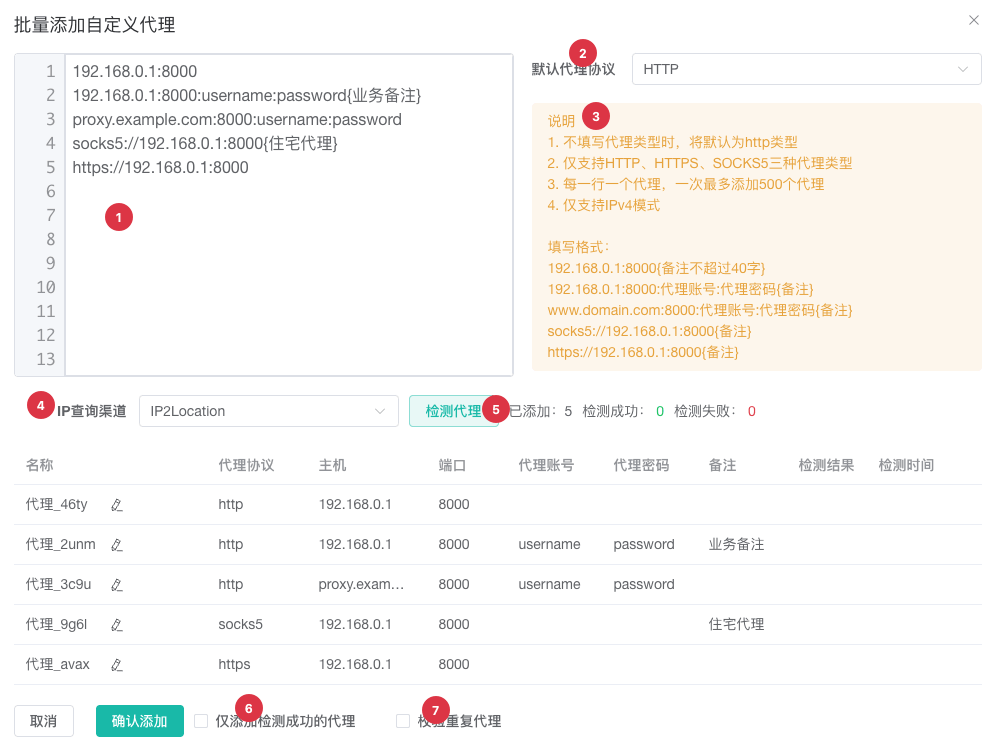
| No. | Feature | Description |
|---|---|---|
1 | Multiline input | One proxy per line; changes are parsed immediately and invalid lines are marked |
2 | Default protocol | Applied to records without a protocol prefix |
3 | Format reference | Lists supported protocols, field order, quantity limit, and IPv4 requirement |
4 | IP lookup service | Used when saving all batch records |
5 | Test statistics | Displays the added, successful, and failed counts after testing |
6 | Add successful only | Filters failed tests when submitting; requires desktop client test results |
7 | Check duplicates | Compares IP and port with saved custom proxies and skips matching records |
Batch tests run in groups to avoid excessive local requests in a short period. When Add successful proxies only is enabled, untested records are tested first. The batch cannot be submitted if no test succeeds.
Maintain Saved Proxies
Filter the list by ID, name, notes, or protocol. Edit the name, notes, or proxy protocol directly; click the browser icon to assign profiles or the copy icon to copy the complete connection details. Select records to test or delete them in bulk.
Before deleting a custom proxy, confirm that its assigned profiles no longer need it. Use Edit in the Actions column to change the host, port, username, password, or assigned profiles.
Next Steps
- Test, Assign, and Maintain Proxies: Confirm connectivity and assign browser profiles.
- Configure the Proxy API: Use a Proxy API when the provider supplies a fetch URL.