Manage Your Account and Devices
Personal Settings displays the active account's avatar, nickname, User ID, identity verification status, phone number, password status, WeChat binding, and login devices. Each action is submitted independently; there is no single Save button at the bottom.
Personal Settings
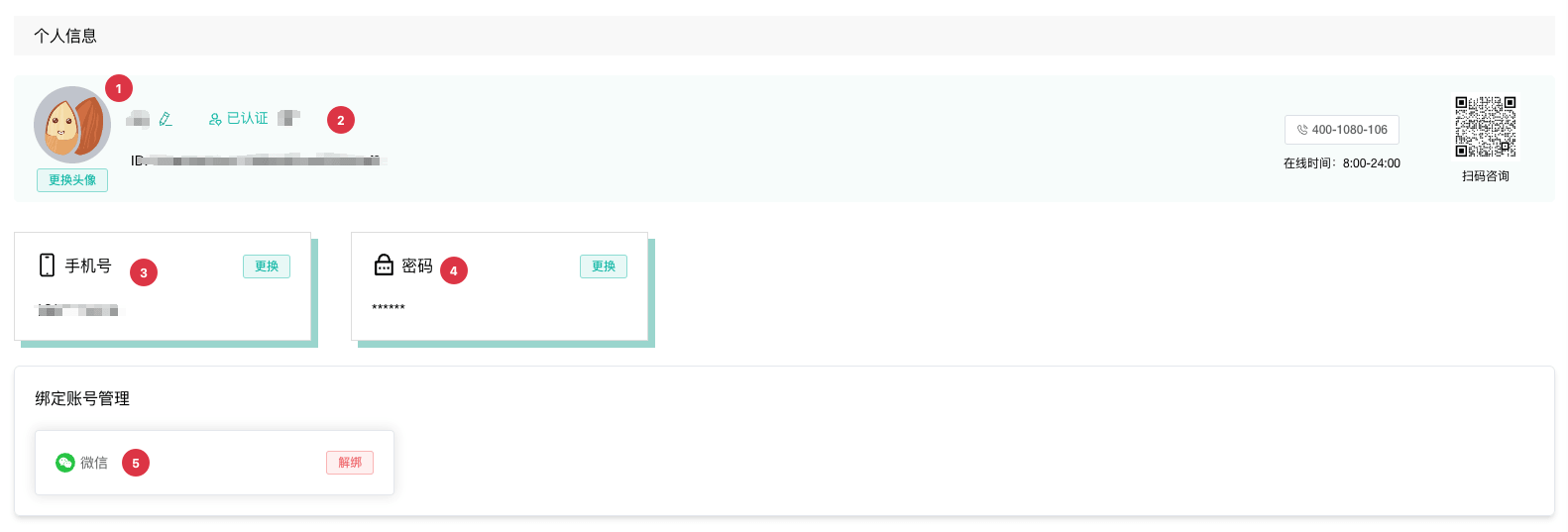
| No. | Feature | Description |
|---|---|---|
1 | Avatar and nickname | Upload and crop an avatar; click the edit icon beside the nickname to change it |
2 | Identity verification | Displays an entry when unverified, or a verified status and masked legal name after completion |
3 | Phone number | Changing it requires the new number, an SMS verification code, and the current password |
4 | Password | Change an existing password or create one when absent; verify the new password with a code sent to the current phone |
5 | WeChat binding | Bind or unbind a WeChat account; unbinding requires confirmation |
After a successful password change, the client signs out and requires the new password. If you find an unknown device, force it offline, then change the password and review WeChat and phone bindings.
Identity Verification
Identity verification is required before purchasing proxy IPs. Verified information cannot be changed and must be submitted by the account holder.
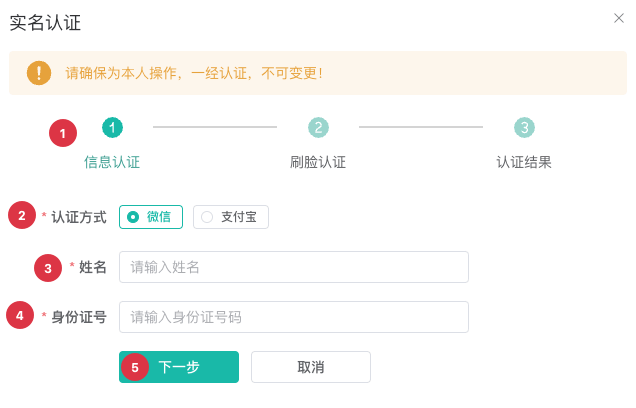
| No. | Feature | Description |
|---|---|---|
1 | Verification progress | Complete information verification and facial verification, then wait for the result |
2 | Verification method | Select WeChat or Alipay and scan the facial verification QR code in that app |
3 | Legal name | Enter the account holder's legal name exactly as shown on the national ID |
4 | National ID number | Enter a valid identification number; the client validates its format |
5 | Next | Submits the information and generates a facial verification QR code that must be scanned before the countdown ends |
The client checks the result periodically after submission. Return and try again after a timeout or failure. Never include a real QR code, name, or identification number in published tutorial screenshots.
Manage Login Devices

| No. | Feature | Description |
|---|---|---|
1 | Refresh | Reloads login devices and their online statuses |
2 | Device status | Distinguishes This Device, other Online devices, and Offline devices |
3 | Device details | Displays device name, IP, Device ID, and login time for identification |
4 | Actions menu | Appears only for other devices and provides force-sign-out or delete based on status |
5 | Sign Out | Ends the current login session on the target online device |
6 | Delete | Removes another device record after confirmation |
| Device status | Actions | Recommendation |
|---|---|---|
This Device | View details | Force-sign-out and delete are not available for the current device |
Online | Force sign out, delete | Force an unknown device offline before deleting the record |
Offline | Delete | Remove the historical record after confirming the device is no longer used |