Configure Extension Scope
Under Personal Extensions, wait until the target card finishes downloading and extracting, then click Settings. The dialog controls Visible to Team and the profile load scope. An extension loads at profile startup only when it applies to all profiles or is assigned to that specific profile.
Select the Load Scope
All Profiles and Selected Profiles cannot be enabled together:
| Setting | Result |
|---|---|
All Profiles | Applies the extension to every browser profile in the active team |
Selected Profiles | Applies the extension only to the profiles selected from the list |
| Both disabled | Clears any global or selected profile scope |
After enabling Selected Profiles, search by profile name or notes and preserve selections across pages. If the list is empty, use the dialog to open profile creation or prepare a profile through Create and Edit a Browser Profile. The creation entry requires Create Profile permission.
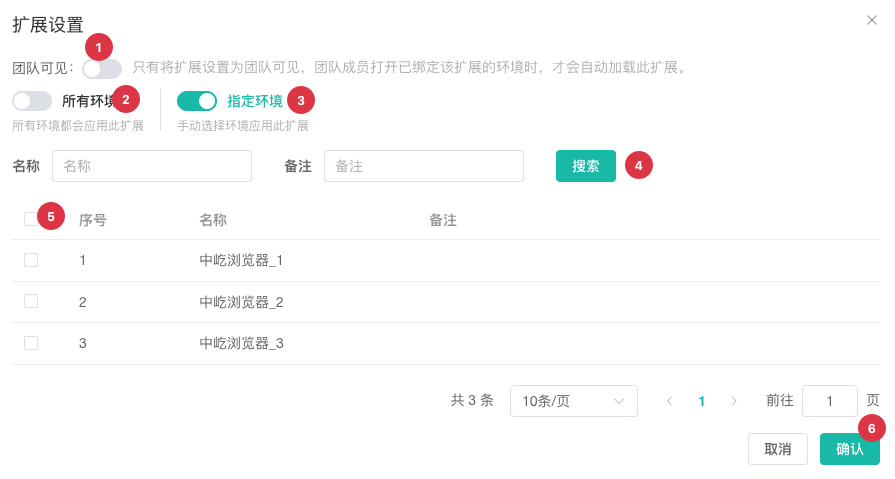
| No. | Feature | Description |
|---|---|---|
1 | Visible to Team | Allows team members to use the extension |
2 | All Profiles | Loads the extension in every profile of the active team |
3 | Selected Profiles | Opens the profile selector and automatically disables All Profiles |
4 | Profile search | Filters assignable profiles by name or notes |
5 | Profile selection | Selects profiles where the extension should load and preserves selections across pages |
6 | Confirm | Saves team visibility and the profile load scope |
Verify the Configuration
After saving, return to Personal Extensions, refresh the list, and launch a profile in the configured scope. If the card still displays download progress or an error, wait for the local files to become ready. A browser profile cannot load an extension that is not present locally.
For a team member to use a shared extension, the extension must be Visible to Team, the member must have access to the active team resources, and the launched profile must be covered by All Profiles or Selected Profiles.