Manage Integrated Proxies
Integrated Proxies lists proxies purchased through ZYBrowser and proxies synchronized from FourLeaf to the active team. Use this page to review status, assign profiles, test connectivity, and copy connection details. Renewal and deletion actions depend on the proxy source.
Review Proxy Status
The list displays the proxy name, type, protocol, bandwidth, IP, port, username, password, test result, notes, and expiration time. An expired record displays Expired; a reminder appears when no more than 3 days remain.

| No. | Feature | Description |
|---|---|---|
1 | Proxy type | Identifies a Static or Residential proxy |
2 | Proxy protocol | Switch between HTTP and SOCKS5 |
3 | Test result | Displays the previous result and time; click refresh to test again |
4 | Expiration status | Identifies active, expiring, and expired proxies |
5 | Auto-renewal | Updates the auto-renewal status when supported |
6 | Assigned profiles | Click the browser icon to manage profiles; the number is the current assignment count |
Passwords are masked by default. Only members with Edit Proxy permission can reveal or copy a password or use the full-detail copy action.
Purchase and Synchronize Proxies
Click Purchase Proxy to open Purchase Proxy IPs under Billing. After payment, return to Integrated Proxies to see the new record.
For a proxy purchased from FourLeaf, click Sync FourLeaf Proxies. If authorization is missing or expired, the client opens the system browser to authorize access. Stay on the current page during authorization, then return to the list and refresh.
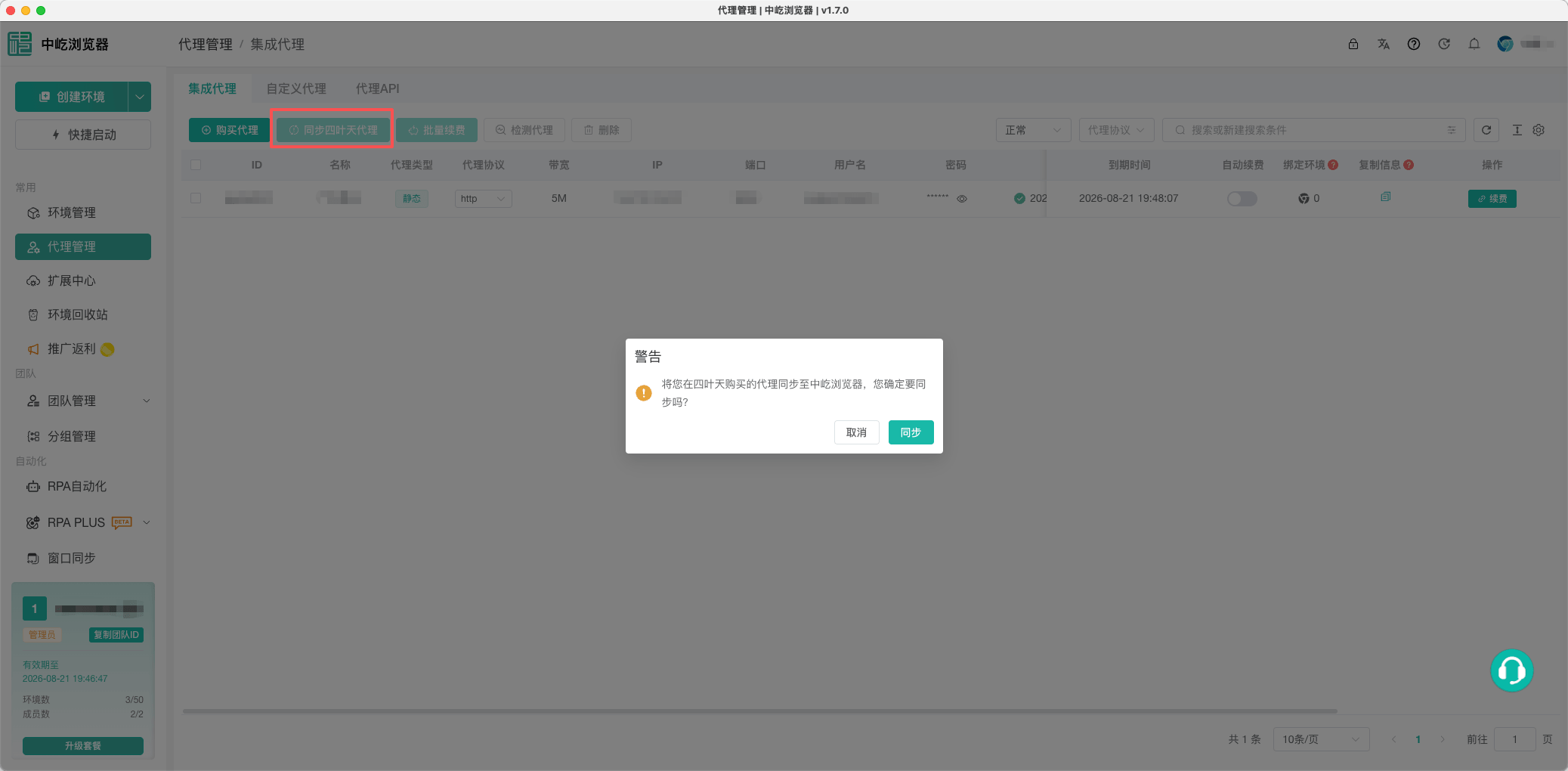
FourLeaf synchronization and authorization require the desktop client. If it cannot open the authorization page, confirm that the operating system allows the client to open an external browser, then start synchronization again.
Renew Proxies and Configure Auto-renewal
Select proxies purchased through ZYBrowser and click Batch Renew, or click Renew in an individual row. The dialog displays the duration, coupon, payment method, and final price. Supported payment methods are WeChat Pay, Alipay, and balance.
A proxy synchronized from FourLeaf displays Renew at Provider and opens the provider's website; it cannot be renewed inside ZYBrowser. An integrated proxy purchased directly through ZYBrowser can use the Auto-renewal switch when the record supports it.
Test, Assign, and Delete
Select several proxies and click Test Proxy, or run another test from an individual record's Test Result column. The test uses the current IP, port, username, password, and protocol and must run in the desktop client.
Click the browser icon under Assigned Profiles to assign the proxy to existing profiles. Those profiles then use the saved proxy. See Assign a Proxy to a Browser Profile for details.
An integrated proxy purchased through ZYBrowser cannot be deleted from the list. A record synchronized from FourLeaf can be removed from ZYBrowser without deleting the purchased proxy at the provider.
Next Steps
- Test, Assign, and Maintain Proxies: Assign purchased proxies to browser profiles.
- Proxy Troubleshooting: Resolve test, synchronization, or renewal issues.