Configure Window Sync Settings
Click Sync Settings in the upper-right corner of the console. The dialog contains Synchronization, Simulated Actions, and Shortcuts. Click Save Settings to persist changes. If you close the dialog with unsaved changes, the client asks whether to discard them.
Synchronization Events
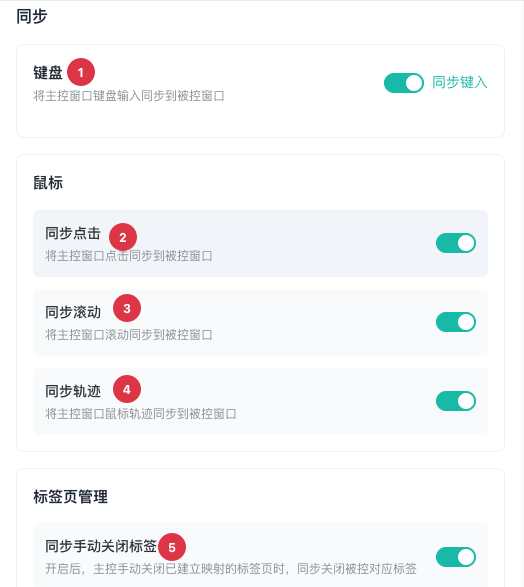
| No. | Feature | Description |
|---|---|---|
1 | Sync Typing | Sends controller keyboard input to targets; disabling stops real-time keystroke distribution |
2 | Sync Clicks | Sends controller clicks to targets; different page structures or zoom levels can produce different click locations |
3 | Sync Scrolling | Sends controller scrolling to targets to keep their positions similar |
4 | Sync Pointer Movement | Sends controller pointer movement to targets; disable when page performance is limited |
5 | Sync Manually Closed Tabs | Closes corresponding target tabs when a mapped controller tab is closed; multi-window or multi-tab use can increase detection overhead and latency |
Enable only the events your workflow requires. For CAPTCHAs, file pickers, system dialogs, or structurally different pages, validate each event before expanding the synchronization scope.
Simulation Speed
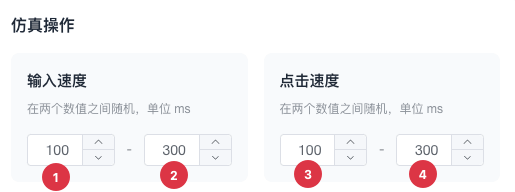
| No. | Feature | Description |
|---|---|---|
1 | Minimum typing delay | Lower bound in milliseconds between characters when Typing Delay is enabled in Text Management |
2 | Maximum typing delay | Upper bound; the system chooses a random value between the minimum and maximum |
3 | Minimum click delay | Lower bound in milliseconds before a text command when Click Delay is enabled |
4 | Maximum click delay | Upper bound; must not be less than the minimum |
Both ranges support 0-5000 ms. Increase delays for a slow target website, but excessive values substantially reduce batch throughput.
Shortcuts
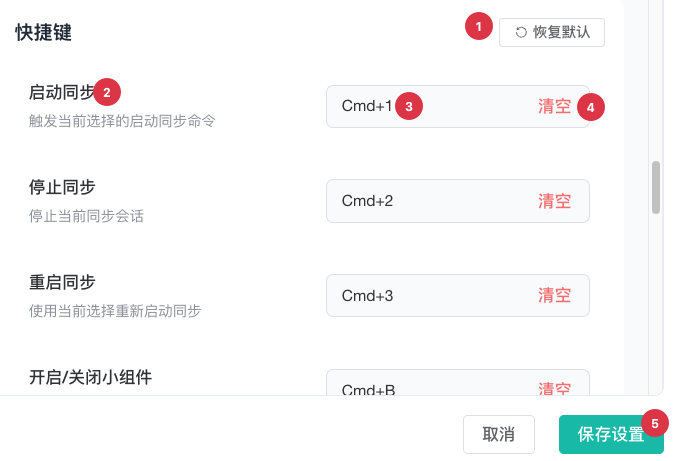
| No. | Feature | Description |
|---|---|---|
1 | Restore Defaults | Replaces all shortcut changes with defaults after confirmation |
2 | Command descriptions | Covers start, stop, restart, widget, window layout, text input, and tab commands |
3 | Record Shortcut | Click the field and press a combination of Ctrl or Command with a letter or number |
4 | Clear Shortcut | Removes the combination for only the current command |
5 | Conflict warning | Marks identical combinations used by different commands so they can be resolved |
6 | Save Settings | Saves synchronization, simulation speed, and shortcut settings |
Shortcuts can conflict with the operating system, browser, or business website. Validate them on a test page to avoid triggering the website's own commands.