Flow Control Nodes
Flow Control nodes determine where a workflow starts, which branch it follows, what it repeats, how it controls the task, and when it ends. This guide covers all 11 flow management nodes.
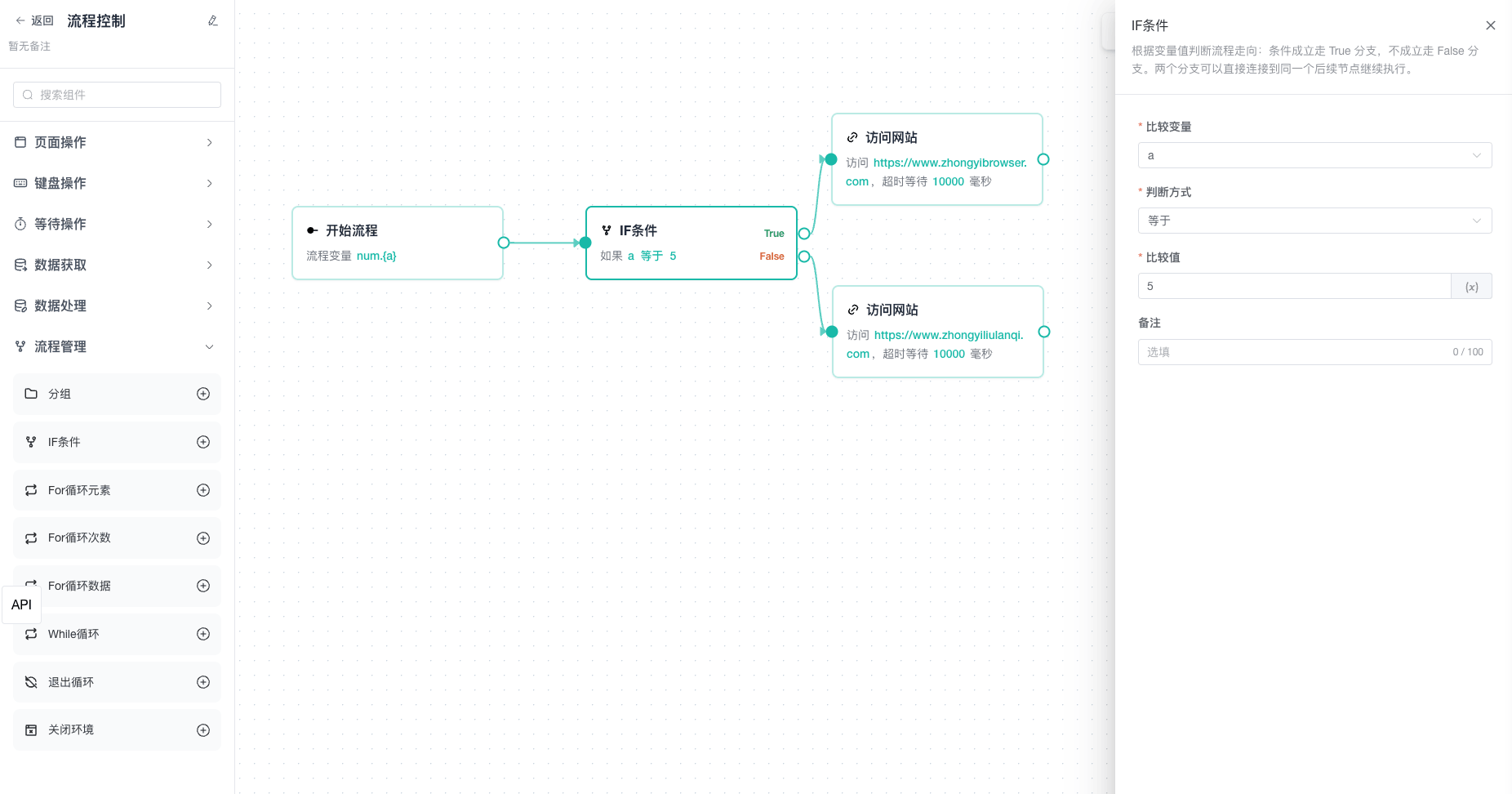
Start
Start is the single fixed entry for every workflow. It is added automatically, cannot be deleted, and does not appear in the addable node list.
Use it to define global variables. They are injected at workflow start and available to downstream nodes across the workflow.
When debugging from an intermediate node, Start variables are still injected. Ordinary nodes before the selected node do not run and do not produce output variables.
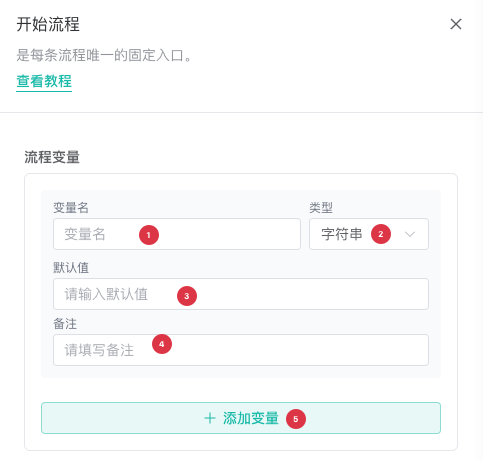
| No. | Setting | Description |
|---|---|---|
| 1 | Variable name | Enter a valid, unique global variable name |
| 2 | Type | Select a data type such as String, Number, Boolean, Array, or Object |
| 3 | Default value | Enter an initial value that matches the selected type |
| 4 | Notes | Optionally describe the variable's purpose |
| 5 | Add variable | Add another global variable configuration |
Group
Collects a sequence of linear operations into an ordered execution block. Nodes inside a group run in display order.
Inside a group, you can:
- Drag in ordinary nodes.
- Reorder nodes.
- Edit or delete child nodes.
- Set child nodes to stop or skip on error, individually or in bulk.
- Drag child nodes back to the top-level canvas.
- Ungroup the complete group.
These nodes cannot be placed in a group:
- Start.
- Another Group.
- IF.
- For Each Element, Repeat N Times, For Each Data Item, and While.
- Break Loop.
Group nodes can use upstream variables and output variables from earlier nodes in the same group.
Review the Main Flow After Grouping
Dragging a top-level node into a group deletes its existing edges. The editor does not reconnect the original predecessor and successor. Review the main flow after the operation.
See Use the Workflow Editor for automatic grouping criteria and limits.
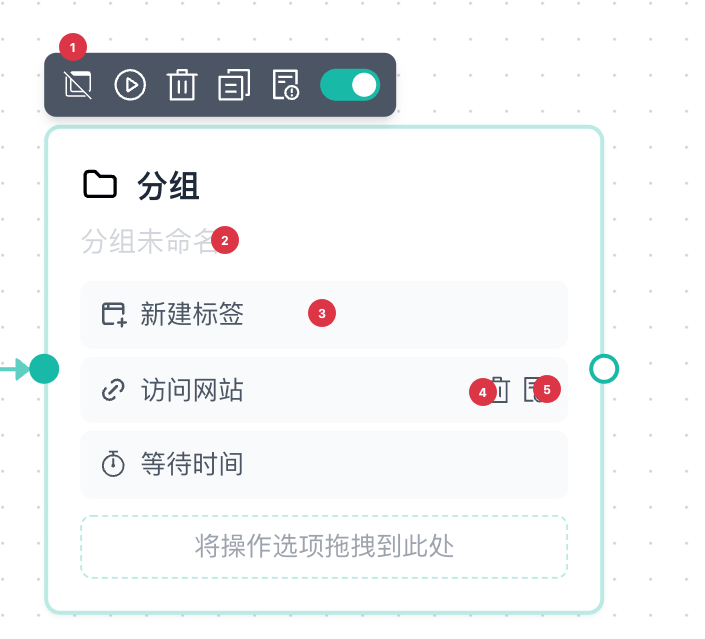
| No. | Feature | Description |
|---|---|---|
| 1 | Ungroup | Removes the current group, moves its nodes out, and preserves node order and connections |
| 2 | Edit group name | Changes the group name for identification |
| 3 | Edit / move node | Click a configured node to edit it, or press and drag it within the group to reorder |
| 4 | Delete | Deletes the selected node |
| 5 | Error handling | Sets the current child node to stop or skip on error. See Group Nodes and Child Nodes for behavior and group error branch configuration |
Configure Child Node Error Handling in Bulk
To apply the same error handling strategy to all child nodes in a group, click Child Node Error Settings (Batch) in the group's floating toolbar.

The dialog displays the number of child nodes in the current group. Select an error handling strategy, then click Confirm to apply it to all child nodes in that group.

| Option | Behavior on error |
|---|---|
| Stop: Stop the current group on error | Stops the remaining nodes inside the group, then follows the group's error handling configuration |
| Skip: Continue execution on error | Skips the failed child node and continues with the next node inside the group |
The batch setting overwrites each child node's existing error handling setting. The group's own error handling configuration remains unchanged. See Group Nodes and Child Nodes for how group and child node error handling interact.
IF
Reads a system or workflow variable in the current scope and chooses the True or False branch based on a comparison.
Configure a Condition
IF supports:
| Operator | Purpose |
|---|---|
| Exists / Does Not Exist | Checks whether a variable has a usable value without a comparison value |
| Less Than / Less Than or Equal | Checks whether a number or comparable value is below the target |
| Equal / Not Equal | Checks whether the two values match |
| Greater Than / Greater Than or Equal | Checks whether a number or comparable value is above the target |
| Contains / Does Not Contain | Checks whether a value contains the target |
| In / Not In | Checks whether a value belongs to a target collection |
Every operator except Exists and Does Not Exist requires a comparison value and uses the selected comparison type.
IF reads existing variables; it does not create an output variable with the same name.
Connect Branches
IF has no implicit standard output. Connect both:
True: Executes when the condition is satisfied.False: Executes when it is not.
The branches can merge later through a valid ordinary node. Nested IF nodes also support merges, but every branch must remain complete and structurally identifiable.
                 ┌→ True branch  ─┐
Start → IF       │                → Merge node
                 └→ False branch ─┘
Validation fails when either branch is missing.
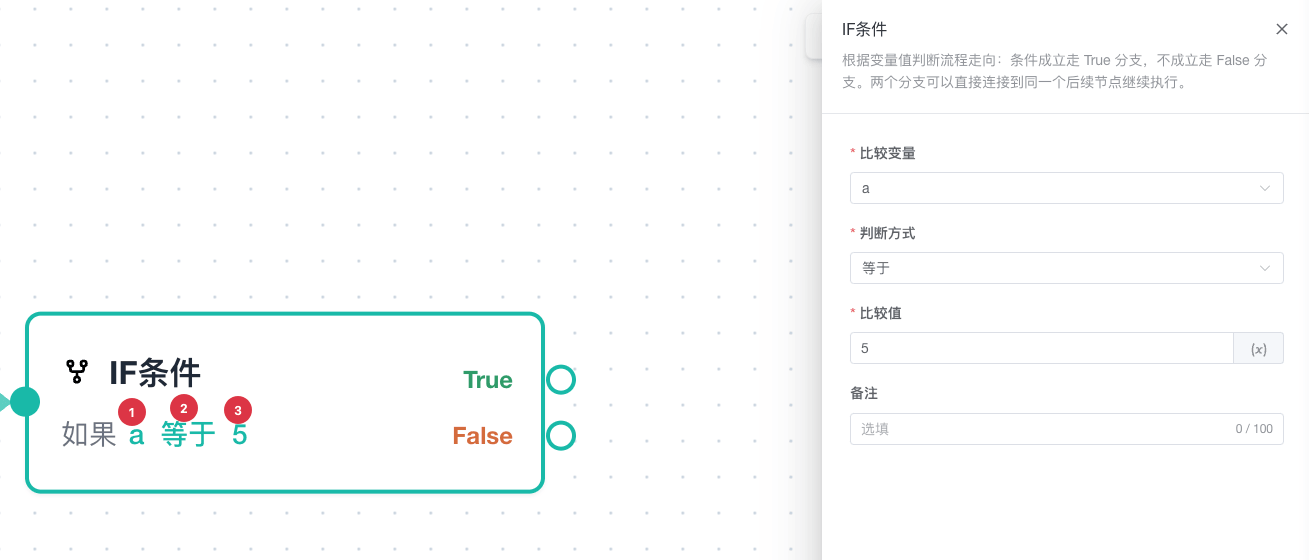
| No. | Setting | Description |
|---|---|---|
| 1 | Variable | Select the system or workflow variable to read for the condition |
| 2 | Operator | Select Exists, Equal, Contains, or another comparison |
| 3 | Comparison value | Enter the target value for every operator except Exists and Does Not Exist; variables are supported |
Shared Connections for Structured Loops
For Each Element, Repeat N Times, For Each Data Item, and While share this port structure:
                  ┌── Loop Start → loop body ──┐
Upstream → Loop   │                            │
                  └ ←──── Loop End ────────────┘
                     │
                     └→ nodes after the loop
The loop body must return to Loop End. Connecting it directly to the default output breaks the structure and fails validation.
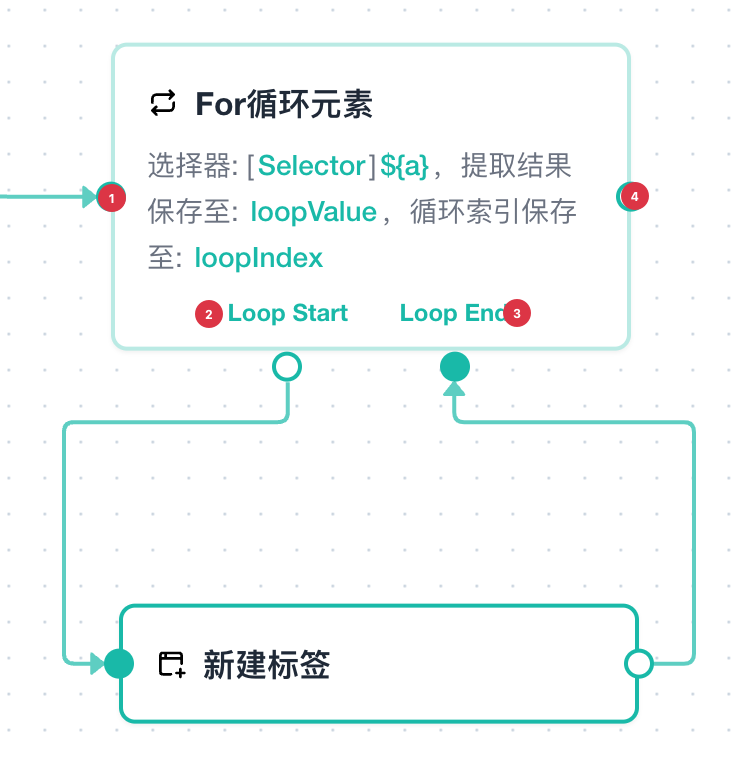
| No. | Port | Purpose | Connection rule |
|---|---|---|---|
| 1 | Main input | Enters the loop from upstream | At most one standard input |
| 2 | Loop Start | Enters the current iteration body | At most one output connection |
| 3 | Loop End | Returns from the body to the loop header | At least one back edge; can receive several loop branches |
| 4 | Default output | Continues the main flow after the loop | At most one; can remain unconnected |
For Each Element
Uses a selector to iterate over matching page elements, handling one per iteration.
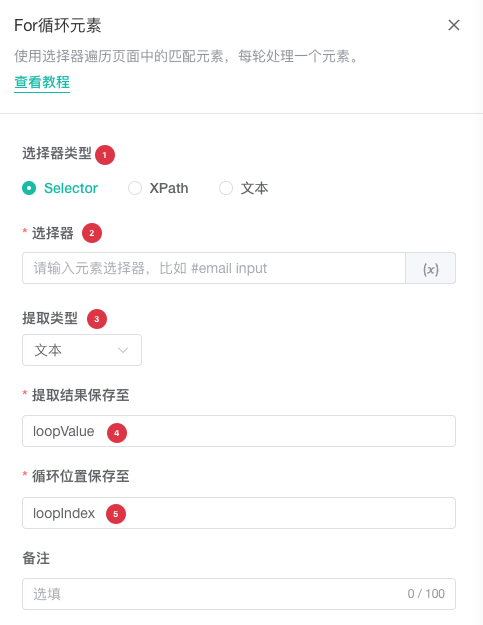
| No. | Setting | Description |
|---|---|---|
| 1 | Selector type | Select Selector, XPath, or Text |
| 2 | Selector | Enter the location of the elements to iterate; variables are supported |
| 3 | Extraction type | Select text, DOM object, iframe, source, attribute, or child element; attributes and children also require an extraction target |
| 4 | Save extraction result to | Enter the variable name for each extracted value; the default is loopValue |
| 5 | Save loop index to | Enter the current index variable name; the default is loopIndex |
The default current value variable is loopValue; the default index is loopIndex. Nodes in the loop body can use them.
For example, read product card text one by one:
For Each Element → Get or process ${loopValue} → Loop EndTo click the current element directly, extract its DOM object and use that element object variable in Click Element.
Repeat N Times
Repeats the body for a positive integer. The default count is 3 and the default index variable is loopIndex.
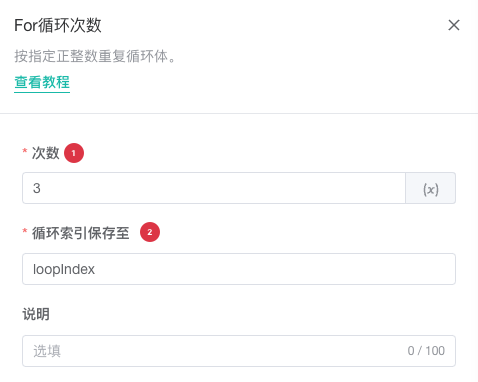
| No. | Setting | Description |
|---|---|---|
| 1 | Repeat count | Enter a positive integer or reference a workflow variable; the default is 3 |
| 2 | Save loop index to | Enter the current index variable name; the default is loopIndex |
The repeat count can be a positive integer or a workflow variable. At runtime, the variable must resolve to a valid positive integer.
Suitable uses:
- Retry a fixed number of times.
- Turn a page a specified number of times.
- Repeat input or checks according to a configuration.
Do not use a fixed loop for unlimited retries. Set a reasonable count and combine error handling or conditions to stop.
For Each Data Item
Iterates through an array, object, or unknown variable. The default current item is loopItem, and the default index is loopIndex.
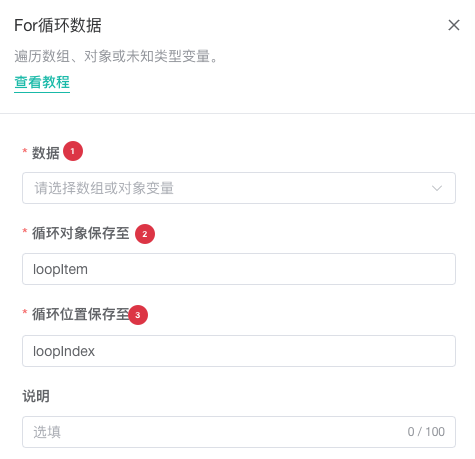
| No. | Setting | Description |
|---|---|---|
| 1 | Data | Select an input variable of type Array, Object, or Unknown |
| 2 | Save current item to | Enter the variable name for the current item; the default is loopItem |
| 3 | Save loop index to | Enter the current index variable name; the default is loopIndex |
Common sources:
- An array from Start.
- A full array imported from Excel.
- An array or object from JSON parsing or field extraction.
- A list in an upstream request response.
For example, visit a URL array:
For Each Data Item → Access ${loopItem} → Loop EndFor an object or Unknown value, inspect debug data first, then configure field extraction or page actions using the actual loopItem and loopIndex values.
While
Repeats while a condition is true. It uses the same variables and operators as IF, with Exists as the default operator.
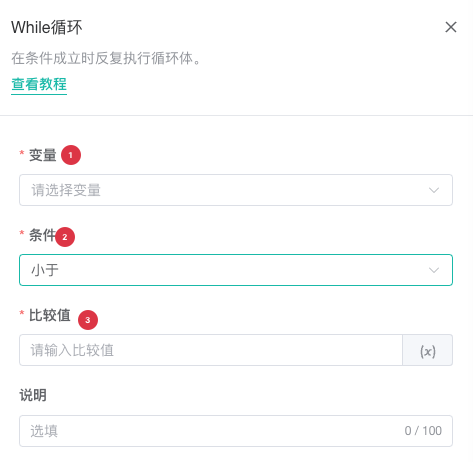
| No. | Setting | Description |
|---|---|---|
| 1 | Condition variable | Select a system or workflow variable in the current scope |
| 2 | Operator | Select an existence, comparison, contains, or collection operator |
| 3 | Comparison value | Enter the target value except for Exists and Does Not Exist; variables are supported |
The loop body must contain an operation that eventually makes the condition false.
Prevent an Endless Loop
If the body never changes the condition, While can run until the workflow or task times out. Provide a clear exit condition and set a reasonable workflow or per-profile timeout.
Break Loop
Ends the current loop early without additional business configuration.
It is commonly placed in an IF branch:
Loop body → IF target found ─True→ Break Loop
                         └False→ continue → Loop End
Break Loop is valid only on a loop path. It cannot be placed in a group or used as the termination node for an ordinary workflow.
Close Profile
Closes the current browser profile and ends its execution path. It has no business configuration.
Connection rules:
- One standard input only.
- No standard output.
- An error branch can still be connected according to the node's error handling.
Use it to end a profile after a branch completes or clean it up when a stop condition is detected. Whether a formal task closes profiles after normal completion is controlled by Browser Behavior.
Task Management
Task Management nodes control the current task during execution. Both are terminal nodes: they need no configuration and cannot connect to a following ordinary action.
Stop Task
Stops further execution of the current task. The node waits for already started batches to register the stop before committing task control, and no new execution batches are scheduled. Check Run History to confirm each profile's final state.
Disable Task
Stops the current task and sets its enabled state to off. A disabled task is not started by later scheduling. Re-enable it from Task Management before running it again. This node is also terminal and cannot connect to a following ordinary action.
Variable Scope
Flow Control variables follow execution paths:
- IF and While can read only variables already produced upstream.
- A loop body can read index, current item, or extracted-value variables produced by the loop.
- When calculating variables available at a loop header, the editor ignores the
Loop Endback edge to prevent body variables from leaking into the header prematurely. - Group children can read upstream group variables and output from earlier nodes inside the group.
- A later definition with the same name overwrites the earlier value.
Common Validation Errors
IF Branch Is Missing
Check that both True and False are connected. Even when one branch has no immediate action, design a clear downstream path.
Loop Back Edge Is Missing
Confirm that the end of the loop body connects to Loop End, not to the main input or default output.
Loop Body Cannot Access a Variable
Check that the node is downstream of Loop Start and that the variable name matches the loop configuration.
Standard Node Has Invalid Multiple Inputs
A standard node can receive multiple standard inputs only when valid IF branches merge. A rejoining error connection does not count toward the standard input limit, so an error branch and the normal path can connect to the same downstream node. See Rejoin the Normal Path from an Error Branch. Restructure unrelated paths instead of connecting multiple independent paths directly to the same node.
A Node Remains Connected After Close Profile
Close Profile is terminal and has no standard output. Delete the following connection or move the operation before Close Profile.
A Task Management Node Has a Following Connection
Stop Task and Disable Task are terminal nodes. Delete the ordinary output connection and move required actions before the task management node.
Related Guides
- Use the Workflow Editor: Learn groups, error branches, and graph validation.
- Variables and Data: Review variable scope in loops and branches.
- Data Processing Nodes: Transform data in a loop body.
- Debug Automation Workflows: Review structured IF, loop, and group logs.