Core Concepts and Variable Types
When you first use RPA, remember three principles: workflows consist of nodes, variables store data, and tasks execute workflows.
After completing this guide, you will be able to:
- Understand the essential terms in the workflow editor.
- Select appropriate variable types for URLs, numbers, and collections.
- Create variables and reference them in nodes.
Common Terms
| Term | Meaning | Example |
|---|---|---|
| Workflow | A complete sequence of automation steps | Open a product page, read its price, and save it to a file |
| Node | One operation in a workflow | Open a website, click an element, or wait for 3 seconds |
| Connection | Determines node execution order | Click an element after opening the website |
| Variable | Passes data between nodes | Store a target URL or product title |
| Browser profile | The isolated context where the workflow runs | A dedicated account and cookie context |
| Task | Combines a workflow, profiles, and an execution schedule | Run a workflow every day at 09:00 |
What Is a Variable?
Think of a variable as a labeled container: its name is the label, and its value is the current content.
For example, create target_url with a default value of https://example.com. Reference it in an Access Website node, and the node opens that URL when it runs.
Variables let you define a URL once and reuse it. When the browser profile changes, the workflow can still access the data for the active profile.
Variable Sources
| Source | Description | Common uses |
|---|---|---|
| System variable | Provided automatically by RPA at runtime | Task ID, profile number, and cookies |
| Start node variable | Created at workflow start and available throughout the workflow | Target URL, keyword, and loop count |
| Node output variable | Produced after a node runs and available only to downstream nodes | Product title, API response, and extracted result |
Common system variables include:
| Variable | Value |
|---|---|
task_id | Active task ID |
serial_number | Active browser profile row number |
browser_name | Active browser profile name |
cookies | Cookie data for the active profile |
Sensitive Information
account_password and cookies may contain login credentials. Never write them to debug logs, screenshots, public files, or messages to unrelated people.
Variable Scope
- System variables and Start node variables are available from workflow start to finish.
- A variable produced by an intermediate node is available only to downstream nodes after that node.
- Across branches, the variable picker displays only variables from execution paths that can reach the active node.
In this workflow, product_title is available only to Save to File:
Start → Get Element Data → Save to FileCreate a Variable
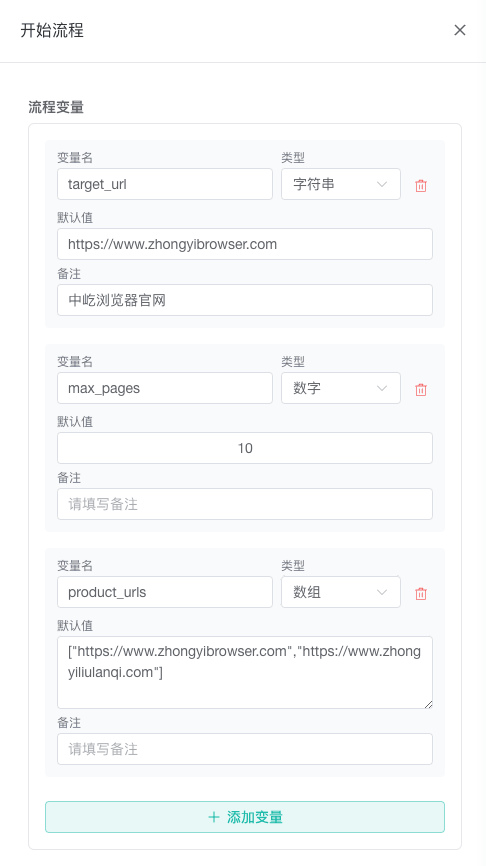
Create a variable in the Start node or Variable Management node:
- Select the node and open its configuration panel on the right.
- Click Add Variable.
- Enter a name and select a type.
- Enter a default value, or leave it empty when no initial value is required.
- Describe its purpose in Notes and save the node configuration.
Select a Variable Type
Choose a type according to how the value will be used, not only its name:
| Type | Suitable value | Example |
|---|---|---|
| String | Short single-line text | https://example.com |
| Number | A value used in arithmetic or numeric comparisons | 3 |
| Boolean | Yes/no or enabled/disabled state | true |
| Array | An ordered collection | ["Account A", "Account B"] |
| Object | Multiple fields belonging to one record | {"username":"demo","enabled":true} |
| Text | Long or multiline text | Multiline message or template |
| File | Local file path | /Users/demo/data.xlsx |
| Folder | Local directory path | /Users/demo/Downloads |
Numbers do not require quotation marks. Use a string for a URL, identifier, or other value that is not used in calculations, even when it contains only digits.
For complete input rules, see Variables and Data.
Reference a Variable in a Node
Fields that support variables display a variable button on the right. Select variables through this button so RPA inserts the correct syntax:
- Open the configuration for the node that will use the variable.
- Click the variable button beside the field.
- Find it under System Variables or Workflow Variables.
- Select the variable and save the configuration.
For example, selecting target_url inserts:
${target_url}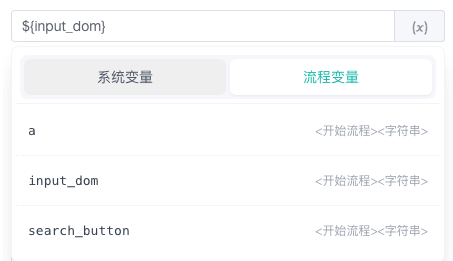
Minimal Example
Goal: Make an Access Website node use a URL that can be changed in one place.
- Create a string variable named
target_urlin Start. - Set its default value to
https://example.com. - Select
target_urlin the URL field of Access Website. - Debug the workflow and confirm that the page opens.
Afterward, changing the Start node default updates every node that references target_url.
Next Steps
- Variables and Data: Learn arrays, objects, naming rules, and complex references.
- Create an Automation Workflow: Practice adding nodes, connecting them, and debugging a complete example.
- Use the Workflow Editor: Learn the canvas, node configuration, and editing tools.