Proxy Overview
Proxies stores, tests, and assigns network egresses for browser profiles. It contains three pages based on proxy source: Integrated Proxies, Custom Proxies, and Proxy API. When you create or edit a browser profile, you can select any saved proxy.
Choose a Proxy Type
| Type | Recommended use | Source |
|---|---|---|
Integrated Proxy | Purchase, renew, or synchronize a purchased proxy | Proxies purchased from ZYBrowser or synchronized from FourLeaf |
Custom Proxy | Use a fixed host, port, and credentials received from a provider | Enter one manually or import several in bulk |
Proxy API | Fetch IPv4:port from a provider URL on demand | Enter an API URL, select an IP refresh policy, and use provider allowlist or credential authentication |
All three types support testing, profile assignment, and proxy details. To buy an integrated proxy directly, see Purchase Proxy IPs. Team permissions determine which create, edit, delete, assignment, and renewal actions are available. See Manage Members and Roles for authorization details.
Open Proxy Management
Click Proxies in the client sidebar, then select Integrated Proxies, Custom Proxies, or Proxy API. Search, protocol filters, batch actions, and column settings appear at the top. The default page size can be set to 10, 20, or 50 records.
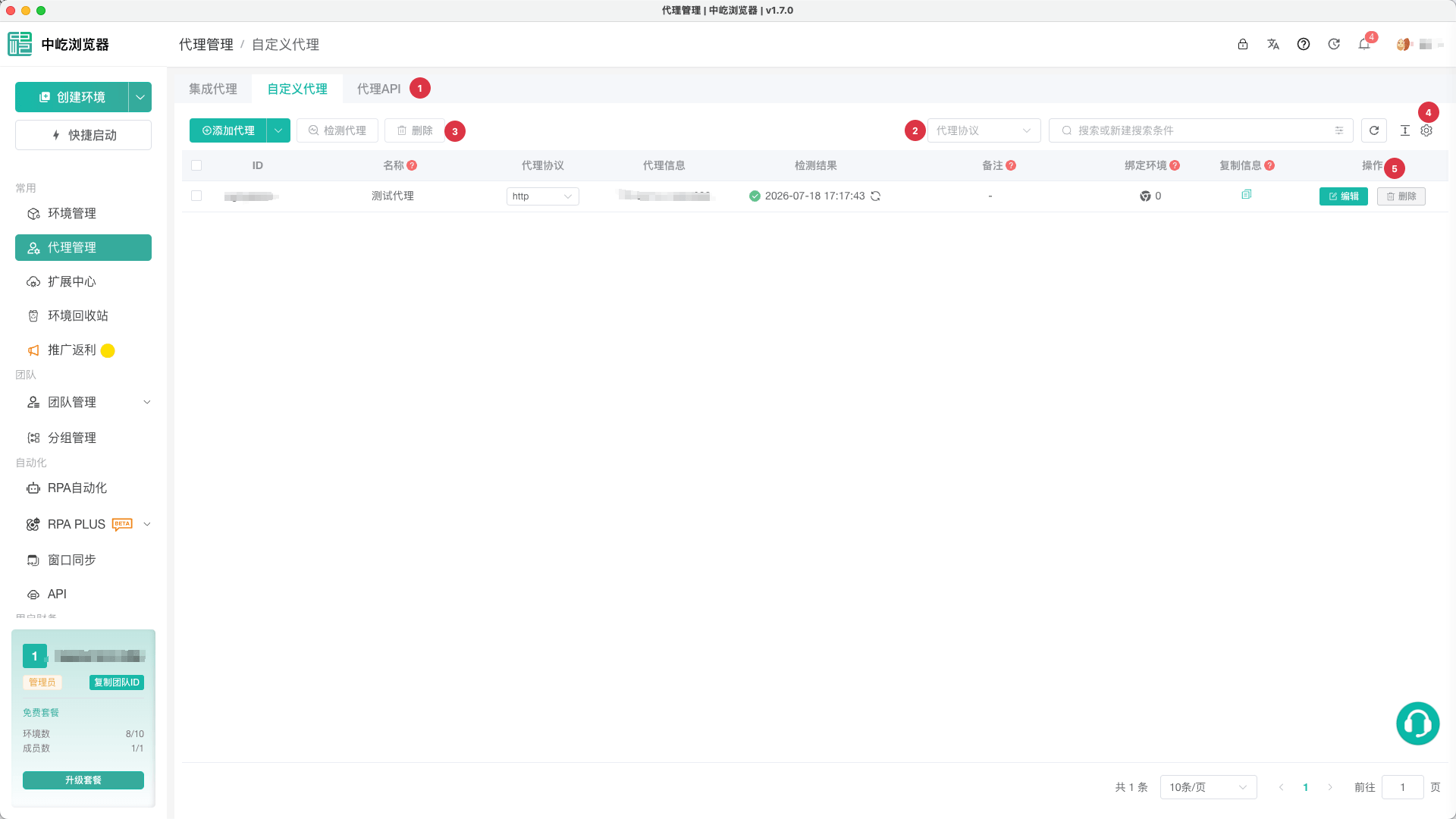
| No. | Feature | Description |
|---|---|---|
1 | Proxy categories | Switch among Integrated Proxies, Custom Proxies, and Proxy API |
2 | Search and filters | Search by ID, name, or notes; filter by protocol on every page |
3 | Batch actions | Test or delete selected records; Integrated Proxies also provides purchase, synchronization, and renewal actions |
4 | Column settings | Change column order or hide columns you do not need |
5 | Actions column | Displays edit, delete, renew, or external renewal actions based on proxy type |
Common List Actions
- Point to
NameorNotesand click the edit icon to save an inline change. - Switch HTTP, HTTPS, or SOCKS5 directly for
Custom ProxiesandProxy API.Integrated Proxiessupports only HTTP and SOCKS5. - Click the browser icon in the
Assigned Profilescolumn to open the profile selector. The number indicates how many profiles are assigned. Copy Detailsfor a custom or integrated proxy copiesIP:port:username:password. This contains sensitive credentials and is available only to members with proxy edit permission.- Select multiple records and click
Test ProxyorDeleteat the top. Before deleting, confirm that no production profile still uses the proxy.
Desktop Client and Permissions
Connectivity tests, Proxy API URL checks, and FourLeaf synchronization authorization require local capabilities and therefore work only in the desktop client. The web app can display cloud configuration but cannot perform these operations.
Common permissions map to actions as follows:
| Permission | Affected actions |
|---|---|
Create Proxy | Add a custom proxy or Proxy API |
Edit Proxy | Edit records, switch protocols, update names or notes, and view or copy sensitive proxy details |
Delete Proxy | Delete custom proxies, Proxy APIs, or removable synchronized proxies |
Assign Proxy | Assign browser profiles from a proxy list |
Renew Proxy | Renew an integrated proxy purchased through ZYBrowser or open the provider's renewal page |
Never record real passwords or Proxy API URLs in names, notes, screenshots, or public documents. Before using a proxy, also make sure its egress location is consistent with the profile's time zone, language, and geolocation.
Next Steps
- Manage Integrated Proxies: Purchase, synchronize, renew, and maintain purchased proxies.
- Add Custom Proxies: Add fixed proxies manually or import them in bulk.
- Configure the Proxy API: Update proxy IPs automatically through a provider URL.