Keyboard and Wait Nodes
Keyboard nodes send keys to the active page. Wait nodes let the workflow continue after a time, page, element, or network condition is met. This guide covers 2 Keyboard nodes and 4 Wait nodes.
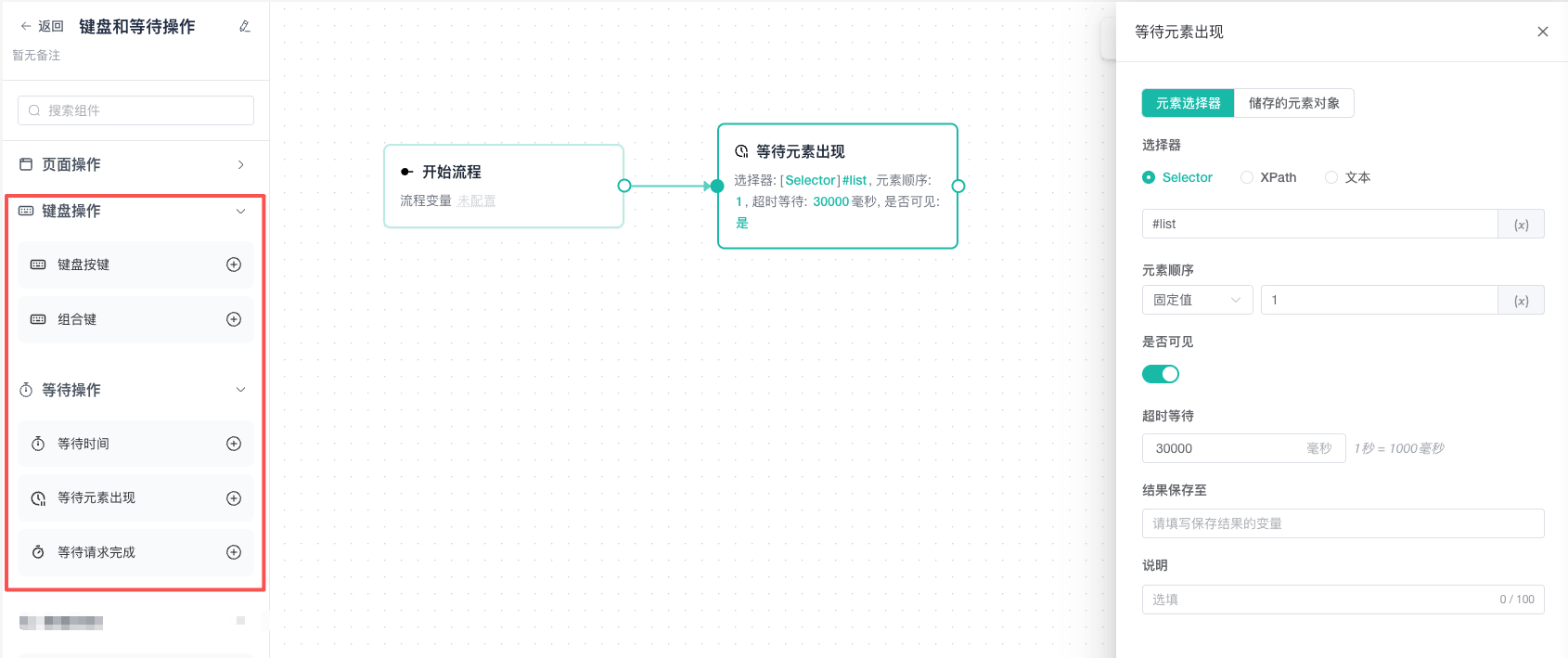
Keyboard Actions
Keyboard Key
Selects one preset key and sends it to the active page.
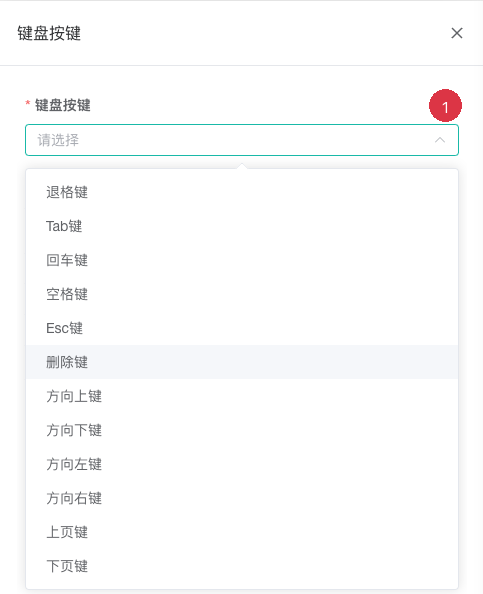
| No. | Setting | Description |
|---|---|---|
| 1 | Keyboard key | Select the key to send from the preset list |
Before sending a key, confirm that the correct page element has focus. Add Focus Element or Click Element first when necessary. Common uses include Enter to submit, Tab to move focus, arrow keys for keyboard navigation, and Escape to close an overlay.
Keyboard Shortcut
Records and sends a multi-key shortcut. The node validates the shortcut format.
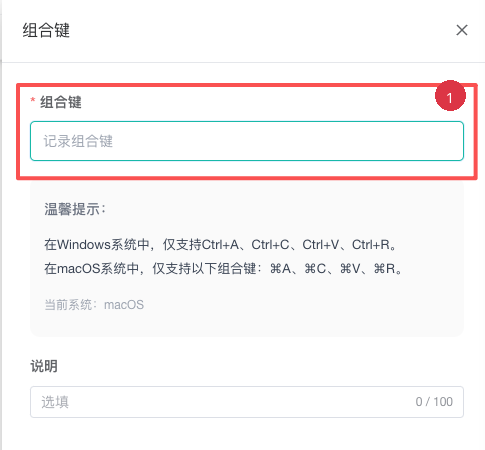
| No. | Setting | Description |
|---|---|---|
| 1 | Keyboard shortcut | Click the input and record a shortcut supported by the active operating system |
Shortcuts can be affected by the operating system, browser, and webpage. Debug them separately on each target platform and avoid high-risk system shortcuts in production workflows.
Wait
Pauses the workflow for a number of milliseconds, using either a fixed value or random range.

| No. | Setting | Description |
|---|---|---|
| 1 | Wait mode | Select Fixed Value or Random Range |
| 2 | Duration | Enter one millisecond value in fixed mode, or a minimum and maximum in range mode |
The fixed default is 2000ms; the random range default is 1000-2000ms. The minimum must not exceed the maximum.
For webpage content, prefer Wait for Element or Wait for Request because a fixed delay cannot confirm that the required state has been reached.
Wait for Page Load
Waits until the active tab's DOM is ready for interaction. If the page's document.readyState is already interactive or complete, the node continues immediately. Otherwise, it keeps checking until the page is ready or the timeout expires.

| Setting | Description |
|---|---|
| Timeout | Maximum wait in milliseconds; the default is 30000ms |
| Remark | Optional node note that does not affect execution |
Place this node after Open URL, a click that navigates, or Switch Tab. If the preceding page action opens a new tab, the node takes control of that tab and waits for it to load. Subsequent page nodes, such as Scroll Page, Click Element, and Close Tab, then continue on the new page.
If the page is still not ready before the configured timeout, the node fails with a timeout and the workflow follows its exception handling configuration. The node does not wait for every image, iframe, or third-party resource to finish. For an SPA that continues rendering asynchronously after the DOM is ready, add Wait for Element afterward and wait for a specific business element to become visible.
Wait for Element
Checks a page element until it reaches the expected state or the timeout expires.
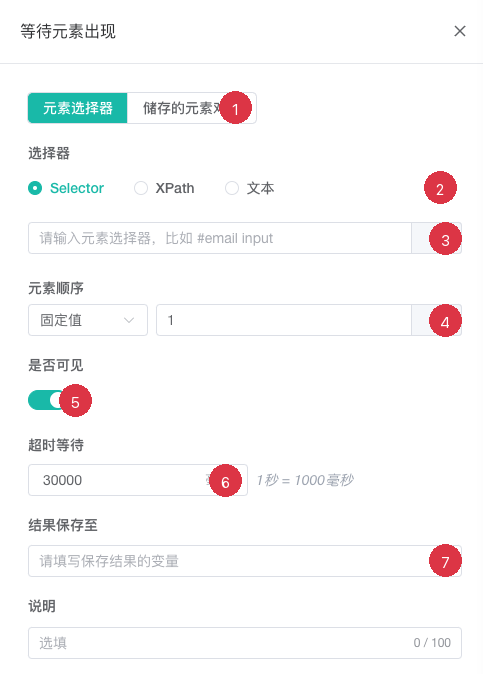
| No. | Setting | Description |
|---|---|---|
| 1 | Element source | Use an element selector or switch to an upstream saved element object |
| 2 | Selector type | Select Selector, XPath, or Text |
| 3 | Selector | Enter the element location; variables are supported |
| 4 | Element order | Select a fixed value or random range and enter the corresponding positions |
| 5 | Visible | Enable to wait until visible; disable to wait until not visible |
| 6 | Timeout | Set the wait timeout; the default is 30000ms |
| 7 | Save result to | Optionally enter a variable name for the wait result |
See Element Location and Selectors for the full location rules. A saved result can drive a downstream IF branch.
Wait for Request
Waits for a network request identified by its URL to finish.
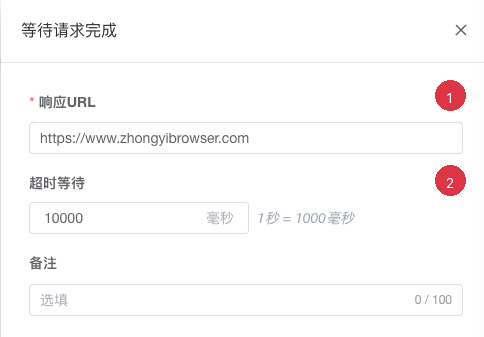
| No. | Setting | Description |
|---|---|---|
| 1 | Response URL | Enter a valid complete URL that identifies the target request |
| 2 | Timeout | Set the request timeout; the default is 10000ms |
First add the click, input, or page action that triggers the request. Add Wait for Request immediately afterward and use a timeout appropriate for the endpoint. To extract request or response content, use Listen for Request or Listen for Response.
Choose a Wait Type
Page readiness matters more than elapsed time. Waiting for a specific state reduces failures caused by varying network speed.
| Goal | Recommended node |
|---|---|
| Pause for a fixed or random duration | Wait |
| Wait until a navigation or new tab has an interactive DOM | Wait for Page Load |
| Wait for a button, table, or dialog to appear | Wait for Element, expected visible |
| Wait for a loading layer or dialog to disappear | Wait for Element, expected not visible |
| Wait for an endpoint to finish | Wait for Request |
Common Issues
A Keyboard Node Has No Effect
Check the active tab and element focus. Add Focus Element or Click Element before the keyboard node and review the execution order in debug logs.
Wait for Element Times Out
Check the selector, expected state, and active page. Scroll first for lazy-loaded elements and confirm that the workflow did not remain on the previous tab after navigation.
Elements Are Still Unavailable After the Page Loads
Some pages continue fetching data or rendering components after the DOM is ready. Wait for Page Load does not wait for that asynchronous work; use Wait for Element or Wait for Request afterward when the workflow depends on it.
Wait for Request Reports an Invalid URL
A static value must be a complete valid request URL. If the URL comes from a variable, confirm that an upstream node produces a complete address at runtime.
A Fixed Wait Still Fails in Some Profiles
Network and page response time vary by profile. Replace the fixed wait with an element or request condition and set a suitable timeout.
Related Guides
- Page Action Nodes: Focus elements, click pages, and trigger requests.
- Data Collection and Storage Nodes: Listen for and extract request data.
- Debug Automation Workflows: Locate wait failures in logs.