Element Location and Selectors
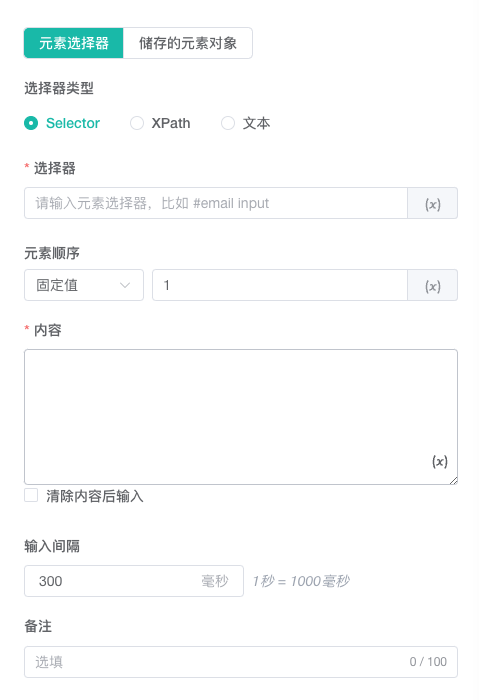
Nodes that click, type, hover, or read page content must identify a webpage element. RPA can locate it again on the active page or reference an element object saved by an upstream node.
Select an Element Source
Element-based nodes provide sources according to their function:
| Source | Behavior | Suitable use |
|---|---|---|
| Element selector | Searches the active page again when the node runs | The page structure is stable or the current page target must be found each time |
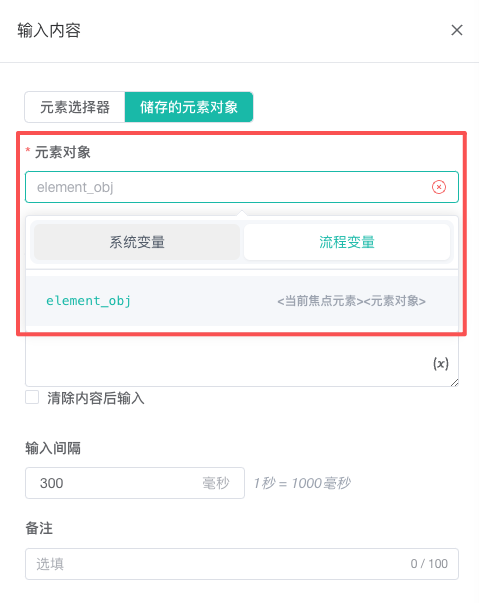
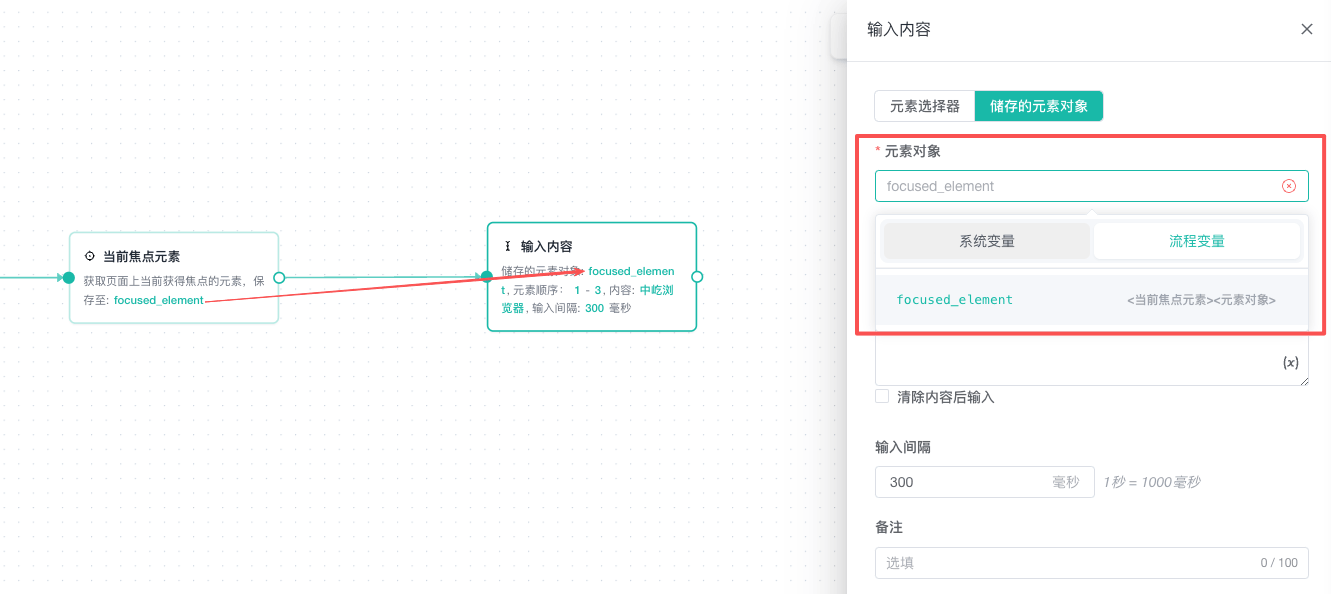
| Saved element object | Uses an element variable output by an upstream node | A focused element, DOM object, or current loop element is already available |
After selecting a saved element object, select its variable without entering another selector.
Select a Location Method
CSS Selector
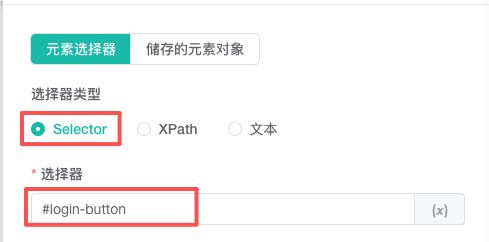
A CSS selector works well when a page has a stable id, class, or attribute.
#login-button
.product-card
input[name="email"]
Prefer stable attributes that express a business meaning. Avoid frequently changing generated class names or unnecessarily long hierarchy paths.
XPath
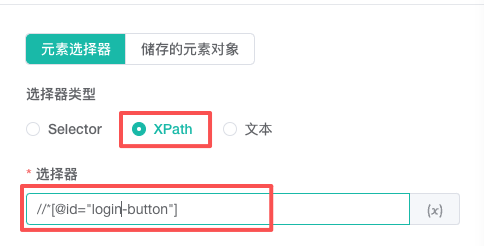
XPath locates an element using hierarchy, attributes, or text relationships and is useful when a CSS selector cannot express the required structure.
//button[@type="submit"]
//div[@data-role="product"]//span[@class="price"]
XPath is sensitive to structural changes. Relative paths with stable attributes are more resilient to small page changes.
To obtain a CSS selector or XPath from a webpage, see Get a CSS Selector or XPath.
Text Content
Text location searches displayed text and is suitable for buttons, menus, and stable labels.
Sign in now
Submit order
When the same text appears more than once, specify an element index or use a more precise CSS selector or XPath.
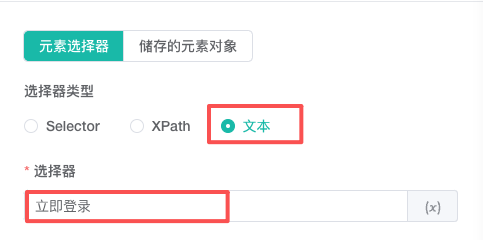
| Rule | Suitable use | Recommendation |
|---|---|---|
| CSS Selector | The page has a stable id, class, or attribute | Prefer business attributes over generated class names |
| XPath | Hierarchy, attribute, or text relationships are required | Use a relative path to reduce sensitivity to structural changes |
| Text content | A button, menu, or label has stable, mostly unique text | Add an element index for duplicates or use a more precise rule |
Select a Matching Element
One selector can match several elements. Select the operation target with either method.
Fixed Index
Enter the natural position in the results; for example, 1 selects the first match. A fixed index can use a workflow variable.
Use it when structure and order are stable, such as clicking the first search result.
Random Range
Enter a minimum and maximum index. At runtime, RPA randomly selects a matching element in that range. For example, 1 through 5 chooses one of the first five matches.
Before using a random range, ensure the page has enough matching elements. Otherwise reduce the maximum or wait for the page content to load.
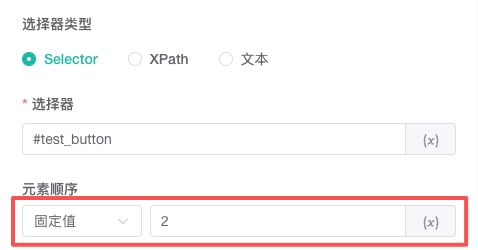
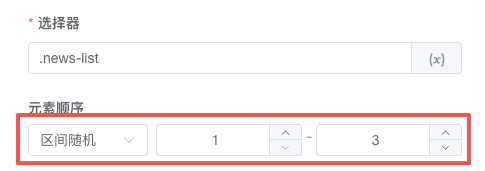
| Example | Configuration | Result |
|---|---|---|
Fixed 2 | Fixed index: 2 | Always selects the second matching element |
Random 1-3 | Minimum: 1; maximum: 3 | Randomly selects one of the first three matches |
Use a Variable in a Selector
A selector field marked as variable-enabled can include system or visible workflow variables. When product_id is 10001, this creates a complete selector:
[data-product-id="${product_id}"]Use the variable button beside the field to avoid syntax mistakes. Only variables produced upstream of the active node appear.
Use a Saved Element Object
These nodes can produce element objects:
- Get Element Data when returning a DOM object or another element result.
- Get Focused Element for the element currently focused on the page.
- For Each Element for the DOM object of the active loop element.
A downstream node that supports element objects can select the variable directly:
Get Element Data → Click ElementAn element object is not plain text or manually authored JSON. It represents an element in the active page session and is available only on downstream paths from its source.
Common Scenarios
Enter an Account Name
- Add Enter Text.
- Select Element Selector as the source.
- Select CSS Selector as the location method.
- Enter
input[name="username"]. - Reference the account variable as the input value.
Click One Item in a Repeated List
- Match every Open button with
.result-item .open-button. - Select Fixed Index.
- Enter
1and validate the first result. - After debugging, replace it with a variable or random range if required.
Operate on the Focused Element
- Use Get Focused Element and save the result as
focused_element. - Select Saved Element Object in a downstream Enter Text or Click Element node.
- Select
focused_element; no CSS selector or XPath is required.
Improve Location Stability
- Prefer business attributes such as
name,data-*, or a stableid. - Avoid generated class names and absolute XPath.
- Add Wait for Element before an action on a slow page.
- For an element inside an iframe, ensure the extraction or location configuration uses the correct page context.
- When a selector matches several elements, explicitly configure a fixed index or random range.
- Debug again after page structure changes rather than relying on a selector that worked previously.
Troubleshooting
Element Not Found During Debugging
Confirm that navigation is complete, the selector matches the active page, and the target is visible. Add Wait for Element and increase the timeout if required.
Selector Matches the Wrong Element
Narrow the CSS selector or XPath and check the element index. Use a stable attribute instead of duplicated text.
Element Object Variable Is Unavailable
Confirm that the upstream node outputs an element and the active node is on a reachable downstream path. A string, object, or variable produced later does not appear in the element object list.
Selector Breaks After a Page Update
Inspect the DOM again and use a more stable attribute. For a changing list, prefer a relative rule inside the list container over a full hierarchy and fixed position.
Related Guides
- Get a CSS Selector or XPath: Copy and validate a location value with browser developer tools.
- Page Action Nodes: Configure clicks, input, hover, and scrolling.
- Data Collection and Storage Nodes: Read element content and element objects.
- Keyboard and Wait Nodes: Wait for an element.
- Variables and Data: Understand element object scope.