Launch a Browser Profile
When you launch a profile, ZYBrowser loads its isolated cookies, cache, and browser fingerprint in a dedicated browser window. The web app can display some online data, but browser profiles must be launched from the desktop client.
Launch a Profile
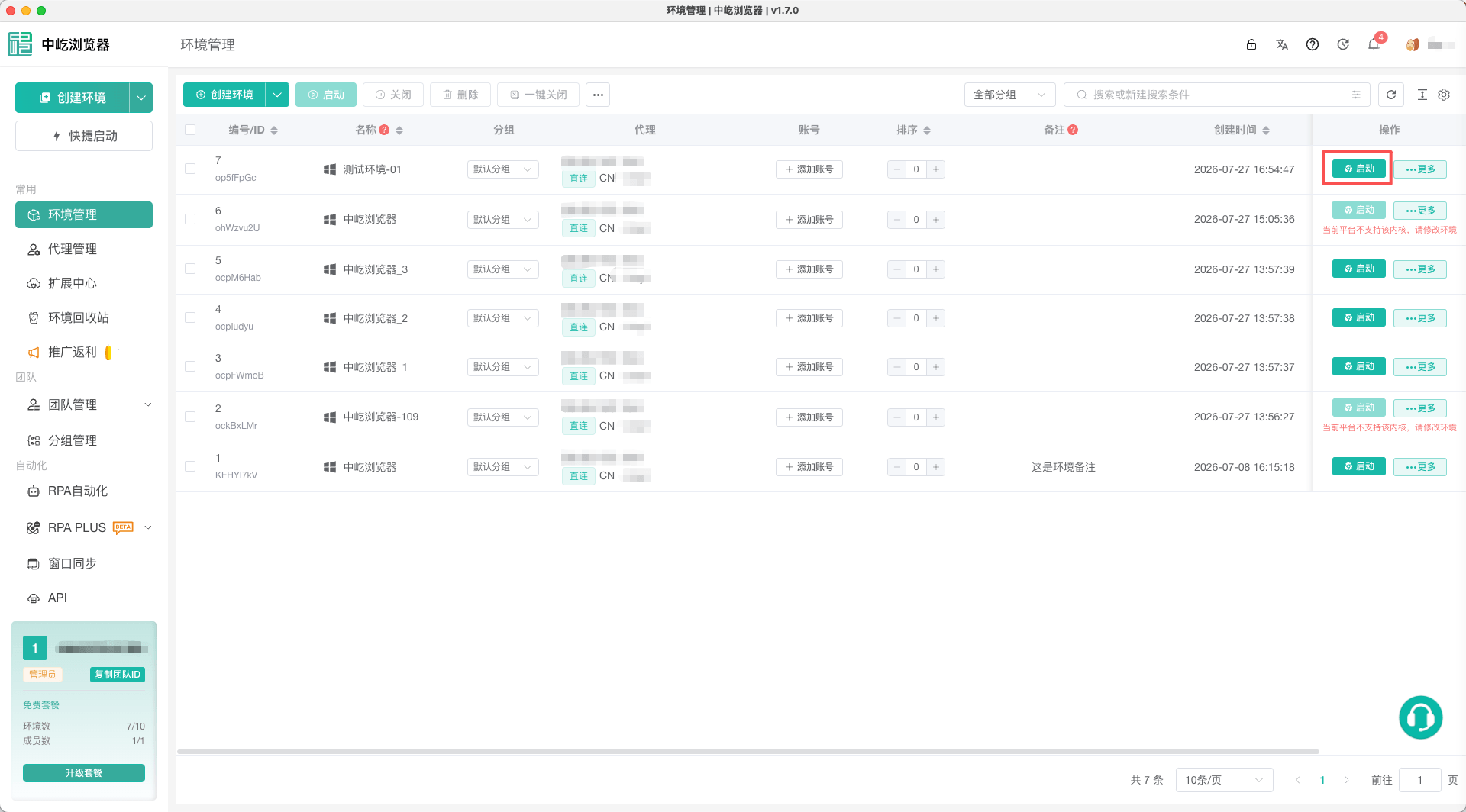
- Find the target profile in the profile list.
- Click
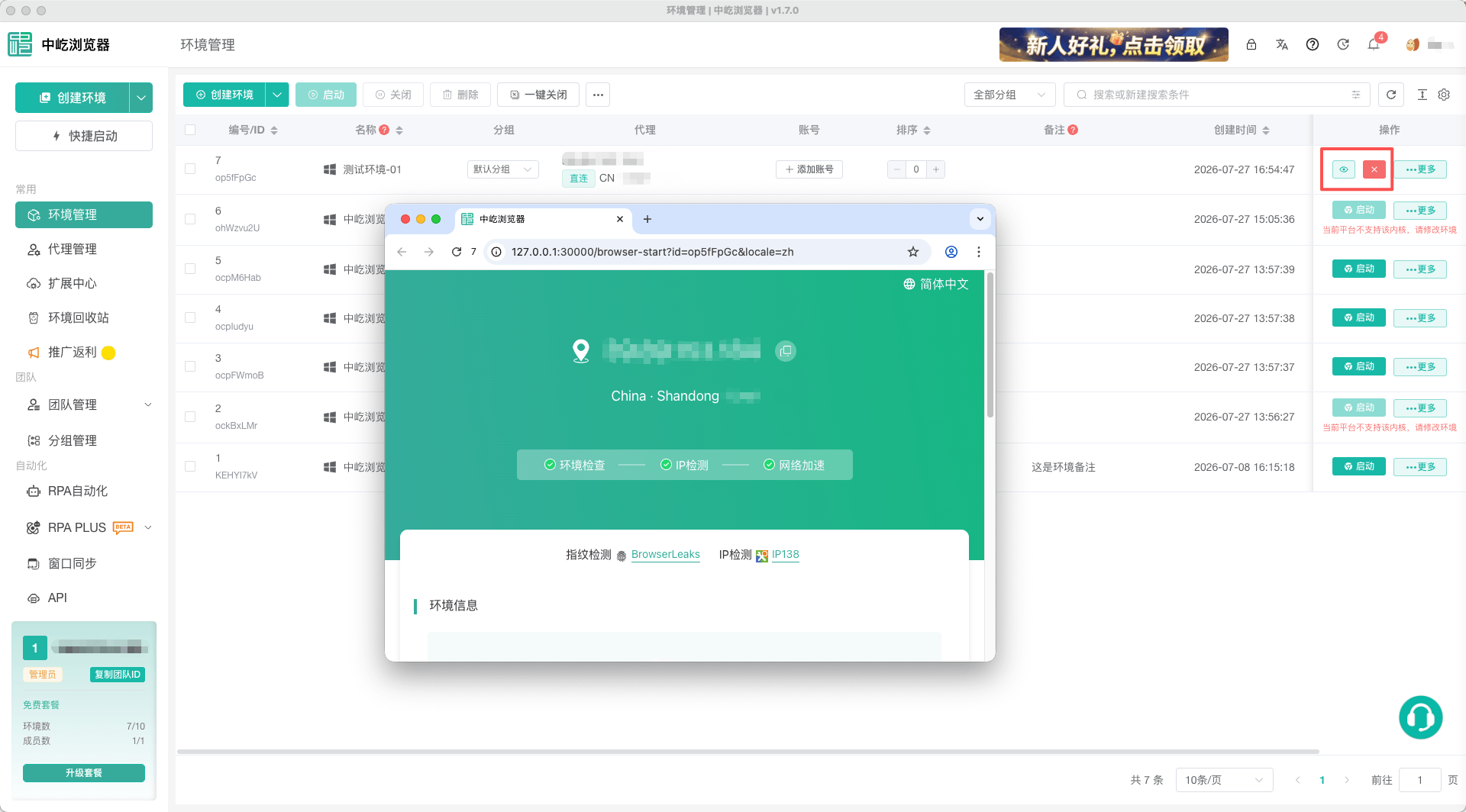
Launchin the profile row and wait for its status to change toRunning. - Wait for the browser window to open. The first launch may take longer; do not click Launch repeatedly.
- Open the target website in the new window and sign in to the website.
Profile Statuses
| Status | Meaning | Action |
|---|---|---|
| Ready | The profile is saved and not currently running | Click Launch to open its browser window |
| Starting | The client is preparing the profile window | Wait for the status to change and do not repeat the action |
| Running | The profile window is open and ready | Continue your work in the corresponding window |
| Failed | The profile did not open successfully | Review the message and follow Frequently Asked Questions |
Recommendations
- Save any work on the website before closing the window.
- Do not use multiple accounts in the same profile. Create a separate browser profile for each account you need to operate concurrently.
- For more launch, close, and cache maintenance operations, see Launch and Maintain Browser Profiles.