Use the Browser Profile Recycle Bin
Profiles deleted from the profile list enter the Profile Recycle Bin. They are automatically removed 30 days after deletion, but can be restored or permanently deleted earlier.
View the Recycle Bin
Open Profile Recycle Bin from the sidebar. The list contains:
| Field | Description |
|---|---|
ID | Unique ID of the deleted profile; supports sorting |
Name | Profile name before deletion |
Notes | Profile notes before deletion |
Deleted By | Member who deleted the profile |
Deleted At | Time when the profile entered the Recycle Bin; supports sorting |
Permanent Deletion Countdown | Time remaining before automatic cleanup |
Actions | Restore or permanently delete an individual profile |
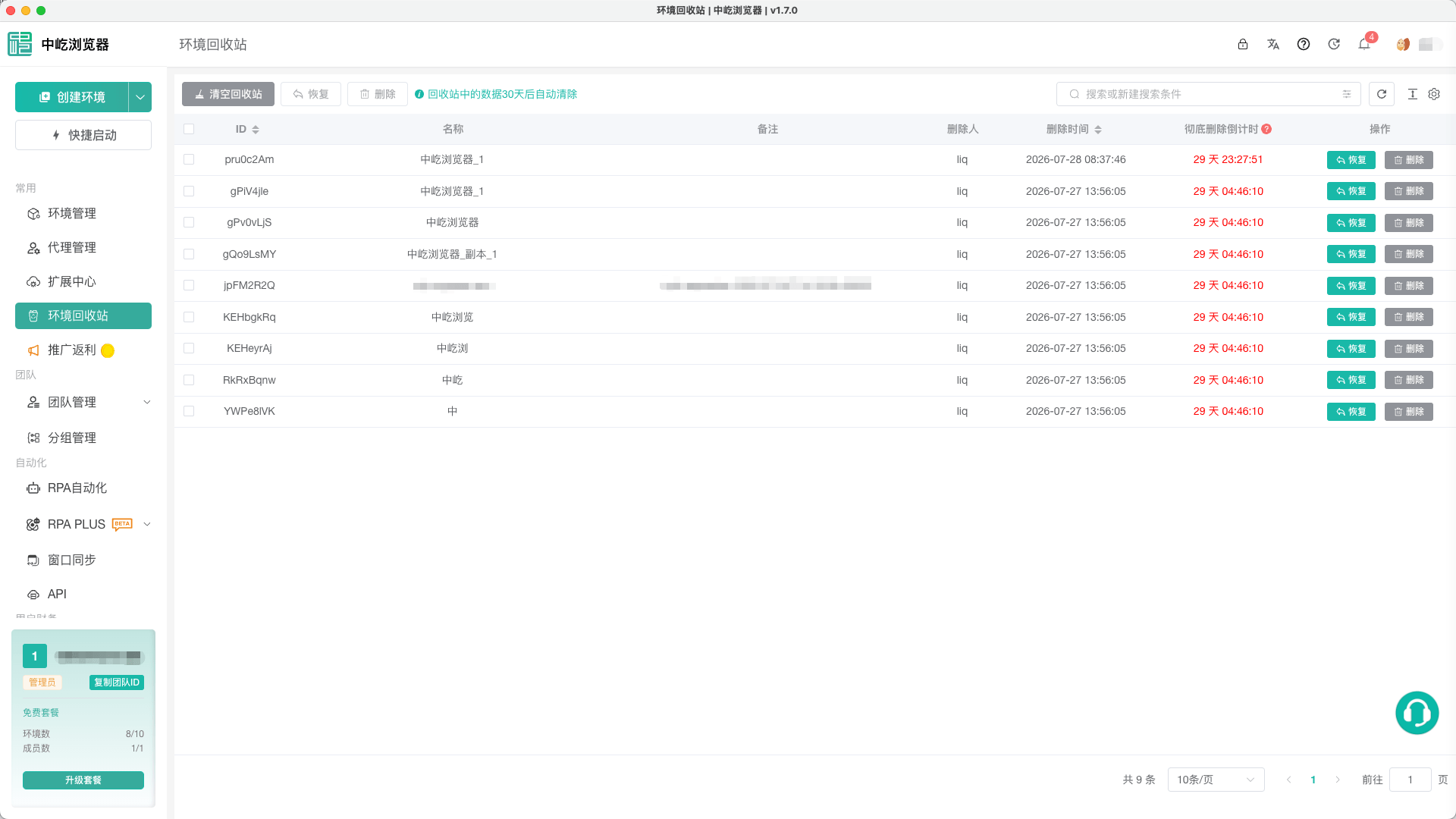
Search by ID, Name, Notes, Deleted By, or Owner. Use the column settings in the upper-right corner to configure the table, and display 10, 20, or 50 records per page.
Restore a Profile
To restore one profile:
- Click
Restorein its row. - Read the confirmation message.
- Click
Confirm. - Return to
Browser Profilesand find the restored profile.
To restore several profiles, select their records and click Restore at the top. ZYBrowser checks the active team's plan capacity first. If the profile limit has been reached, release capacity or purchase a team plan.
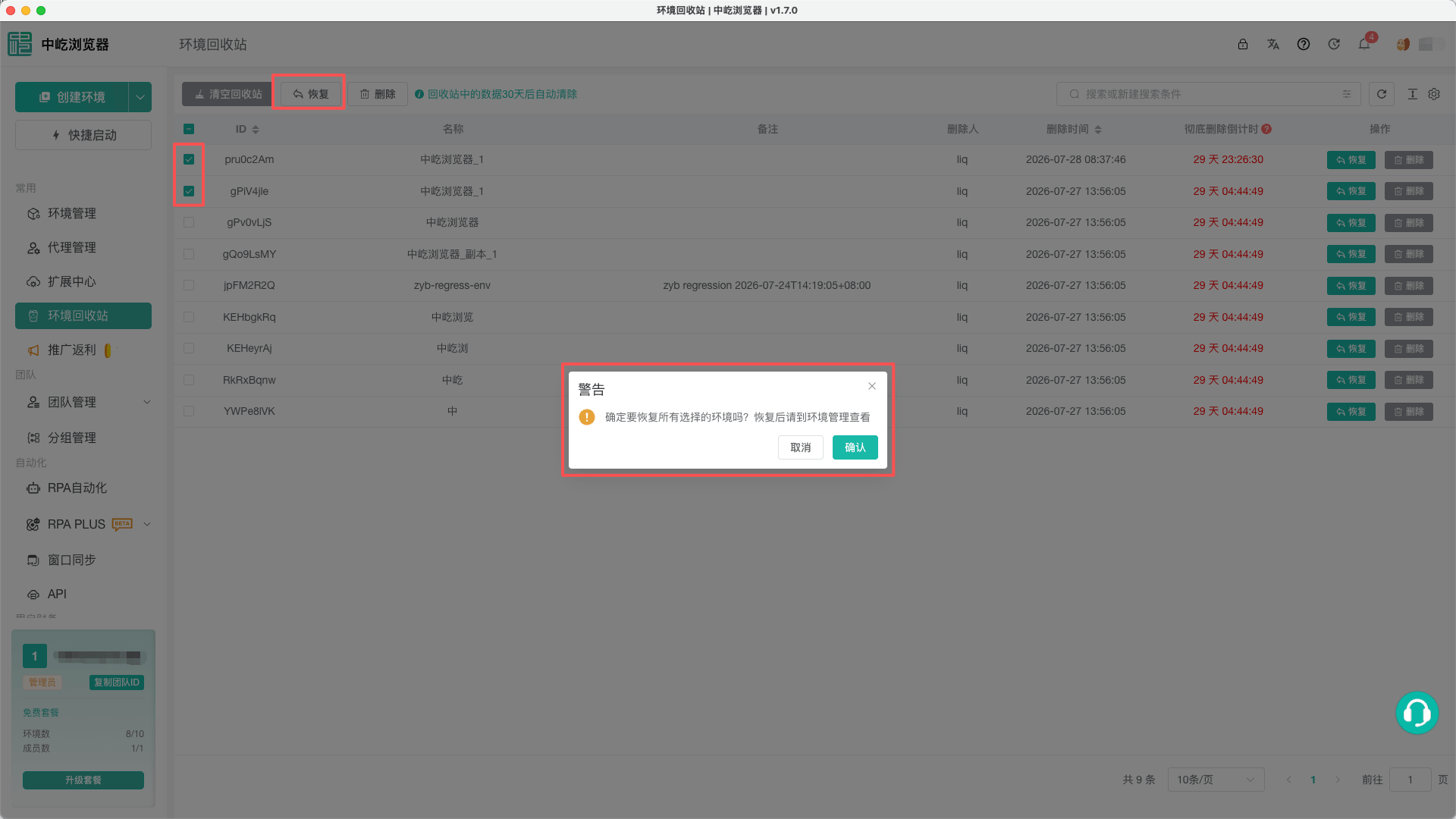
After restoration, review the name, group, proxy, and runtime configuration in the profile list before launching it again.
Permanently Delete Profiles
To permanently delete one profile, click Delete in its row and confirm. For batch deletion, select the records and click Delete at the top.
DANGER
Permanent deletion cannot be undone. The desktop client also removes the corresponding local profile cache. Verify the Profile ID, name, and data retention requirements before confirming.
Empty the Recycle Bin
Click Empty Recycle Bin to permanently delete every record. This action ignores the current selection and always requires confirmation.
Before emptying it:
- Use search and pagination to confirm that no profile must be restored.
- Review the team's data retention requirements.
- Confirm that the accounts, cookies, proxies, and local cache are no longer required.
- Restrict permission to trusted administrators.
Permissions
Empty Recycle Bin, Restore, and Delete use separate permissions. If an action is unavailable, ask a team administrator to review the Recycle Bin list, restore, delete, and empty permissions under Manage Members and Roles.
Next Steps
- View and Find Browser Profiles: Review restored profiles.
- Launch and Maintain Browser Profiles: Relaunch or continue maintaining a restored profile.