Configure Fingerprints and Common Settings
When creating or editing a browser profile, switch to Advanced Configuration to access Common Settings, Fingerprint Settings, and other options. The batch creation page and Settings > Preferences also provide the same common settings.
Before configuring a profile, identify the proxy location, operating system, and target website requirements it will actually use. The Profile Check panel on the right evaluates the form in real time, but it only identifies obvious conflicts and cannot replace testing on the target website.
| Configuration entry | Scope |
|---|---|
| Create one profile | Starts with saved Preferences; Quick Create hides common settings, while Advanced Configuration lets you adjust them for the current profile |
| Edit a profile | Displays and updates the settings already saved for the current profile |
| Create profiles in bulk | Starts with saved Preferences; changes under Advanced Configuration apply to the profiles in the current batch |
Settings > Preferences | Saves defaults for profiles created afterward and does not update existing profiles in bulk |
Configure Common Settings
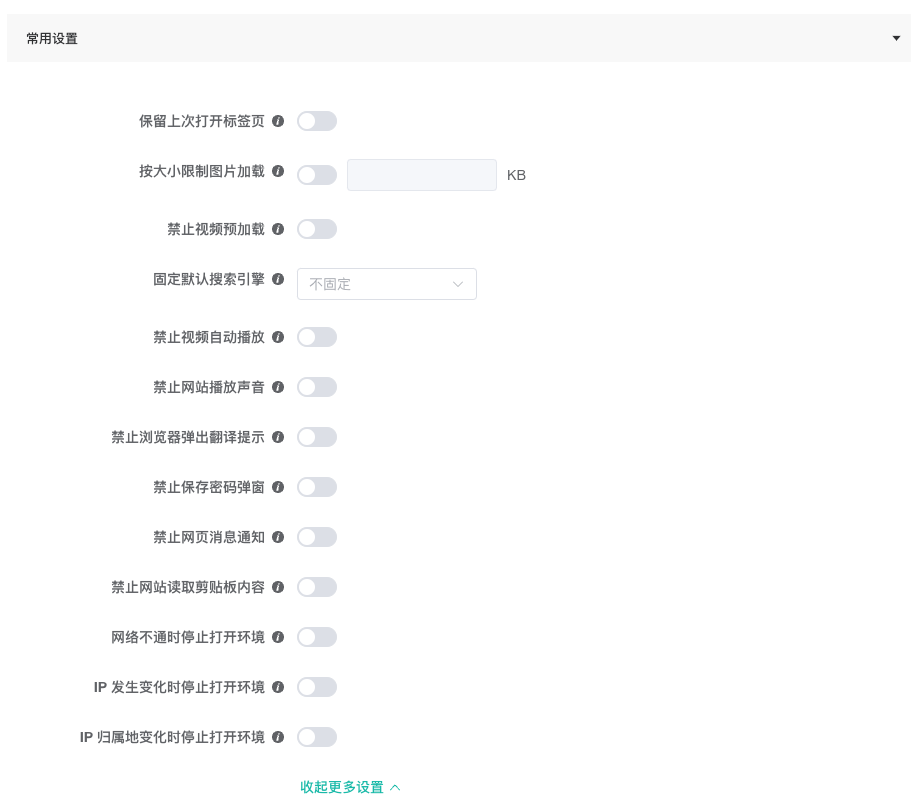
On the creation or editing page, switch to Advanced Configuration and expand Common Settings. The controls for restoring the last open tabs, limiting images by size, disabling video preloading, and locking the default search engine are shown first. Click Show more settings to display the remaining options.
| Setting | Control | Effect and considerations |
|---|---|---|
Restore last open tabs | Switch; enabled by default for new profiles | Restores the tabs that were open before the previous session closed when the profile starts. The environment start page still opens. When disabled, tabs from the previous session are not restored automatically. |
Limit images by size | Enable the switch and enter a non-negative integer in KB; enabling it initially enters 10 KB | Network images larger than the limit do not load. 0 KB prevents all images from loading. Keep the limit at 10-20 KB so required content such as graphical CAPTCHAs can still appear. Turning off the switch removes the image loading limit; memory-cached, page-generated, and some Service Worker images are not subject to a positive-integer threshold. |
Disable video preloading | Switch | Prevents video elements from loading media before the user starts playback; videos fetched directly by a website through other methods are not covered |
Lock default search engine | Select Google, Microsoft Bing, Baidu, Sogou, 360 Search, or Do not lock | Restores the selected address-bar and new-tab search engine whenever the profile starts; it can still be changed temporarily during the current session |
Block video autoplay | Switch | Requires user interaction before videos play; videos that use nonstandard formats may not be blocked |
Mute website audio | Switch | Keeps all websites in the profile muted without stopping media playback |
Disable browser translation prompts | Switch | Stops the browser from offering to translate webpages; leave it off if you need browser translation |
Disable password save prompts | Switch | Stops the browser from asking to save login passwords without removing saved passwords |
Block website notifications | Switch | Prevents websites from requesting notification permission or sending notifications; pages that rely on notifications may no longer alert you |
Block websites from reading the clipboard | Switch | Prevents websites from reading the system clipboard; users can generally still paste manually |
Stop opening when the network is unavailable | Switch | Stops the launch when network or proxy detection fails; useful for profiles that require a fixed network egress |
Stop opening when the exit IP changes | Switch | Stops the launch when the exit IP differs from the last successful open; a comparison is available only after the first successful open |
Stop opening if IP location changes | Switch | Stops the launch when the IP country or region differs from the last successful open; useful when the exit location must remain stable |
The image size limit covers images loaded through network requests only. Memory-cached, page-generated, and some Service Worker images are not covered. For a new profile that has not been customized in Preferences, Restore last open tabs is enabled, the image size limit and all other switches are off, and the search engine is set to Do not lock.
Configure Location and Regional Parameters
Expand Fingerprint Settings and configure proxy-related parameters first.
| Parameter | Modes | Description |
|---|---|---|
WebRTC | Real, IP-based | IP-based mode derives WebRTC information from the current proxy egress to reduce network inconsistencies |
Time zone | Default, IP-based, Custom | Custom mode also requires a specific time zone |
Geolocation | Real, IP-based, Custom | Custom mode requires longitude and latitude |
Language | Default, IP-based, Custom | Custom mode requires a browser language |
The proxy location, time zone, geolocation, and language should normally form a reasonable, consistent combination. If your workflow requires fixed values, document the reason and validate them in a test profile.
Configure Display and Hardware Parameters
Continue down the page to configure the display and hardware information presented to websites.
| Parameter | Modes or values |
|---|---|
Screen resolution | Real, preset, random, or custom width and height |
Fonts | System default, random, or a custom font list |
Hardware noise | Enable or disable noise separately for Canvas, WebGL, AudioContext, and ClientRects |
WebGL | Use real information or provide a custom WebGL vendor and renderer |
RAM | Real, custom, or random |
CPU | Real, custom, or random |
Do Not Track | Default, enabled, or disabled |
Port scan protection | Enabled, disabled, or partially allowed; partially allowed mode requires a port list |
Hardware acceleration | Default, enabled, or disabled |
Battery information | Real or random |
Media devices | Default, random, or custom microphone, speaker, and camera counts |
Launch arguments | Enter URLs to open or browser launch arguments; separate multiple values with an ASCII semicolon ; and do not add a trailing semicolon |
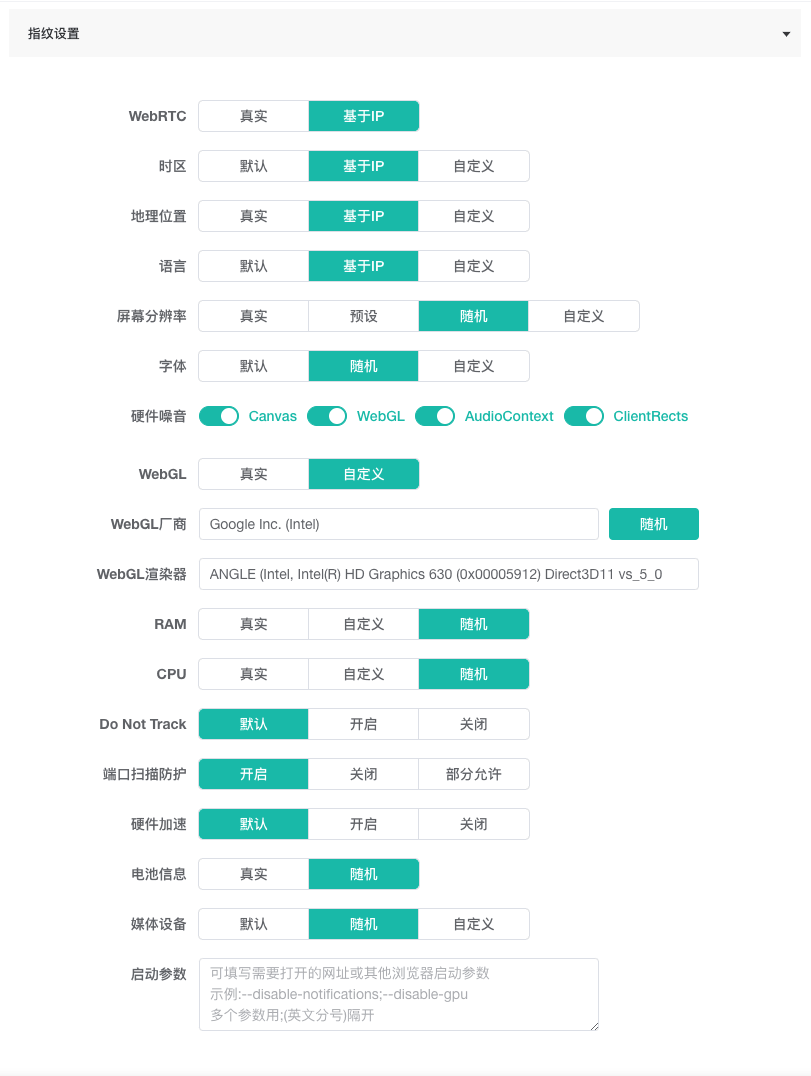
When customizing WebGL information, check the selected operating system and browser engine together. Avoid vendor and renderer combinations that clearly do not belong to that system.
Review the Profile Check
The Profile Check panel displays a score from 0 to 100, a status of Good, Attention, or Risk, and up to five current issues. It evaluates whether:
- A complete, working proxy is configured.
- WebRTC, time zone, geolocation, and language are consistent with the proxy egress.
- The operating system matches the User-Agent.
- WebGL information matches the operating system.
- Resolution, fonts, hardware noise, and port scan protection use the intended strategy.
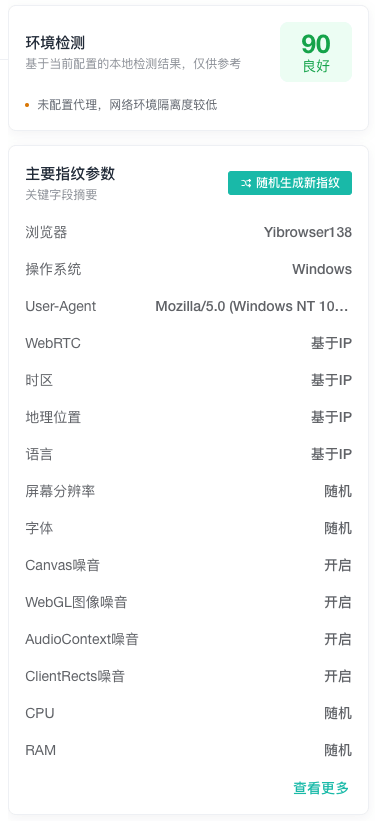
Proxy test results are included in the profile check. If a custom proxy test fails, follow Proxy Test Fails. If the Proxy API cannot fetch a proxy, see Proxy API Cannot Fetch a Proxy. After correcting the network configuration, address any remaining fingerprint warnings.
Important
The profile check is a local assessment based on the current configuration. Its results are for reference only.
Generate a Random Fingerprint
The Primary Fingerprint Parameters card provides Generate New Fingerprint. This action updates selected noise parameters in the current form and is useful for generating test configurations. Before submitting, review the summary and profile check to ensure the generated result meets your requirements.
Save and Validate
- Resolve any validation errors in the form.
- Confirm that the proxy, operating system, User-Agent, and regional settings are consistent.
- For a new profile, select
Create ProfileorCreate and Launch; when editing, selectSave ProfileorSave and Launch. - Use a test website to validate language, time zone, media permissions, and page functionality.
Avoid frequently changing the fingerprint of a profile that has been used for an extended period. If a change is necessary, record the original configuration and validate compatibility in a test profile first.
Next Steps
- Create and Edit a Browser Profile: Review basic information, proxy options, and submission actions.
- Create Browser Profiles in Bulk: Apply a shared configuration to several new profiles.
- Launch and Maintain Browser Profiles: Launch profiles and manage cache, cookies, and accounts.