Manage Browser Profiles in Bulk
After selecting one or more records in the profile list, use the action bar at the top to process them together. By default, the quick action area displays Launch, Close, and Delete; other actions are available from the ellipsis menu.
Select Profiles
Select the checkboxes on the left side of the table. A batch action applies only to currently selected records. Before changing pages or filters, confirm that the selection still matches your intended scope.
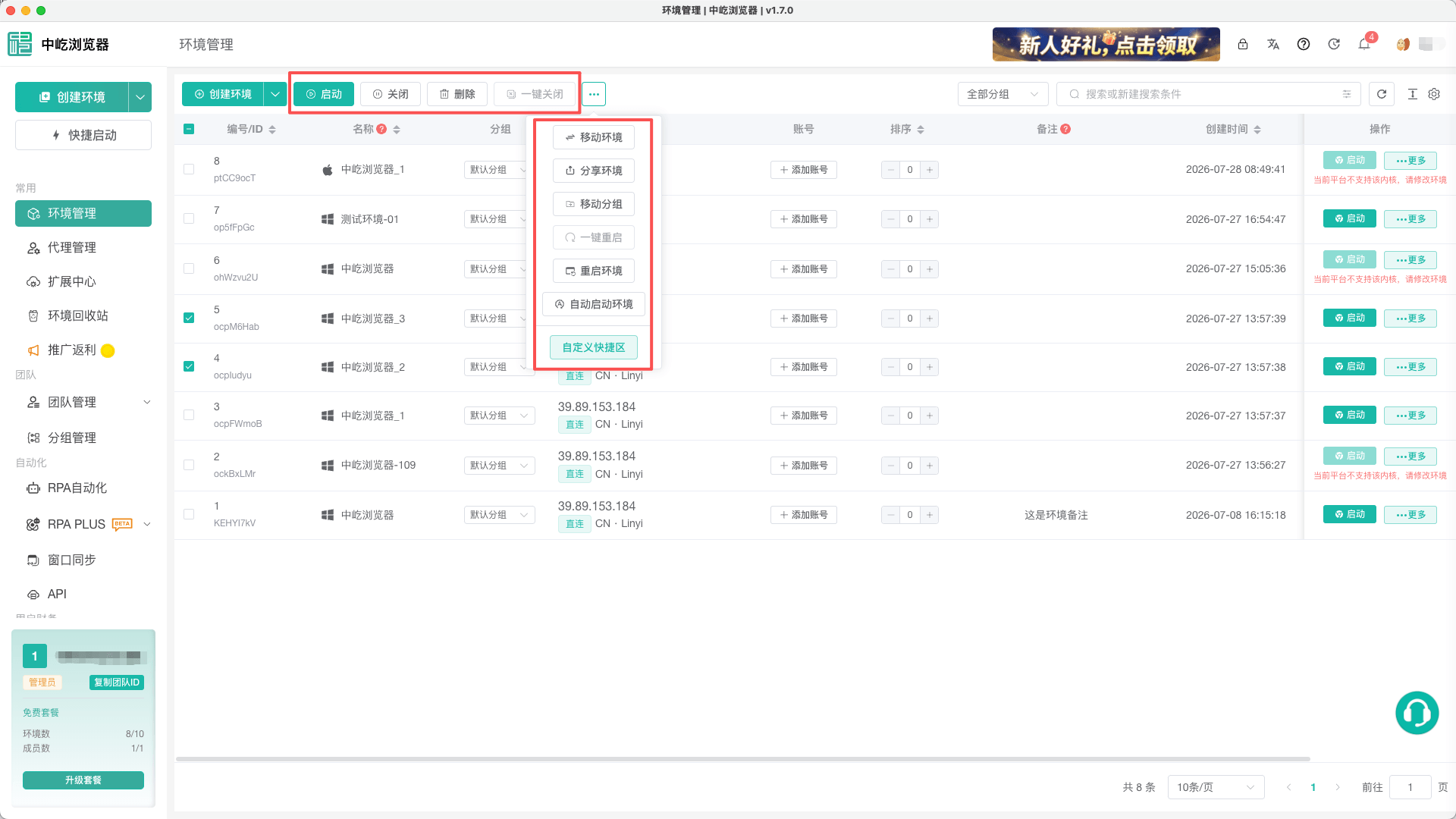
An unavailable action generally means no profile is selected, no selected profile is running, or the current member lacks the required permission.
Launch and Close Profiles
| Action | Scope | Description |
|---|---|---|
Launch | Selected profiles supported by the current platform and available under the plan | Profiles launch concurrently; a failure in one profile does not stop the others |
Close | Selected profiles that are currently running | If no selected profile is running, the client reports that there is nothing to close |
Close All | Every profile currently open in this client | Requires confirmation and records the profiles actually closed so they can be reopened |
Restart All | Restarts selected running profiles when a selection exists; otherwise restarts all open profiles | Selected profiles that are not running are not launched accidentally |
Reopen Profiles | Profiles most recently closed individually, in bulk, or with Close All | Retrieves their latest configuration first; deleted or inaccessible profiles are not reopened |
These operations require the desktop client. The web app cannot launch, close, or control local browser windows.
To perform the same webpage actions across multiple running profiles, continue to Start a Window Sync Session.
Move Profiles to Another Group
- Select the target profiles.
- Open the overflow area and click
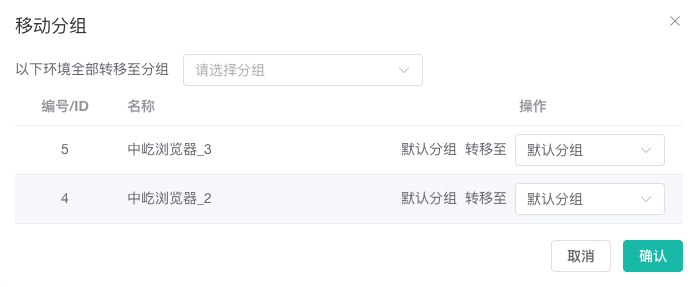
Move to Group. - To move every selected profile to the same group, select the destination at the top of the dialog.
- To assign different groups, select a destination in each row.
- Click
Confirm.
Transfer or Share Profiles with Another Team
Both Transfer Profiles and Share Profiles require a destination team and SMS verification. The resulting ownership differs:
| Action | Ownership after completion | Risk |
|---|---|---|
Transfer Profiles | The destination team receives the profiles and permissions; the current team no longer owns them | Cannot be reversed, so verify the selected profiles and destination team before submitting |
Share Profiles | Both the current and destination teams can access the profiles | Accounts, cookies, and proxy details become available to authorized members of the destination team |
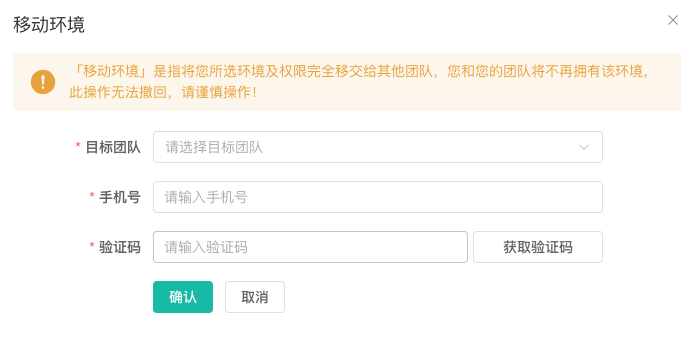
Before sharing, follow Switch or Create a Team to confirm the destination and use Manage Members and Roles to review access and permitted data use. This helps prevent exposure of login sessions or proxy credentials.
Delete Profiles in Bulk
- Select profiles you no longer need.
- Confirm that every selected profile is closed.
- Click
Delete. - In the desktop client, enable
Also delete profile cacheif required. - Submit the confirmation dialog.
If any selected profile is still running, the batch deletion is blocked. Deleted profiles enter the Recycle Bin. The client also removes them from local records used by Reopen Profiles and Auto-launch Profiles.
Customize the Quick Action Area
Select Customize Quick Actions from the ellipsis menu to choose which batch actions appear directly and which remain in the overflow area.
- Open
Customize Quick Actions. - Drag frequently used actions to
Quick Actions, or click the plus icon to add them fromMore Actions. - Drag less frequently used actions back, or click the close icon to remove them.
- Drag items to change their display order.
- Click
Confirmto save.
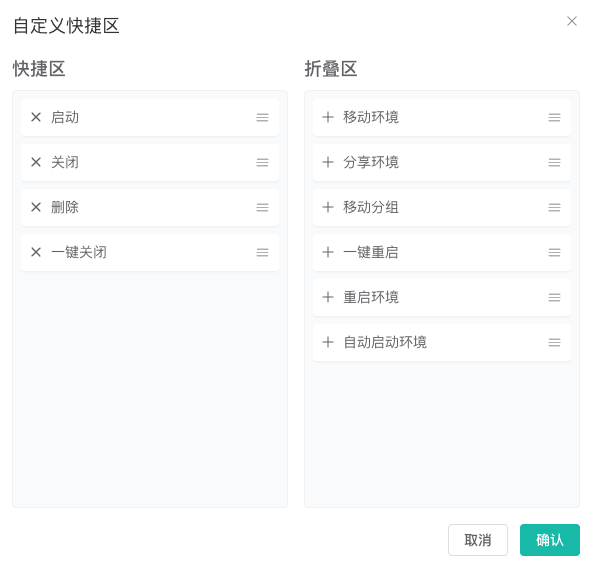
The configuration is stored for the current user in the local client. The order may differ after switching accounts or using another computer.
Configure Automatic Profile Launch
Auto-launch Profiles opens selected profiles automatically when the ZYBrowser desktop client starts.
- Open the overflow area and click
Auto-launch Profiles. - Enable automatic launch.
- Search profiles by name or notes.
- Select the profiles to open automatically; selections persist across pages.
- Click
Confirm.
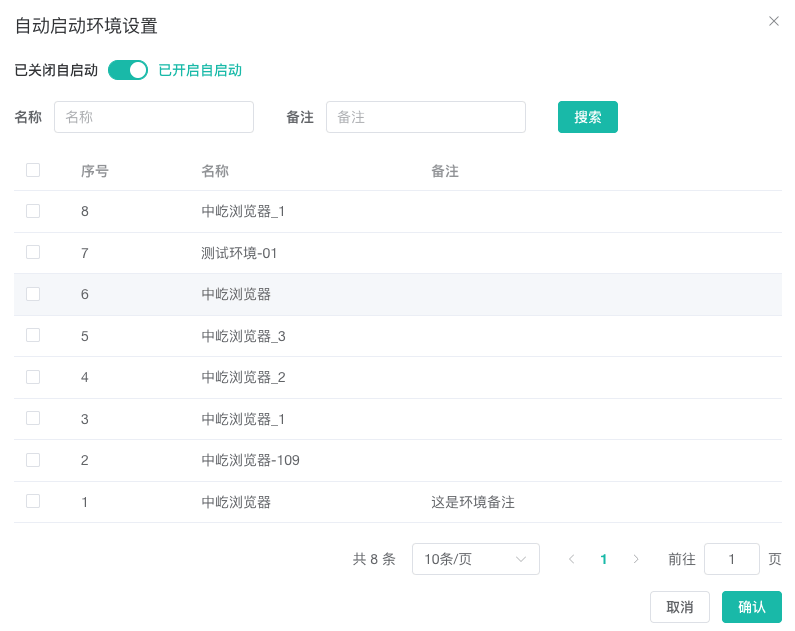
At least one profile is required while the option is enabled. Disabling it and confirming clears the list saved for the current account. Deleting a profile also removes its record automatically.
Permissions and Security
Separate team permissions control launching, editing, transferring, sharing, grouping, and deleting. Before a batch action, confirm that:
- The current and destination teams are correct.
- The number of selected profiles matches the intended operation.
- Running tasks have finished.
- A transfer or share will not expand access to sensitive data unexpectedly.
- Unsaved work on websites has been saved before deletion.
Next Steps
- Use the Browser Profile Recycle Bin: Restore profiles deleted by mistake or permanently remove them.
- View and Find Browser Profiles: Select profiles precisely with groups and combined search conditions.