Test, Assign, and Maintain Proxies
Proxy testing and profile assignment are common operations across proxy types. Testing confirms that the saved connection details work. Assignment makes a browser profile use the saved proxy when it launches. Review the proxy information before either operation.
Test a Proxy
Select records in the list and click Test Proxy, or click the test or refresh icon in the Test Result column of an individual record. When the test finishes, the list displays a success or failure status and the test time.
| Type | Test behavior |
|---|---|
Custom Proxy | Uses the saved host, port, username, password, and protocol for a local connectivity test |
Integrated Proxy | Uses the saved IP, port, username, password, and protocol for a local connectivity test |
Proxy API | Tests the saved IP with allowlist or credential authentication; if it fails, requests the API URL, retains the authentication type, saves the new IP, and tests again |
Testing requires the desktop client. The web app cannot use local test capabilities. If a test fails, review the address, authentication, and provider status under Proxy Test Fails.
Assign a Proxy to a Browser Profile
Click the browser icon in the Assigned Profiles column. The dialog loads the profile list and preserves profiles that are already selected. Search by profile name or notes and continue selecting across pages.
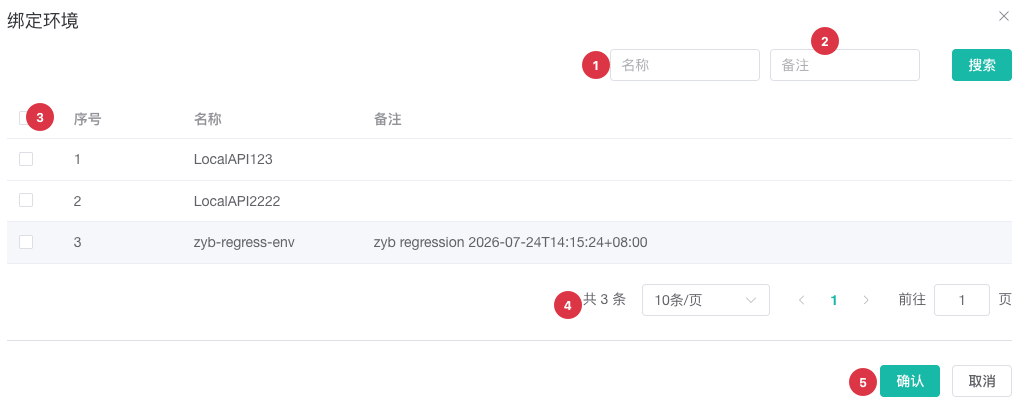
| No. | Feature | Description |
|---|---|---|
1 | Name search | Filters the list by profile name |
2 | Notes search | Filters the list by profile notes |
3 | Profile selection | Select one or more profiles; selections persist across pages |
4 | Pagination | Display 10, 20, or 50 profiles per page |
5 | Confirm assignment | Assigns the proxy to the selected profiles |
At least one profile must be selected. If the dialog contains no profiles and you have create permission, use the empty-state creation entry, or prepare a profile through Create and Edit a Browser Profile. Without Assign Proxy permission, the list displays only the assignment count and does not open the dialog.
Copy and Edit Proxy Details
Custom and integrated proxies can copy the complete IP:port:username:password value. Integrated proxies can also copy the IP, port, or username separately. Passwords are masked by default and can only be revealed or copied by members with Edit Proxy permission.
Clipboard content is sensitive. Use it only in a trusted environment and do not leave it in public chats, tickets, screenshots, or shared documents after pasting.
To change a custom proxy's host, port, username, password, or assigned profiles, open its Edit form. The Proxy API URL, fetch policy, authentication type, account, and password are also changed in the edit form. Names and notes can be saved directly in the list.
Delete Records
Custom proxies and Proxy APIs can be deleted after confirmation. Review assigned profiles first because deleting a proxy does not automatically select a replacement for them.
Integrated proxies purchased directly through ZYBrowser cannot be deleted from the list. A proxy synchronized from FourLeaf can be removed from the ZYBrowser list without affecting the purchased resource at the provider.
Next Steps
- Manage Integrated Proxies: Renew and synchronize purchased proxies.
- Proxy Troubleshooting: Diagnose testing, API URL, and permission issues.