Frequently Asked Questions
This page covers the most common issues with registration, installation, browser profile creation, and profile launches. Before troubleshooting, confirm whether you are using the desktop client or the web app because they support different operations.
Login or Registration Fails
- SMS verification code not received: Confirm that the phone number is correct, check blocked messages, and request another code after the countdown ends. If the code still does not arrive, contact support.
- Password rejected: The password must contain at least
8characters, including bothlettersandnumbers. - WeChat login fails: Scan the QR code again, follow the official account as prompted, and complete account linking.
- Forgotten password: Click
Forgot Passwordon the password login page and use an SMS verification code to set a new password.
The Desktop Client Cannot Be Installed or Launched
Confirm that the installer came from the Download page and matches your operating system. Keep your network connection available during the first launch and login. On a managed corporate network, allow the client to access ZYBrowser services.
A Feature Described in the Help Documentation Is Missing
The help documentation is updated as new features become available. If a documented feature does not appear in the desktop client, your current ZYBrowser version may be outdated. Go to Settings > Version Management and update ZYBrowser to the latest version. After the update is installed, restart the client and check the feature again.
A Browser Profile Cannot Be Launched
Check the following:
- Make sure you are using the ZYBrowser desktop client rather than the web app.
- Confirm that the profile is not already
StartingorRunningbefore launching it again. - Verify the proxy host, port, and protocol, then test the proxy again in the desktop client. For detailed checks, see Proxy Troubleshooting.
- Confirm that the client is up to date and that the network connection and local disk space are sufficient.
A Created Profile Is Missing
Check the active team, search terms, and filters. For team profiles, follow Switch or Create a Team to confirm that the correct team is active and that you have permission to view its profiles. If the profile is still missing, refresh the list and check its name again.
Contact Support and Submit Feedback
If the issue persists, click the support icon in the lower-right corner of the desktop client to open the contact panel.
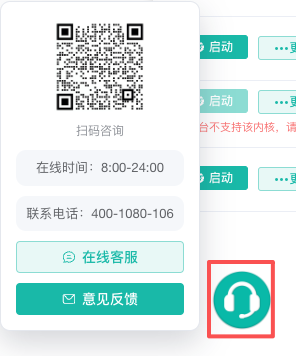
| Contact method | How to use it |
|---|---|
| QR code | Scan the support QR code in WeChat |
| Phone | Call 400-1080-106 |
| Live chat | Click Live Support to start a chat; agents are generally available from 08:00 to 24:00 China Standard Time |
Support hours and phone numbers may change. Refer to the information currently displayed in the client.
Describe the Issue
Provide complete diagnostic information in one message whenever possible:
| Information | Description |
|---|---|
| Software version | Provide the version shown at the top of the client window, such as v1.7.0 |
| Operating system | Specify Windows or macOS |
| Time of occurrence | Record the date and approximate time so support can locate the relevant logs |
| Reproduction steps | Starting with the module you opened, list each action in order, including buttons clicked and values entered |
| Actual result | Include the complete error message, unexpected behavior, and relevant screenshots, and state whether the issue occurs every time |
| Related profile | For profile issues, provide the profile name and Profile ID; the row number in the list is not sufficient |
Hide passwords, verification codes, proxy credentials, cookies, and other sensitive information in screenshots.
Provide the Frontend Log for the Same Day
Support may request the frontend log from the day the issue occurred.
- Open
Settings > Local Settings. - Under
System Logs, open the client log directory. - Locate the frontend log for the relevant date and time.
- Send it through the official channel specified by support and include the approximate time of the issue.
Log files may contain local paths or business information. Confirm that the recipient is an official ZYBrowser support representative and never upload logs to a public service. For the log directory location, see Configure Local Client Settings.
Submit Product Feedback
For product suggestions, usability feedback, or issues that do not block your current work, click Feedback in the support panel. Follow the prompts and include the software version, steps performed, actual result, and expected result described above. For faults that require prompt assistance, use Live Support or the phone number shown in the panel.
Tip
If your feedback helps improve the software and is adopted, you will receive coupons with a total value of RMB 55 as a thank-you.
Remote Assistance
If the troubleshooting steps above do not resolve the issue and support confirms that remote assistance is required, complete the following steps in advance:
Open the ToDesk download page, then download and install ToDesk.
Download Notice
The official ToDesk download URL may change. Before downloading, confirm that you are visiting the official ToDesk website and carefully verify the domain and installer source to avoid untrusted download channels.
After installation:
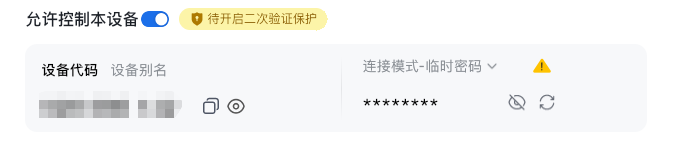
- Launch ToDesk and enable
Allow Control of This Device. - Send support the
Device CodeandTemporary Passwordfor the current session, and keep ToDesk running.
Security Notice
Only provide the Device Code and the current session's Temporary Password after an official ZYBrowser support representative confirms that remote assistance is required. Never disclose the Security Password or send any connection details to anyone else. When the session ends, disable Allow Control of This Device and immediately refresh the Temporary Password.