Manage Browser Profile Groups
Browser profile groups organize the active team's profiles by business, account purpose, or owner. Open Env Group from the client sidebar to create and maintain groups or review the profiles already assigned to each group.
Purpose of Group Management
A group organizes browser profiles and can also define the profile scope assigned to a team member. Group management serves these purposes:
| Purpose | Description |
|---|---|
| Organize profiles | Keep profiles with a similar use, business, or owner together, reducing search effort as the list grows |
| Locate profiles quickly | Narrow the profile list or Window Sync page by group instead of finding profiles one at a time |
| Adjust profiles in bulk | Use bulk profile management to move several profiles to the same or different groups |
| Control access scope | Allow a team member to access all groups or only selected browser profile groups |
A group stores only the profile's organizational assignment. Moving a profile to another group does not duplicate it or change its proxy, account, cookies, fingerprint, or runtime status.
Connections to Other Modules
| Module | Connection to group management | Key consideration |
|---|---|---|
| Browser Profiles | Select a group when creating, batch creating, or migrating profiles; filter the profile list by group and change the group of one or more profiles | Renaming a group keeps its profiles in that group; move all profiles out before deleting the group |
| Team Management | Role permissions determine which actions a member can perform, while Authorized groups determines which browser profile groups the member can access | Authorizing a group does not grant profile view, edit, launch, or other action permissions by itself |
| Quick Launch | Profile cards display the assigned group so you can confirm a profile's purpose and ownership before launch | Quick Launch controls profile runtime; return to Env Group to create, edit, or delete groups |
| Window Sync | Filter open profiles by group before selecting the controller and targets | This filter only narrows the current list; it does not move profiles or change their assigned groups |
| Activity Logs | Important group actions are recorded in the active team's activity logs | When investigating a change, filter by operator and time range |
View and Find Groups
The group list displays the active team's default group and custom groups. The top area provides actions for creation, batch deletion, combined search, and refresh. Use the upper-right column settings to control which columns appear.
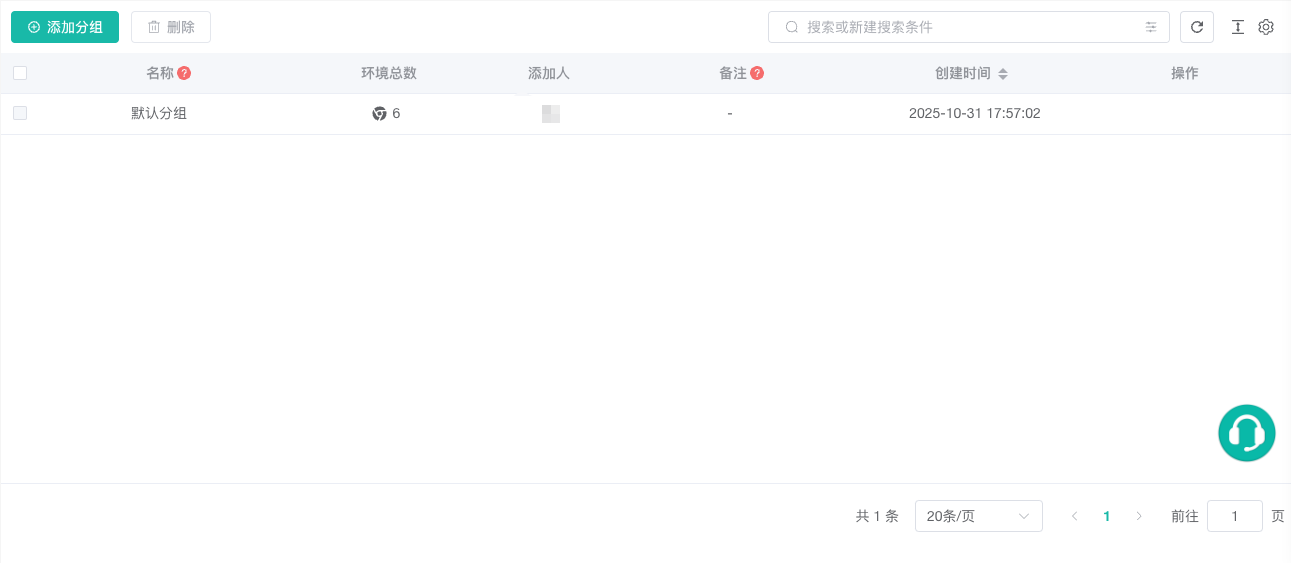
| Field | Description | Available action |
|---|---|---|
Name | Displays the group name | With edit permission, edit the name of a custom group inline |
Env Count | Displays the number of profiles in the group | Click the browser icon or count to review profile details |
Operator | Displays the member who created the group | Use it to identify the record's source |
Remark | Displays notes about the group's purpose | With edit permission, edit the notes of a custom group inline |
Create Time | Displays when the group was created | Click the heading to cycle through ascending, descending, and no sorting |
Operation | Provides Edit and Delete actions | These actions are hidden for the default group |
Search supports Name and Remark. Enter a keyword and choose its field; each condition appears as a search tag. Add the other field to combine conditions, remove a tag to cancel that condition, or click refresh to reload the list with the active conditions.
At the bottom of the list, select 10, 20, or 50 records per page. The column settings in the upper-right corner can also hide infrequently used columns or change their order.
Create a Group
The current member needs permission to add groups.
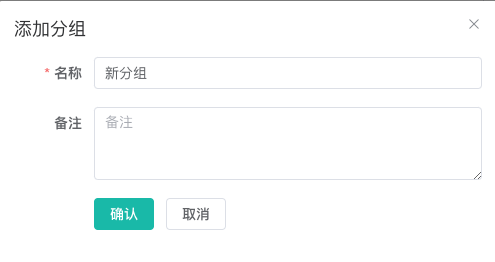
- Click
Add Groupat the top of the page. - Enter the group
Name. - Add a
Remarkif needed. - Click
Confirm.
 `
`
After creation, the new group appears in the group list and in the group selectors used when creating, editing, or moving profiles.
Edit a Group
Custom groups provide two editing methods:
| Method | Action | Best for |
|---|---|---|
| Inline editing | Point to Name or Remark, click the edit icon, and change the value | Changing one field |
| Edit dialog | Click Edit in the Operation column, change the name or remark, and click Confirm | Reviewing or changing both fields |
The default group cannot be edited. Editing controls for a custom group are available only when the current member has permission to edit groups.
Review Profiles in a Group
Click the browser icon or count under Env Count to open the current group's profile details. The dialog displays each profile's ID, No., Name, and Remark.
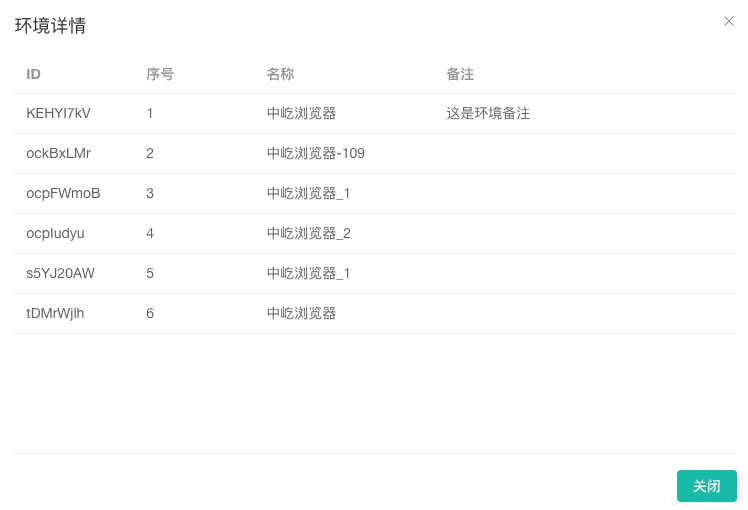
If the group is empty, the dialog provides a creation entry. To move existing profiles into or out of the group, go to View and Find Browser Profiles for an individual profile or Manage Browser Profiles in Bulk for multiple profiles.
Delete Groups
Confirm that a group contains no profiles before deleting it. Both methods apply only to custom groups:
- Delete one group: click
Deletein its Operation column and confirm. - Delete several groups: select one or more records, click
Deleteat the top of the page, and confirm.
The default group cannot be selected, edited, or deleted. If any selected group still contains profiles, the client blocks deletion; move those profiles to another group first. Deletion cannot be undone, so review the selected records before confirming.
Permissions
| Permission | Effect |
|---|---|
| Add Group | Controls whether Add Group is available |
| Edit Group | Controls inline editing and the Edit action for custom groups |
| Delete Group | Controls the individual and batch Delete actions |
To restrict which browser profile groups a member can access, a team administrator can configure the authorized group scope under Manage Members and Roles.
Next Steps
- Create and Edit Browser Profiles: Select a group when creating or editing a profile.
- View and Find Browser Profiles: Filter by group or change an individual profile's group.
- Manage Browser Profiles in Bulk: Move multiple profiles to the same or different groups.