Page Action Nodes
Page Action nodes control browser tabs, open webpages, and interact with page elements. This guide covers all 17 RPA Page Action nodes.
Element nodes generally use a selector or saved element object. See Select a Location Method and Select a Matching Element.
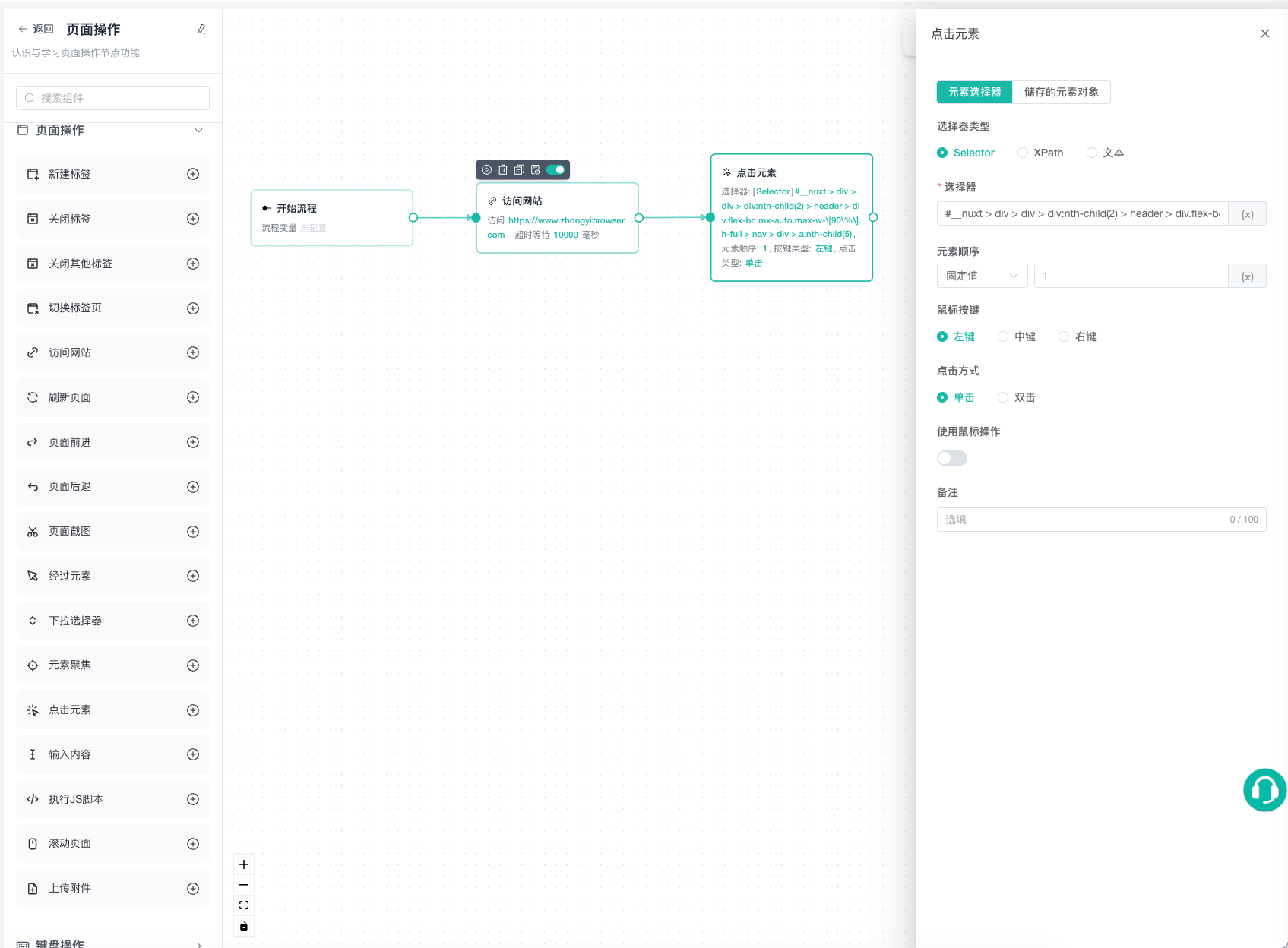
Tab Nodes
New Tab
Opens a new tab in the active browser profile without business configuration. Subsequent page actions run in the new tab.
Close Tab
Closes the active tab. Before closing, confirm that downstream nodes do not need variables or element objects from the page.
Close Other Tabs
Keeps the active tab and closes other tabs in the same profile. Use it near workflow start to remove stale pages before subsequent tab switches.
Switch Tab
Finds and activates a target page by title or URL. For a page whose URL contains /download, select URL, Contains, and enter /download.
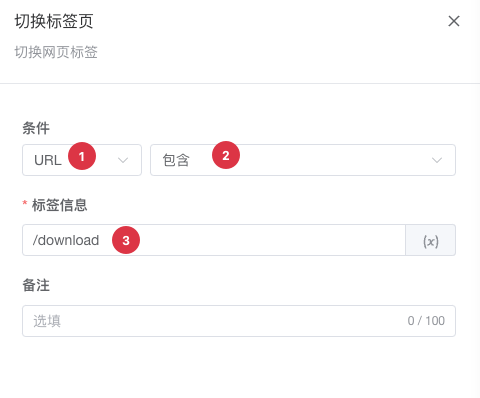
| No. | Setting | Description |
|---|---|---|
| 1 | Match field | Select Title or URL |
| 2 | Match method | Select Equal, Not Equal, Contains, or Does Not Contain |
| 3 | Match value | Enter the title or URL to find; variables are supported |
If several tabs match, narrow the rule until it identifies one page. Continue with clicks or data reads after switching.

Page Navigation Nodes
Access Website
Opens a URL. The URL field supports variables and has a default timeout of 10000ms.
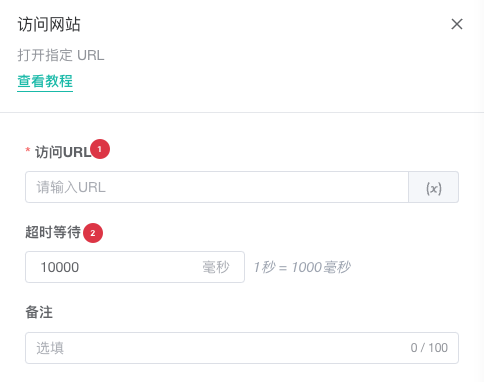
| No. | Setting | Description |
|---|---|---|
| 1 | URL | Enter a complete address with its scheme; variables are supported |
| 2 | Timeout | Set the page access timeout; the default is 10000ms |
Increase the timeout for a slow response and use Wait for Element or Wait for Request afterward to confirm that content is ready.
Refresh Page
Reloads the active tab. Refreshing changes the DOM and can invalidate saved element objects. Locate elements again after refreshing.
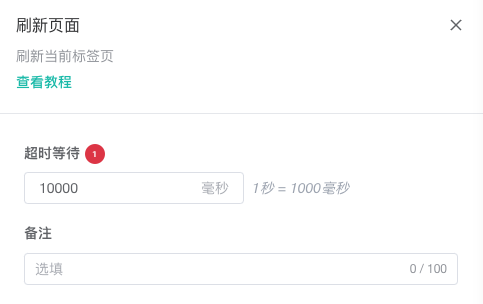
| No. | Setting | Description |
|---|---|---|
| 1 | Timeout | Set the refresh timeout; the default is 10000ms |
Forward
Moves forward one page in browser history. If there is no forward entry, the tab does not navigate.
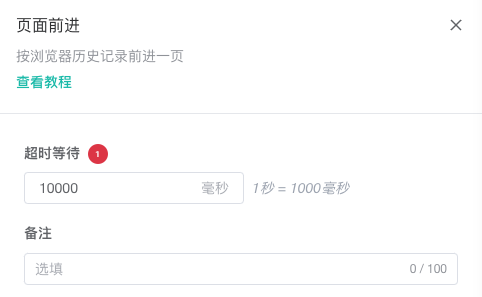
| No. | Setting | Description |
|---|---|---|
| 1 | Timeout | Set the forward operation timeout; the default is 10000ms |
Back
Moves back one page in browser history. Wait for key elements again before continuing.
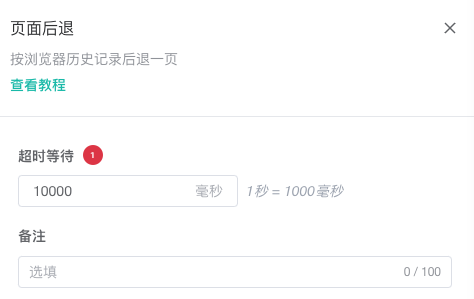
| No. | Setting | Description |
|---|---|---|
| 1 | Timeout | Set the back operation timeout; the default is 10000ms |
Screenshot
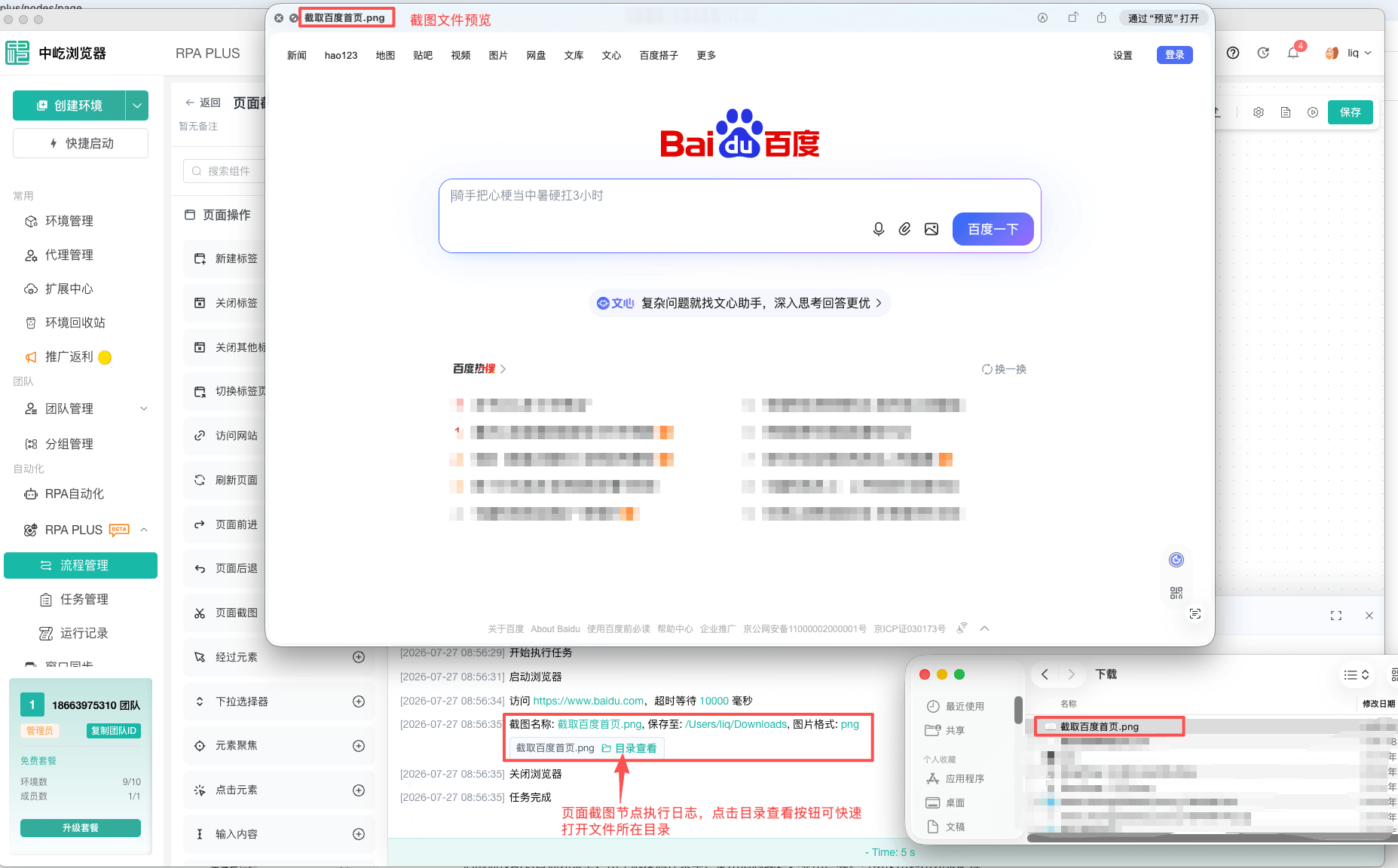
Saves the active page as an image. The defaults are full page and png.
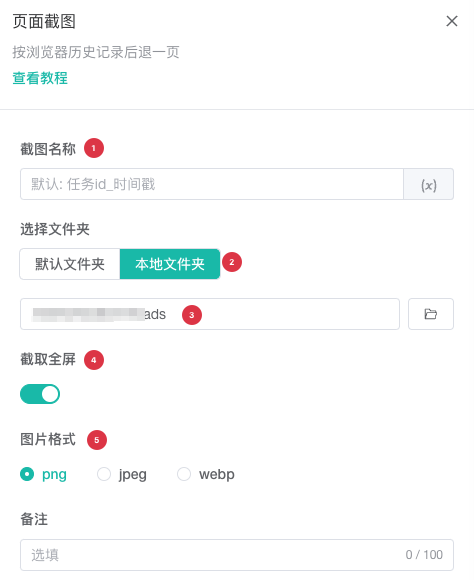
| No. | Setting | Description |
|---|---|---|
| 1 | File name | Enter a variable-enabled name; leave blank to use the task and timestamp default |
| 2 | Folder type | Select the default folder or a local folder |
| 3 | Local directory | Select a writable directory on the task computer |
| 4 | Full page | Enable to capture the complete page; disable to capture the visible area |
| 5 | Image format | Select png, jpeg, or webp; the default is png |
Include task or profile information in the file name to distinguish results:
product_${serial_number}_${task_id}Selecting a local directory and writing a screenshot requires the ZYBrowser desktop client and local file permission.
Element Interaction Nodes
Hover Element
Moves the pointer over a target element to trigger a hover menu, tooltip, or delayed content.
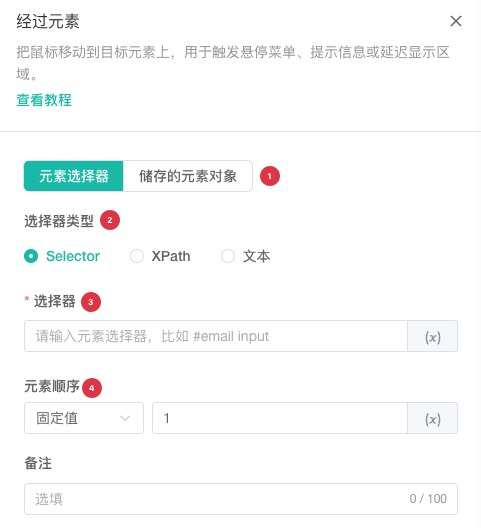
| No. | Setting | Description |
|---|---|---|
| 1 | Element source | Use an element selector or switch to an upstream saved element object |
| 2 | Selector type | Select Selector, XPath, or Text |
| 3 | Selector | Enter the target element location; variables are supported |
| 4 | Element order | Select a fixed value or random range and enter the corresponding positions |
When hover content needs time to appear, add Wait for Element afterward instead of relying only on a fixed delay.
Select Dropdown
Locates a dropdown and selects a value. The value must match the option value used by the page.
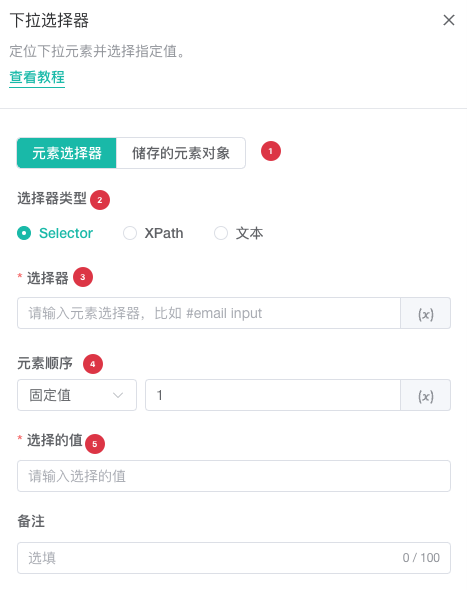
| No. | Setting | Description |
|---|---|---|
| 1 | Element source | Use an element selector or switch to an upstream saved element object |
| 2 | Selector type | Select Selector, XPath, or Text |
| 3 | Selector | Enter the dropdown location; variables are supported |
| 4 | Element order | Select a fixed value or random range and enter the corresponding positions |
| 5 | Selected value | Enter the underlying option value used by the page |
When visible text differs from the underlying value, inspect the page structure or validate with debugging.
Focus Element
Focuses a target element before sending a key or shortcut.
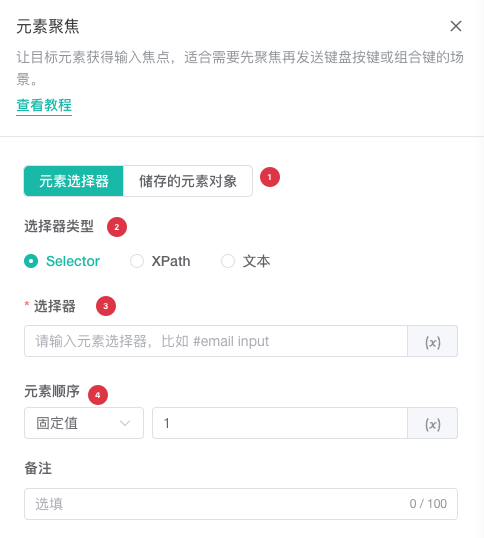
| No. | Setting | Description |
|---|---|---|
| 1 | Element source | Use an element selector or switch to an upstream saved element object |
| 2 | Selector type | Select Selector, XPath, or Text |
| 3 | Selector | Enter the element to focus; variables are supported |
| 4 | Element order | Select a fixed value or random range and enter the corresponding positions |
Click Element
Locates a target element and performs the selected mouse click.
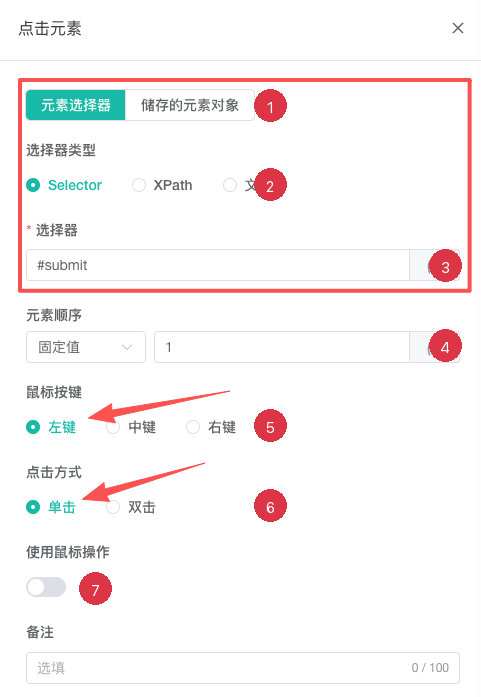
| No. | Setting | Description |
|---|---|---|
| 1 | Element source | Use an element selector or switch to an upstream saved element object |
| 2 | Selector type | Select Selector, XPath, or Text |
| 3 | Selector | Enter the target element location; variables are supported |
| 4 | Element order | Select a fixed value or random range and enter the corresponding positions |
| 5 | Mouse button | Select left, middle, or right; this is hidden for a saved element object |
| 6 | Click method | Select single or double click |
| 7 | Use mouse operation | Enable to configure X/Y position and release delay |
Left single-click is the usual choice. Mouse mode can be affected by zoom and layout changes, so prefer a standard element click when the element can be located directly.
Enter Text
Enters text into a target input.
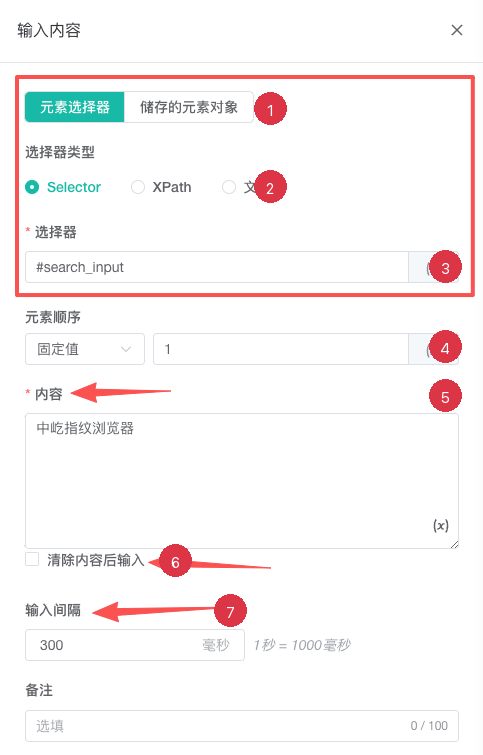
| No. | Setting | Description |
|---|---|---|
| 1 | Element source | Use an element selector or switch to an upstream saved element object |
| 2 | Selector type | Select Selector, XPath, or Text |
| 3 | Selector | Enter the input location; variables are supported |
| 4 | Element order | Select a fixed value or random range and enter the corresponding positions |
| 5 | Content | Enter the text to type; variables are supported |
| 6 | Clear before typing | Enable to remove existing input content first |
| 7 | Input interval | Set the delay between characters; the default is 300ms |
For login and search, clear first to avoid concatenating with a prefilled value. Preserve or increase the interval for pages that are sensitive to input speed.
Sensitive Information
Never write the real value of sensitive variables such as account_password in notes, screenshots, or public logs.
Run JavaScript
Runs JavaScript in the page context and optionally saves the return value.
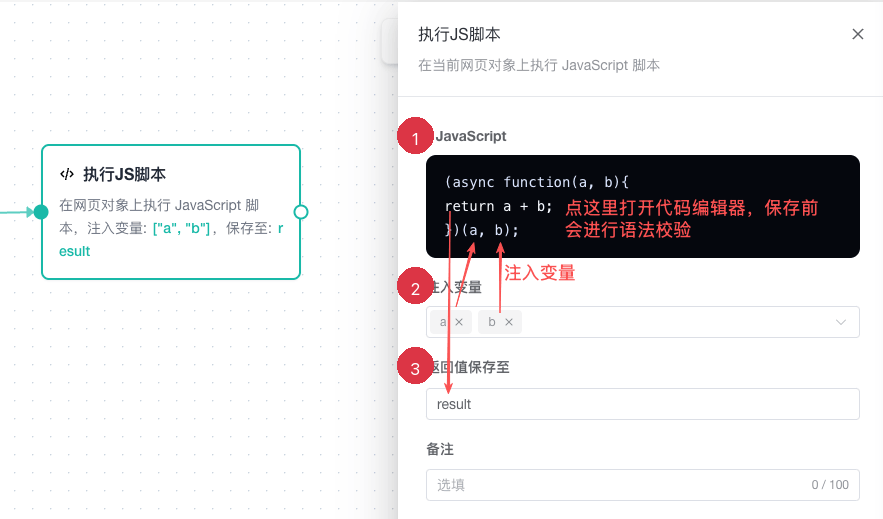
| No. | Setting | Description |
|---|---|---|
| 1 | JavaScript | Write the script and define its return value; syntax is checked before saving |
| 2 | Inject variables | Select only the system or workflow variables required by the script |
| 3 | Save return value to | Enter a valid output variable name, or leave blank when no downstream node needs it |
Example: return the current page title.
return document.title;The script depends directly on the page DOM and runtime environment. Validate it again after a page upgrade and do not use it to bypass a stable standard node operation.
Scroll Page
Scrolls the complete page or a selected element.
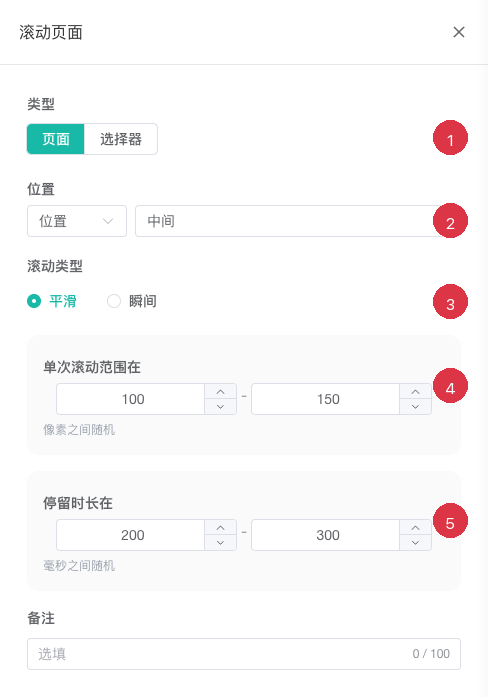
| No. | Setting | Description |
|---|---|---|
| 1 | Type | Select the page or an element; for an element, also configure selector type, location, and order |
| 2 | Position | Select top, middle, bottom, or a nonnegative pixel position |
| 3 | Scroll mode | Select smooth or instant scrolling |
| 4 | Distance per step | Set the minimum and maximum distance; each step uses a random value in this range |
| 5 | Pause | Set the minimum and maximum pause in milliseconds after each step |
For an infinite list, combine stepped scrolling and pauses with Wait for Element or data collection to confirm that new content has loaded.
Upload Attachment
Locates a webpage file input and selects attachments from local files, a random file in a folder, or a network URL. The current version supports single-file and multiple-file modes.
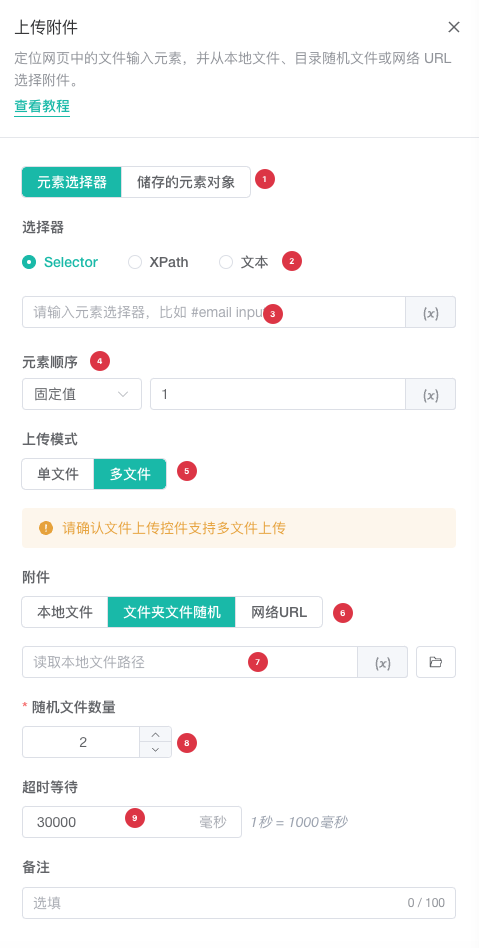
| No. | Setting | Description |
|---|---|---|
| 1 | Element source | Use an element selector or switch to an upstream saved element object |
| 2 | Selector type | Select Selector, XPath, or Text |
| 3 | Selector | Enter the file input location; variables are supported |
| 4 | Element order | Select a fixed value or random range and enter the corresponding positions |
| 5 | Upload mode | Select single file or multiple files; legacy workflows without this value use single-file mode |
| 6 | Attachment source | Select local file, random file from folder, or network URL |
| 7 | Attachment | Enter one path or URL in single-file mode, or add an attachment list in multiple-file mode |
| 8 | Random file count | For multiple random folder files, enter a positive integer |
| 9 | Timeout | Set the upload timeout; the default is 30000ms |
Before running, confirm that local paths exist and are readable on the task computer, folders contain only permitted file types, network URLs point to actual files, and the location rule matches the page file input.
Common Combinations
Open a Page and Submit a Form
Access Website → Wait for Element → Enter Text → Click Element → Wait for RequestOpen a New Tab and Return to the Results
New Tab → Access Website → Actions → Switch TabScroll and Read Lazy-loaded Content
Scroll Page → Wait for Element → Get Element DataRelated Guides
- Element Location and Selectors: Select CSS selectors, XPath, text, or element objects.
- Keyboard and Wait Nodes: Send keys and wait for page state.
- Data Collection and Storage Nodes: Read page, cookie, and file data.
- Debug Automation Workflows: Validate page actions and review node logs.