View and Find Browser Profiles
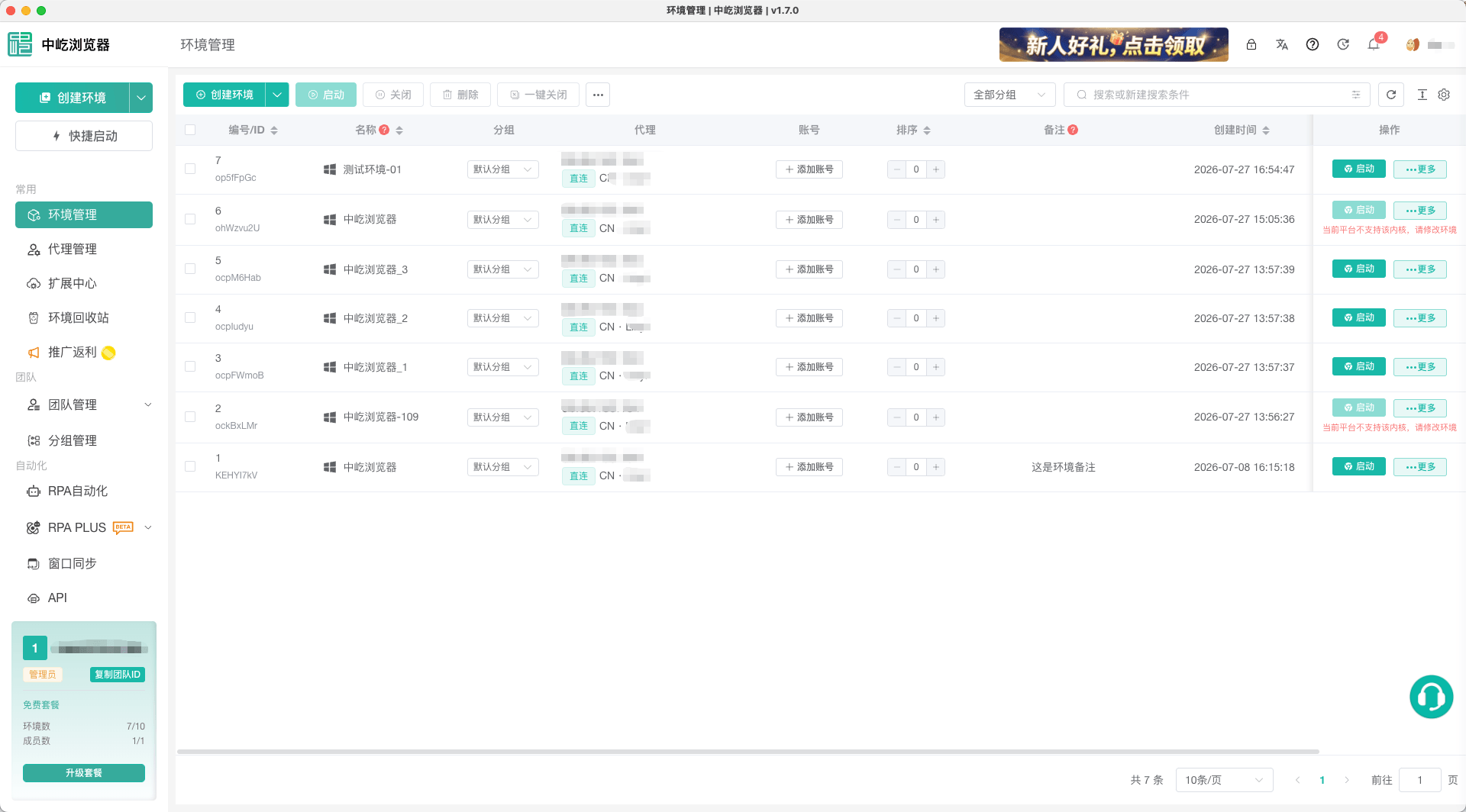
Browser Profiles lists the profiles in the active team. Use it to review row numbers, proxy egresses, groups, and runtime statuses before creating, editing, or performing batch actions.
Open Browser Profiles from the client sidebar to access the profile list, action bar, group filter, search box, and refresh button.
Profile List Fields
The default list includes the following information. You can hide or rearrange some columns through the column settings in the upper-right corner.
| Field | Description | Available actions |
|---|---|---|
No. / ID | The first line is the row number and the second is the Profile ID | Click the copy icon next to the ID to copy the complete value; this column supports sorting |
Name | Displays the profile name and operating system icon | With edit permission, point to the name to edit it inline; this column supports sorting |
Group | Displays the profile's current group | Select another group to move the profile directly |
Proxy | Displays the egress IP, proxy protocol, country or region code, and city | Point to the proxy details to open proxy editing |
Account | Indicates whether a platform account is assigned | Click Add Account or Edit Account to manage the assignment |
Order | Controls the profile's business order in the list | Enter a nonnegative value to save it automatically; this column supports sorting |
Notes | Stores the profile purpose, owner, or other details | With edit permission, point to the notes to edit them inline |
Created At | Displays the creation time | Supports sorting |
Last Opened | Displays the most recent launch time | Supports sorting |
Actions | Provides launch, bring-to-front, close, and other actions based on runtime status | Remains fixed on the right side of the table |
TIP
The row number identifies a profile in the list. The Profile ID is used by API Management, RPA, and support diagnostics. Confirm which identifier is required before copying it.
Filter by Group
Open the group selector to the left of the search box and select a profile group to display only its profiles. Select All Groups to restore the full list.
When you switch teams, the client refreshes both the profile list and group options. If the list is empty, confirm the active team and then review the filters.
Use Combined Search
The search box supports:
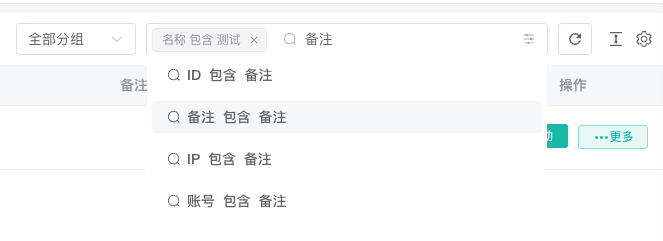
IDNameNotesIPAccount
Enter a keyword and select the field to search from the suggested conditions. Each condition appears as a search tag; continue typing to combine multiple fields. Remove a tag to cancel that condition, or click the refresh button to reload the list with the active conditions.
Sort and Paginate
Click the No. / ID, Name, Order, Created At, or Last Opened column heading to cycle through ascending, descending, and no sorting. At the bottom of the list, select 10, 20, or 50 profiles per page.
Tip
You can also click the sort icon beside a sortable column heading to quickly switch between ascending and descending order, then click again to clear sorting.
Configure Columns
Click the column settings entry in the upper-right corner of the table to hide infrequently used columns or change their order. Settings are stored in the current client. If the list differs between team members, compare their column settings first.
Identify Profiles That Cannot Be Launched
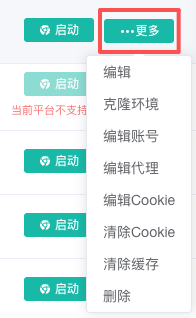
The Actions column may display these restrictions:
| Message | Cause | Resolution |
|---|---|---|
This engine is not supported on the current platform. Edit the profile. | The current operating system does not support the browser engine assigned to the profile | Edit the profile and select a supported engine version |
Plan limit exceeded. Upgrade your plan. | The team has exceeded its profile capacity | Purchase a Team Plan or remove unused profiles |
| Action unavailable | The current member lacks the required permission | Ask a team administrator to grant profile view, launch, edit, or delete permission |
Next Steps
- Create and Edit a Browser Profile: Create a new profile or update an existing one.
- Launch and Maintain Browser Profiles: Launch, close, clone, and maintain an individual profile.
- Manage Browser Profiles in Bulk: Work with multiple profiles and customize the batch action bar.