Common Issues
First identify whether the issue occurs during workflow validation, editor debugging, formal scheduling, or node execution. Fix the first error in the logs; later failures may be consequences of that earlier step.
Quick Checks
| Symptom | Check first |
|---|---|
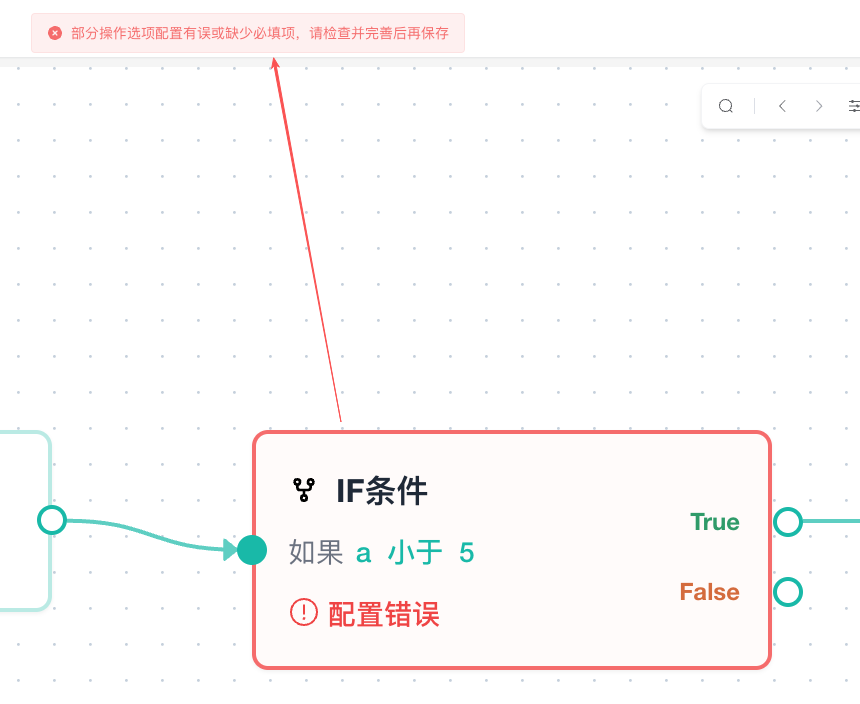
| A node is highlighted before save or debug | Required fields, variable name, IF branches, and loop back edge |
| No debug profile can be selected | Engine version at least 118 and platform support |
| Page element not found | Active tab, page load, selector, and element index |
| Variable unavailable or empty | Source, upstream/downstream connections, branch, and node-debug scope |
| Local file action fails | Path, file permissions, execution computer, and client status |
| Scheduled task does not run | Enabled state, time, desktop client, and local scheduler |
| Historical log is missing | Whether it is a debug log, another computer was used, or the task was deleted |
Workflow Cannot Be Saved or Debugged
Node Configuration Error
Open the focused node and check required fields, output variable name, and JSON.
Common causes:
- URL, selector, or output variable is empty.
- Variable name is not a valid JavaScript identifier.
- Duplicate names exist in one variable list.
- Array or object is invalid JSON.
- JavaScript syntax is invalid.
Fix the first error and save again so the editor can continue checking.
IF or Loop Structure Error
Check that:
- IF connects both
TrueandFalse. Loop Startenters the body.- At least one body edge returns to
Loop End. - Multiple inputs on a standard node follow the rules for a valid IF merge or an error branch rejoining the normal path. A rejoining error connection does not count toward the standard input limit.
- Close Profile has no standard output.
See Flow Control Nodes for connection examples.
Node Does Not Execute
The node must be reachable from Start. Check that it is connected to the main path and that connection direction is correct.
Debug Profile Issues
Profile Cannot Be Selected
The engine must be at least 118 and supported by the current platform. Ineligible profiles cannot be debugged.
Create a compatible profile or select an existing one with a supported engine.
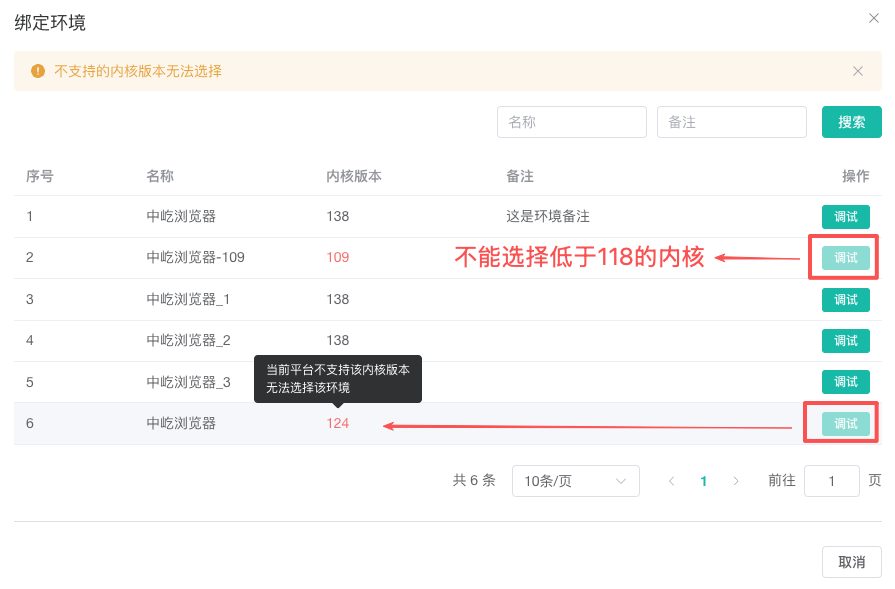
| Visual state | Cause | Resolution |
|---|---|---|
| Green | Engine and platform meet the requirement | Select it and debug |
| Red: engine too old | Engine is below 118 | Use an engine at least 118 |
| Red: platform unsupported | The current platform does not support the engine | Select a version supported by the platform |
Must a Running Profile Be Closed?
No. The implementation first tries to reuse a running profile connection and prepares a new runtime only when reuse fails.
If reuse fails, select the profile again and confirm that the client and local service are healthy.
Still Running After Stop
Stop sends a request to the local executor and waits for its final event. Do not click repeatedly. Check the local service and Debug Logs if the state remains unchanged.
Page Element Issues
Element Not Found
- Confirm the active tab.
- Wait for navigation or loading to finish.
- Check that the CSS selector, XPath, or text still matches.
- Confirm visibility and that the fixed or random index is within the match count.
- Add Wait for Element before the action when required.
Wrong Element Matched
Narrow the location rule and set an explicit index. Prefer stable id, name, or data-* attributes over generated classes and long absolute XPath.
Saved Element Object Does Not Work
Confirm the variable type is element and the using node is downstream. Refresh, navigation, or DOM updates can invalidate an old object; obtain it again.
Variable and Data Issues
Variable Is Missing in the Current Node
Workflow variables become available downstream from their source. Check:
- The output name is filled and valid.
- The current node is downstream.
- The variable was not produced on an unrelated branch.
- The current node has the intended order inside a group.
System variables are global and are not subject to ordinary variable backtracking.
Variable Empty When Debugging from the Middle
Node debugging does not execute ordinary nodes before the selected node, so their outputs do not exist. Start variables remain available.
Debug earlier or temporarily prepare the test input as a Start variable.
Array or Object Format Error
Use valid JSON with ASCII brackets, quotes, commas, and colons and no trailing comma:
{"name":"demo","items":[1,2,3]}JSON or Field Extraction Fails
Inspect the actual upstream value. JSON cannot contain explanatory text, and field extraction must use the correct key case and array structure.
Excel and Local File Issues
Excel Header Validation Fails
Headers must convert to unique valid variable names. Use lowercase English and underscores and remove empty or duplicate headers.
Dynamic Excel Path Does Not Create Variables in Advance
Only static local paths are read during design. Variable paths resolve at runtime and do not generate dynamic column variables in the editor.
A Profile Has No Excel Data
When reading by profile number, check that serial_number maps to a row. Enable Skip when no row matches when appropriate.
File Missing After Save
Save to File and Save to Excel use Downloads and add .txt and .xlsx. Open Run History and inspect the complete path.
File Node Fails After Migration
Files and directories do not migrate with a canvas. Select Excel, TXT, attachment, and output directories again on the new computer and confirm read/write permission.
Import, Export, and Share Issues
Import Fails and Canvas Is Unchanged
This is the validation safeguard. Check JSON, node fields, Start, and graph structure. A failed import does not change the workflow or list.
Editor Import Does Not Update the List
Editor import replaces only the canvas. Save manually to update the stored workflow.
Settings Differ After Import
Export JSON contains nodes and connections only. Review workflow name, notes, and Workflow Settings after importing.
Share Code Cannot Be Parsed
Valid codes are 8-64 characters containing only letters, numbers, underscores, and hyphens. Paste a plain code, complete share text, or a URL containing it.
If a valid code still fails, it may be expired, redeemed fully, or deleted.
Task Scheduling Issues
Run Now Starts Automatically After Saving
This is expected for a new Run Now task. Verify workflow, profiles, concurrency, and timeout before saving.
Task Cannot Be Submitted
Check that:
- The workflow still exists.
- At least one profile is bound.
- Profile concurrency does not exceed profile count.
- Per-profile timeout is nonnegative.
- Run Once or Repeat starts in the future.
- Repeat has a valid end time.
Scheduled or Repeat Task Does Not Run
Confirm the task is enabled, start and end times are valid, and the ZYBrowser desktop client and local scheduler are running at trigger time.
Task Cannot Be Deleted
Running enabled tasks cannot be deleted. Stop it and wait for the status update first.
Higher Concurrency Does Not Increase Parallel Runs
Profile concurrency cannot exceed the number of bound profiles and is also limited by global device concurrency. RPA and legacy RPA share that local setting.
Run History Issues
Debug Run Missing from Run History
Run History displays formal task records only. Open Debug Logs in the editor for debugging.
History Missing After Changing Computers
Summaries and details are stored in local IndexedDB on the execution computer, not automatically synchronized from a server.
Logs Disappear After Deleting a Task
Deleting a task also clears its local run records. Complete required troubleshooting before deletion.
Run Remains in Running
- Find the task and profile with an Error status in Run History.
- Open details and the structured run log.
- Fix the first error before judging later messages.
When the Issue Is Still Unresolved
Collect:
- ZYBrowser client version and operating system.
- Browser engine version.
- Name and node type of the first failed node.
- First error in debug or formal task logs.
- Whether it occurs only for a profile, computer, or task type.
- Whether local paths, permissions, proxies, or a page change are involved.
- Whether restarting the client changed the result.
- Support contact details required by your support channel.
Remove passwords, cookies, authenticator secrets, share codes, and sensitive business data before sharing diagnostic material.
Related Guides
- Use the Workflow Editor: Review validation and connection rules.
- Debug Automation Workflows: Reproduce an issue with structured logs.
- Task Management and Scheduling: Verify task, concurrency, and time settings.
- Run History: Filter formal tasks and review details.