Switch or Create a Team
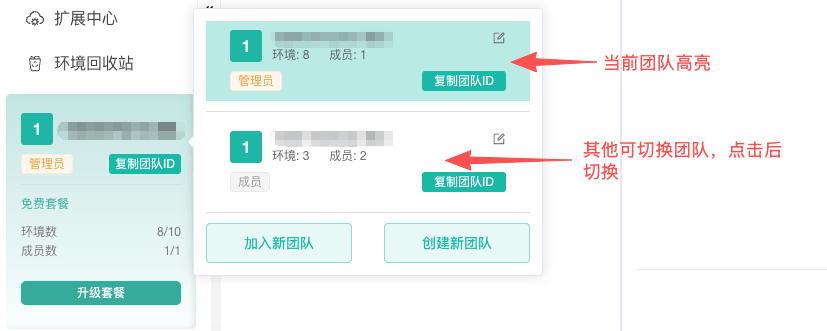
The team selector at the top of the client determines which browser profiles, members, platform accounts, balances, and billing data are displayed. Confirm the team name before creating, deleting, or purchasing anything.
Switch the Active Team
- Open the team selector at the top.
- Select the destination team.
- Wait for the client to confirm the switch before working with profiles or team pages.
The profile list and team capacity reload for the new team. If the team is missing, confirm that your account was invited and approved.
Handle Running Profiles
Before switching teams, the desktop client checks for active local browser profiles. It switches directly when none are active; otherwise, it asks for confirmation before closing them.
| Profile type | What happens after confirmation |
|---|---|
| Regular browser profile | Closes every running profile and waits for its browser process to exit completely |
| RPA | Closes the affected profile; any workflow or task still running is interrupted, so review the final result in run history |
The client switches to the destination team only after confirming that every active profile has exited. New launches are temporarily blocked during closure. Canceling keeps the active team and open profiles unchanged. If any profile cannot be closed, the client does not switch teams; resolve the running profile and try again.
WARNING
Save unsubmitted content in every regular browser profile before switching teams. To switch immediately while RPA is running, stop the task first and review its run history. Continuing directly closes the corresponding profile and interrupts the run.
The web app does not run local browser profiles, so switching teams reloads the destination team's data directly. Signing out uses a different waiting policy for active RPA tasks; see Register, Sign In, and Sign Out.
Create or Join a Team
To create a team, enter a team name. To join one, provide its Team ID and wait for an administrator to approve the application. An administrator can also generate an invitation link or QR code.
After creating or joining, switch to the team before managing its members and resources. Only administrators with the appropriate permission can rename it.
TIP
Switching teams does not migrate resources. To give an existing profile to another team, use the transfer or share action under Manage Browser Profiles in Bulk, then review permissions and proxy settings in the destination team.