Download, Install, and Update
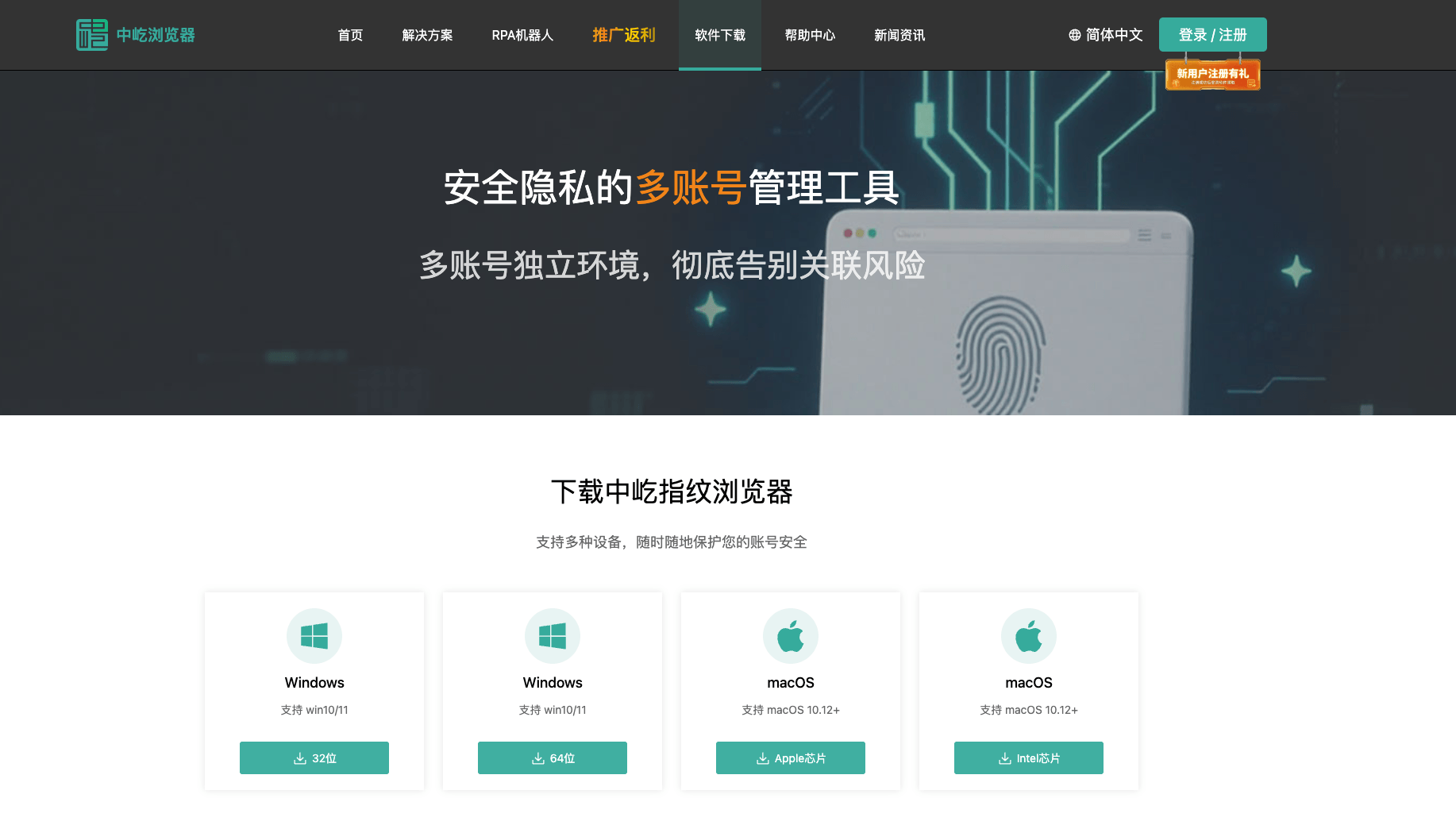
The ZYBrowser desktop client provides the local runtime for browser profiles and can use your computer's network configuration and resources. Download the installer for your operating system from the Download page.
Before Installation
- Make sure the installer matches your operating system and version.
- Have a phone number available that can receive SMS messages; the first login or registration may require a verification code.
- If your corporate network restricts access, allow the client to connect to ZYBrowser services before installation.
Installation Steps
- Open the Download page and select the latest version for your operating system.
- Run the downloaded installer, select an installation location in the setup wizard, and finish the installation.
- Launch the ZYBrowser desktop client to open the login page.
- Sign in using any method described in Register, Sign In, and Sign Out.
Important Notes
- Keep your network connection available during the first login.
- If security software blocks the installer, verify that it came from the official ZYBrowser website before allowing it to run.
- The web app provides the features available online, but it cannot launch local browser profiles, test proxies, or perform other operations that require local resources.
- Use the latest client whenever possible because some features may no longer support older releases.
Verify the Installation
If the dashboard and Browser Profiles entry appear after login, the client was installed successfully. Next, create your first browser profile.
Update the Client Software
The ZYBrowser desktop client checks for software updates after startup and checks again every hour while it is running. When a new version is available, a dot appears on the Update Center icon in the upper-right corner. Click the icon to review the version, changelog, and notices.
Keep ZYBrowser Up to Date
New releases add features and continue to improve the stability, performance, and usability of existing functionality. As ZYBrowser services and browser kernels evolve, some features in older client versions may develop compatibility issues. When an update is available, save your work, finish running tasks, and upgrade to the latest version promptly.
- Open
Update Centerin the upper-right corner of the client. - Under
Software Update, review the target version and changelog. - For a regular update, click
Downloadto retrieve the installer orSkipto ignore the current version. A mandatory update downloads automatically and cannot be skipped, but the automatic download does not force the client to quit. - After the download finishes, a mandatory update only displays a
New version is readyprompt. The client quits and installs the new version only when you clickUpdate. If you are not ready, clickLateror close the prompt to keep working. Once the installer has downloaded, fully quitting the client later installs it automatically.
Save Your Work Before Updating
Installing a software update closes every open browser. Save any unsubmitted webpage content and finish or stop running legacy RPA and RPA tasks first.
After a failed download, reopen Update Center and click Download again. Keep the network connected and do not force-quit the client during the update.
Download a Browser Kernel
Browser kernels are downloaded separately from the client software. ZYBrowser downloads a required kernel in either of these situations:
- You select a kernel version that is not installed while creating or editing a browser profile, then confirm
Download and Install. - You launch a regular browser profile or RPA run whose configured kernel is missing from the device.
When the download begins, Update Center opens automatically and displays its progress under Kernel Download. A regular browser profile or RPA run waits for the download to finish and then continues launching. You do not need to restart the client.
If the download fails, check the network connection and available disk space, then launch the affected browser profile again to retry.
Update a Browser Kernel
The client checks installed kernels for updates. When a newer release is available for an installed kernel major version, Update Center displays a Kernel Update item.
- Open
Update Centerand review the target version and changelog underKernel Update. - Click
Install. ClickSkipif you do not want to install the current update. - If regular browser profiles are using that kernel, click
Close and Updatewhen prompted. The client closes only the affected profiles and starts the update after confirming that they have exited. - If a legacy RPA or RPA task is using the kernel, the client does not force the update. Stop the affected task, wait for its browser profile to exit, and click
Installagain. - Wait for the download and extraction to finish. The updated kernel is ready when the update item disappears from the list.
You cannot launch a browser profile that uses the same kernel major version while its kernel is being updated. If the client reports that usage changed or that some profiles are still open, review their state and try again.