Configure Defaults for New Profiles
Preferences defines default values for new browser profiles. Saved values are prefilled when creating a profile; existing profiles are not changed in bulk.
Basic Profile Defaults
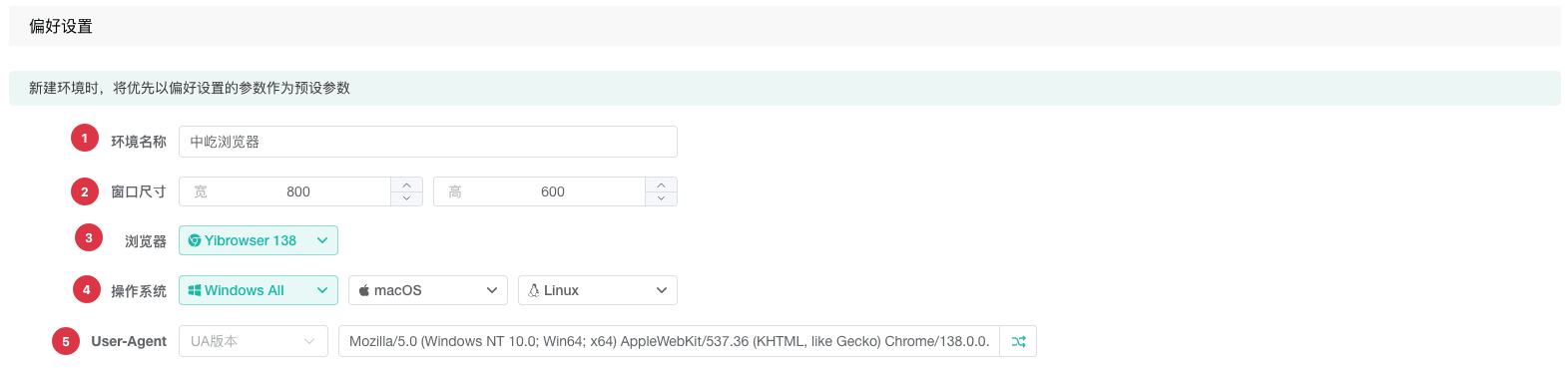
| No. | Feature | Description |
|---|---|---|
1 | Profile name | Default name or template prefilled for new profiles |
2 | Window size | Default width and height, with a minimum of 300 px; account for screen resolution and the number of side-by-side windows |
3 | Browser | Preferred browser and available version for new profiles |
4 | Operating system | System type consistent with the browser fingerprint and business target |
5 | User-Agent versions | One or more available versions used as the generation range |
6 | Custom User-Agent | Enter a complete value or generate one randomly from the selected browser and operating system |
The browser, operating system, and User-Agent should remain logically consistent. Obvious conflicts can increase the risk of abnormal website detection.
Common Settings and Fingerprint
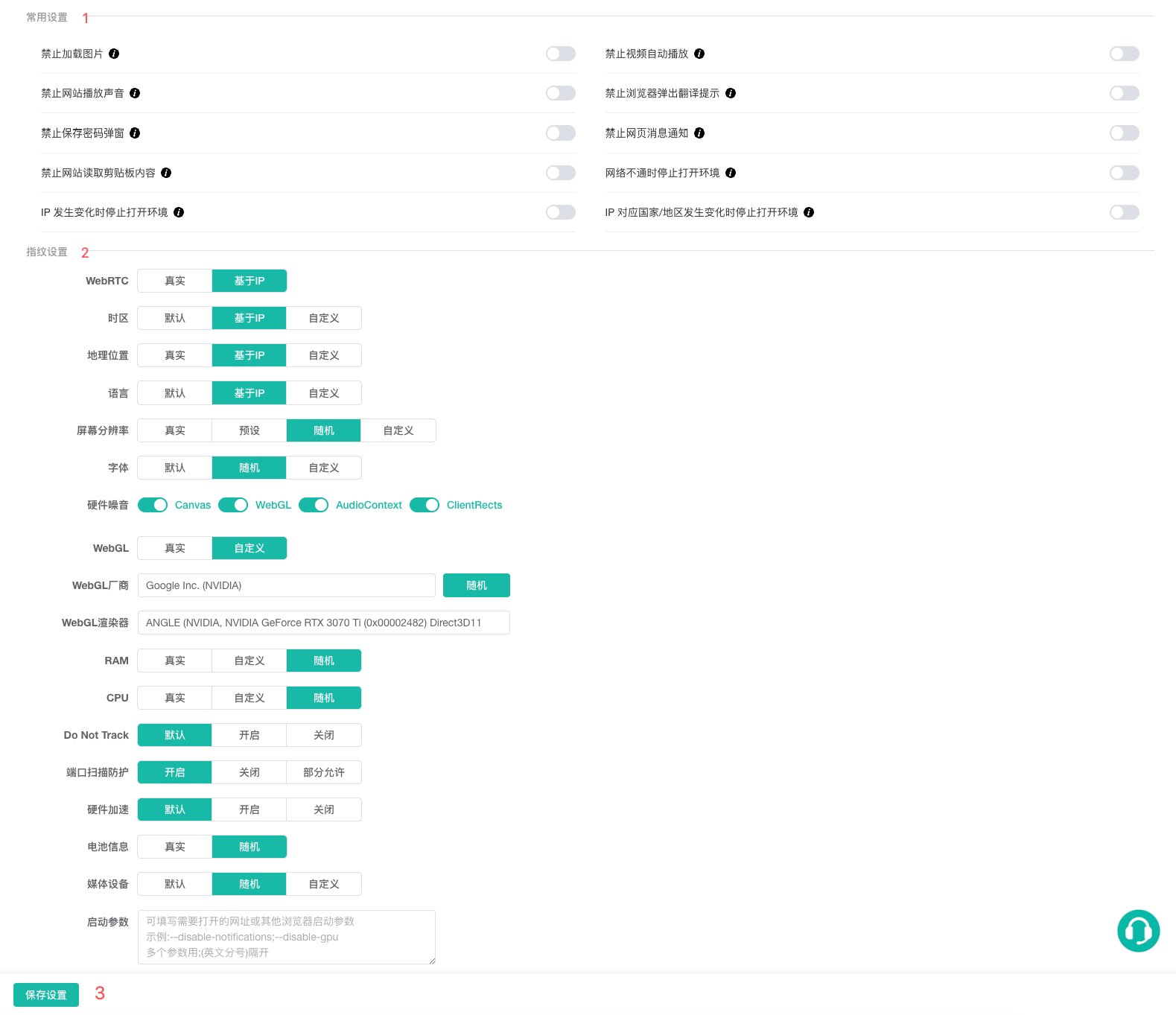
| No. | Feature | Description |
|---|---|---|
1 | Common Settings | Configures shared browser behavior for newly created profiles |
2 | Fingerprint Settings | Defines defaults for language, time zone, screen, Canvas, WebGL, hardware, and other fingerprint parameters |
3 | Save Settings | Validates and updates preferences; changes apply to new profiles only after a successful save |
Save and Validate
- Wait for browser, operating system, and User-Agent options to load.
- Configure the intended defaults and click
Save Settings. - Follow Create and Edit a Browser Profile to create a test profile.
- Verify its basic information, common settings, and fingerprint.
When switching tabs or leaving with unsaved changes, the client asks whether to continue editing or discard them. For complete field definitions, see Configure Fingerprints and Common Settings.