Install from the Extension Marketplace
Extension Marketplace provides platform-supplied extensions. Installed extensions appear under Personal Extensions. In the desktop client, ZYBrowser also downloads and extracts the corresponding files before you can configure their browser profile load scope.
Find an Extension
Open Extensions > Extension Marketplace. The default page shows previews by category. Use the anchors on the left to jump to a category, or click View More beside a category to browse its full list. Search at the top finds extensions by name across the marketplace.
If the required extension is unavailable, use Search the Chrome Web Store to find a public extension. After obtaining its CRX file, follow Upload a Local CRX File.
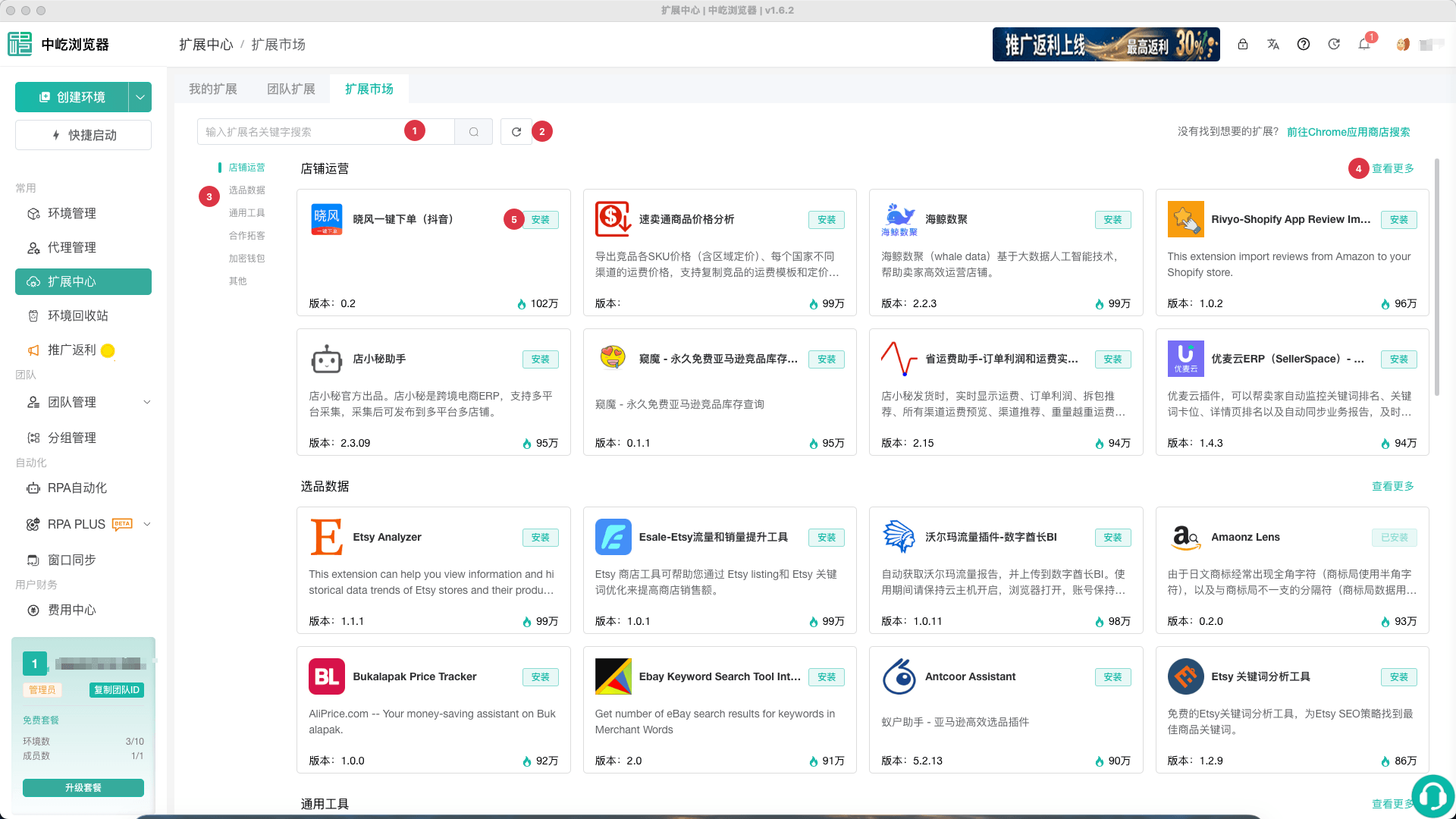
| No. | Feature | Description |
|---|---|---|
1 | Search | Finds an extension by name across the marketplace |
2 | Refresh | Reloads marketplace categories and preview data |
3 | Category navigation | Jumps to a category on the preview page |
4 | View More | Opens the complete paginated list for one category |
5 | Install | Adds an extension that is not yet installed to Personal Extensions |
Install an Extension
- Find the required extension.
- Click
Installon its card. - Wait for the card to display
Installed, then confirm the record underPersonal Extensions. - In the desktop client, wait for download and extraction to finish.
- Follow Configure Extension Scope to enable it for the target profiles.
If Install is unavailable, confirm that the current member has Install from Marketplace permission. If the download fails, refresh Personal Extensions. If it still does not recover, delete the record and install it again, or upload a local CRX.
WARNING
Before installation, verify that the source is trusted and review permissions to access webpage content, cookies, or network requests. Never assign an untrusted extension to profiles containing business accounts.