Run History
Run History displays formal task results for each browser profile. It does not include workflow editor debug runs.
Run summaries and details are stored in IndexedDB on the current computer, not as a server-only history synchronized across devices. Confirm retention requirements before changing computers or clearing local data.
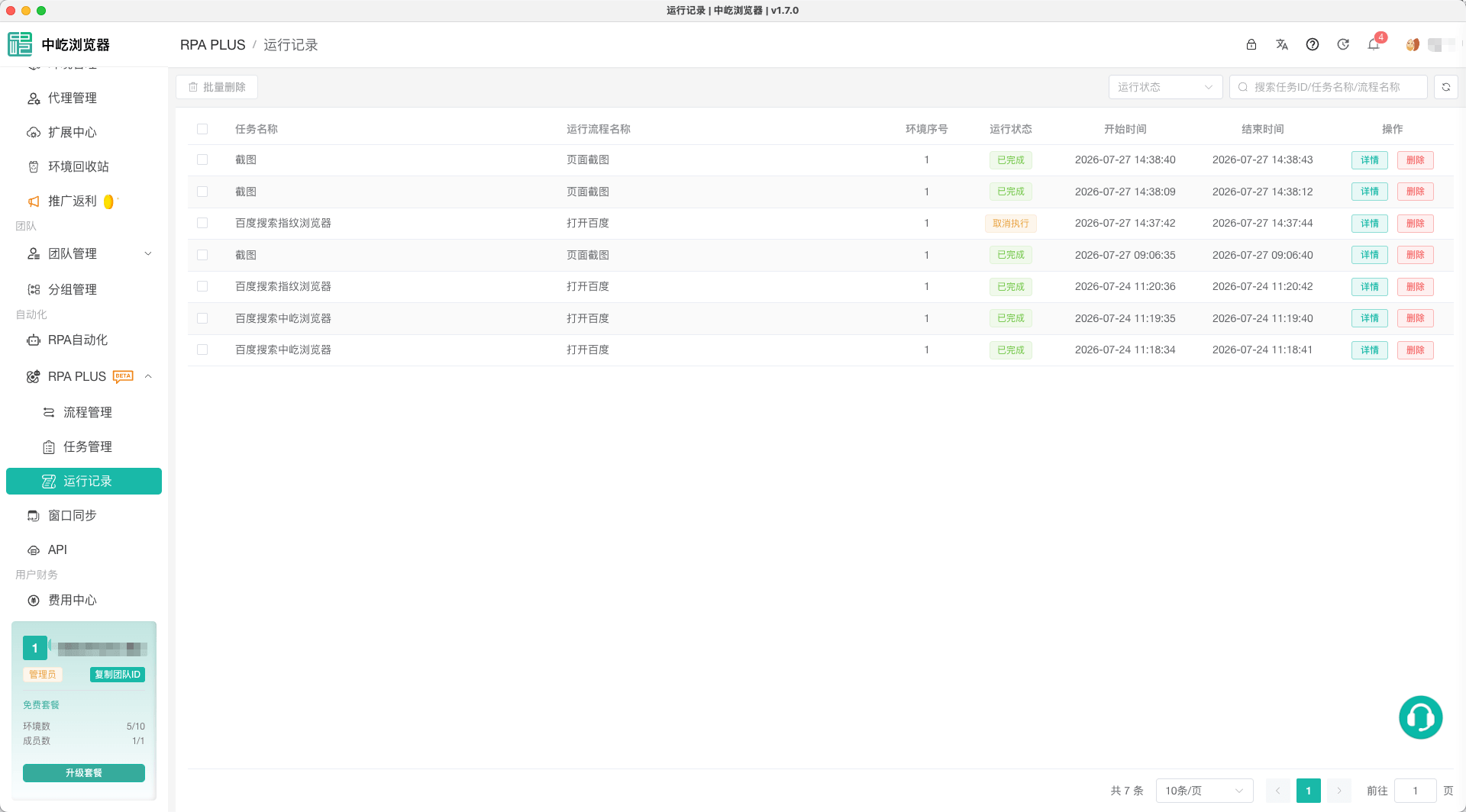
Run List
The list displays:
- Task name.
- Workflow name.
- Profile row number.
- Runtime status.
- Start time.
- End time.
- Details and delete actions.
Only formal task records with mode=task appear. Open Debug Logs in the editor for debug runs.
Runtime Status
| Status | Description |
|---|---|
| Pending | A record exists but execution has not started |
| Running | The profile is executing the workflow |
| Completed | The workflow finished normally |
| Error | A node or runtime error occurred |
| Timed Out | A workflow or task time limit was reached |
| Cancelled | The task or current run was stopped |
A task bound to several profiles creates one result per profile. Check task name and profile row number together when troubleshooting.
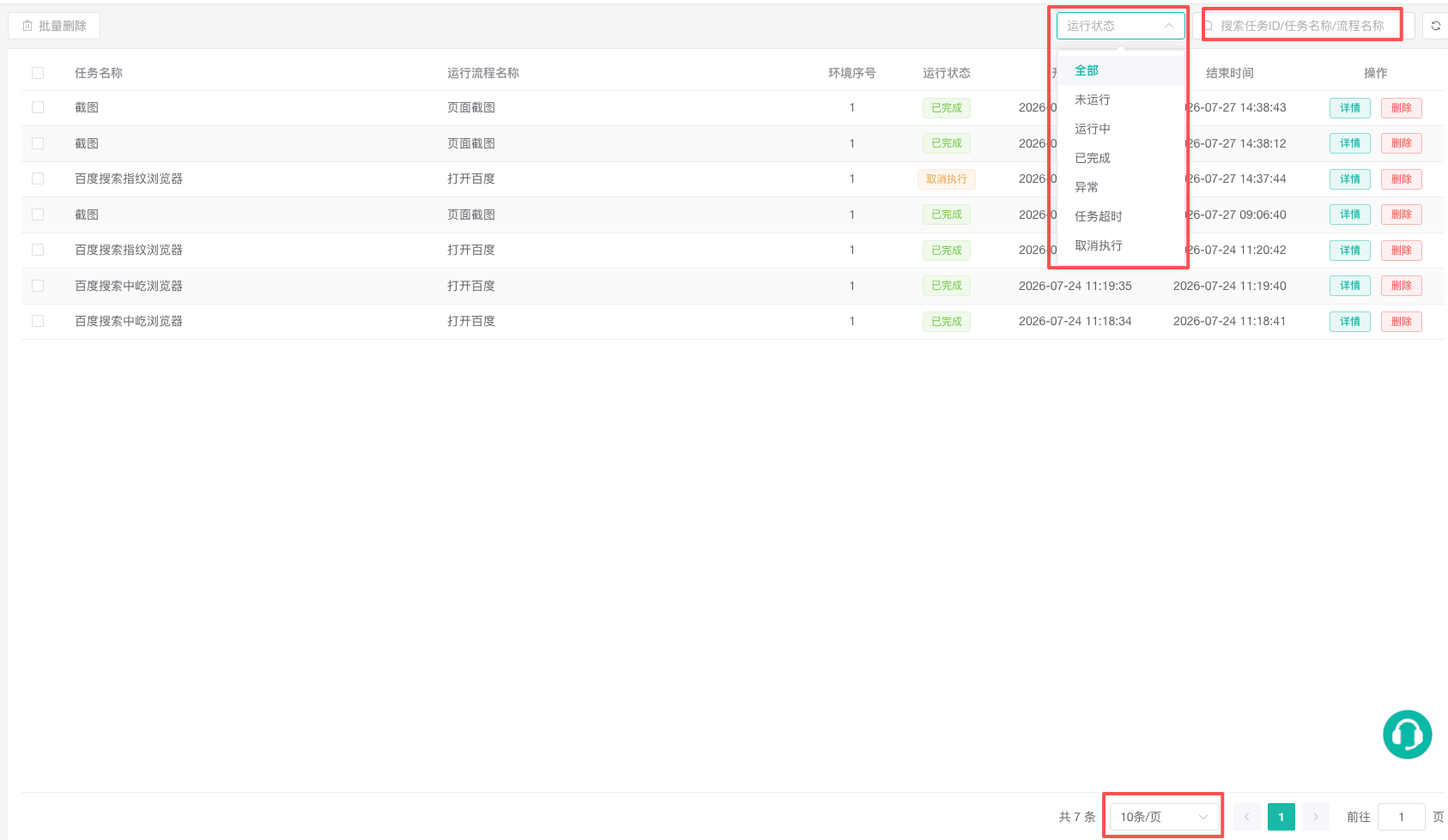
Filter and Search
Filter by runtime status. Keywords match:
- Task ID.
- Task name.
- Workflow name.
When opening Run History from Task Management, taskId is applied as an exact filter.
Display 10, 20, 50, or 100 records per page. For a long list, filter by status before searching by task or workflow.
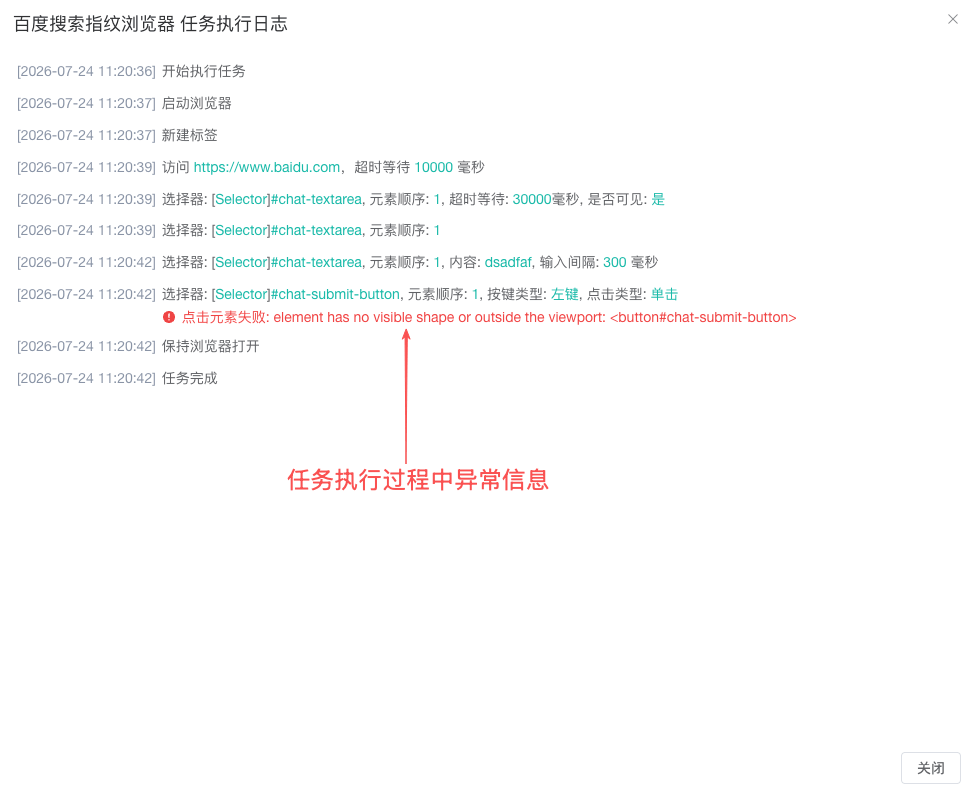
Review Log Details
Open details to view node messages in time order:
- Confirm the task, workflow, and profile.
- Find the first Error, Timed Out, or Cancelled message.
- Inspect page state, variables, and branch results before that node.
- Return to the editor and review its configuration.
Loops, IF, groups, and error branches appear in structured containers. Expand them to inspect iterations, branches, and child nodes.
Historical Snapshots
Run summaries prefer the task name, workflow name, and workflow-edge snapshot captured at runtime. Even after a task or workflow is renamed or deleted, history attempts to display the values from execution time.
Snapshots keep logs readable; they do not restore a deleted workflow. Use Export or Share to migrate a workflow.
Locate Output Files
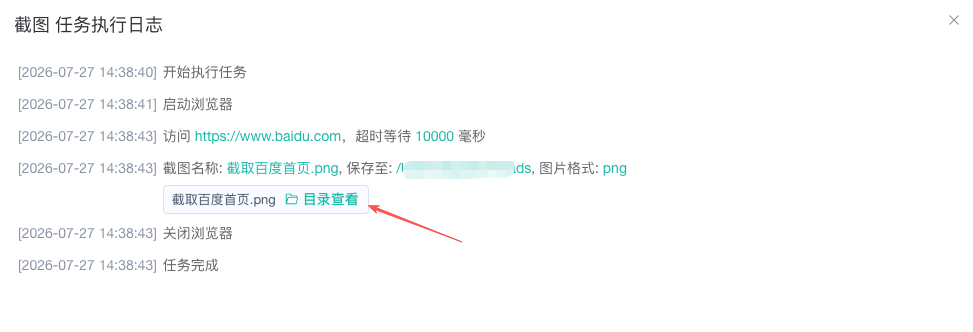
When a file-save log contains a path and file name, open it in the system file manager.
This applies to Save to File and Save to Excel. If the file cannot be found, check:
- It still exists at the path in the log.
- This is the computer that executed the task.
- The file or directory was not moved, deleted, or cleaned up.
Opening the system file manager requires the ZYBrowser desktop client and local capabilities.
Delete Records
Delete one or several run records. This removes both the summary and detailed logs.
Deleting a task also clears its local IndexedDB run records. Preserve required diagnostic information before deleting a task or clearing history.
Diagnose Statuses
Error
Open details and find the first failed node. Check tabs, load state, and selectors for page nodes; upstream variables and local files for data nodes; syntax and page context for scripts.
Timed Out
Compare workflow timeout with the per-profile task timeout. Look for slow pages, an endless While loop, or an excessive fixed wait.
Cancelled
Check whether someone stopped the task from its list or the local service was interrupted. Profiles in one multi-profile task can end in different states.
Stays Running
Refresh the record and check the desktop client and local scheduler. Status depends on local runtime events; inspect local logs if the service exited unexpectedly.
Data Safety
- Logs may contain business pages, variable summaries, or file paths. Share them only with people who need to troubleshoot.
- Do not print passwords, cookies, or authenticator secrets in node notes or script logs.
- Local run history does not sync across devices. Identify the execution computer when collaborating on an issue.
- Deleting a record cannot restore a workflow. Export or share important workflows separately.
Related Guides
- Task Management and Scheduling: Create, start, and stop formal tasks.
- Debug Automation Workflows: Reproduce a failed node in the editor.
- Common Issues: Diagnose by symptom.
- Import and Export Workflows: Save a portable workflow canvas.