Settings Overview
Settings manages account information, new-profile defaults, current-device behavior, cross-device global configuration, desktop client menus, and software versions. The desktop client displays six tabs. The web app displays only Account Settings and Preference Settings.
Settings Tabs
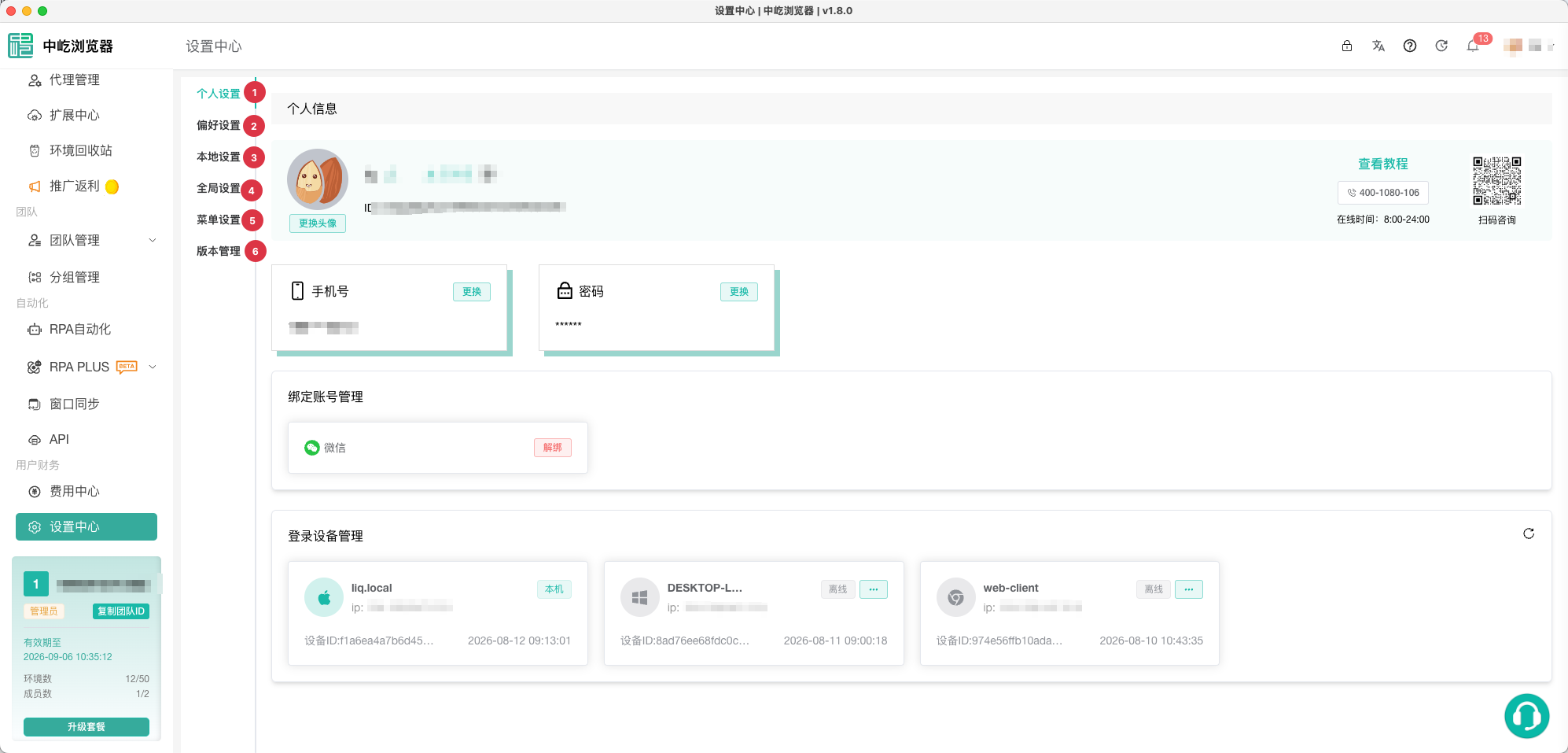
| No. | Feature | Description |
|---|---|---|
1 | Account Settings | Manage avatar, nickname, identity verification, phone number, password, WeChat binding, and login devices |
2 | Preference Settings | Define default name, window, browser, operating system, User-Agent, common settings, and fingerprint for new profiles |
3 | Local Settings | Manage startup, close behavior, memory limit, RPA tasks, cache directory, and system logs on the current device |
4 | Global Settings | Save user-level browser window, cookie, badge, and startup page settings that synchronize with the remote account configuration |
5 | Menu Settings | Desktop only; configure sidebar and tab navigation visibility and order and optionally save them remotely |
6 | Version Management | Desktop only; update ZYBrowser and install, update, or uninstall YiBrowser kernels |
Scope
| Setting type | Primary scope | Save action | When switching tabs |
|---|---|---|---|
| Account Settings | Active account | Each dialog or action submits separately | Account security actions update immediately according to their result |
| Preference Settings | Browser profiles created afterward | Click Save Settings | A confirmation appears when leaving with unsaved changes |
| Local Settings | Current device | Click Save Settings; selected system switches also call local operating system capabilities | A confirmation appears when leaving with unsaved changes |
| Global Settings | Remote global configuration for the active account | Click Save Settings | A confirmation appears when leaving with unsaved changes |
| Menu Settings | Current desktop client, with optional remote synchronization | Visibility and order apply locally immediately; click Save Remotely to synchronize | At least one accessible menu must remain visible |
| Version Management | App and kernels in the current desktop client | Each update, install, or uninstall action runs independently; the automatic kernel update switch saves immediately | The client continues to manage active download and installation tasks |
You cannot leave Preferences, Local Settings, or Global Settings while a save is in progress. At an unsaved-changes prompt, select Continue Editing to return or Discard and Leave to restore the most recently saved state.