Extensions Overview
Extensions is used to obtain, upload, and assign Chrome extensions. Switch among Personal Extensions, Extension Marketplace, and Team Extensions. An extension can load in a browser profile only after it has been downloaded or extracted locally.
Extension Pages
| Page | Purpose | Common actions |
|---|---|---|
Personal Extensions | Manages extensions added to the active team | Upload, search, update, delete, batch delete, and configure load scope |
Extension Marketplace | Browses extensions supplied by the platform | Find extensions by category or keyword and install them |
Team Extensions | Displays shared extensions available to the active team | Search extensions; the client automatically prepares extensions not yet downloaded |
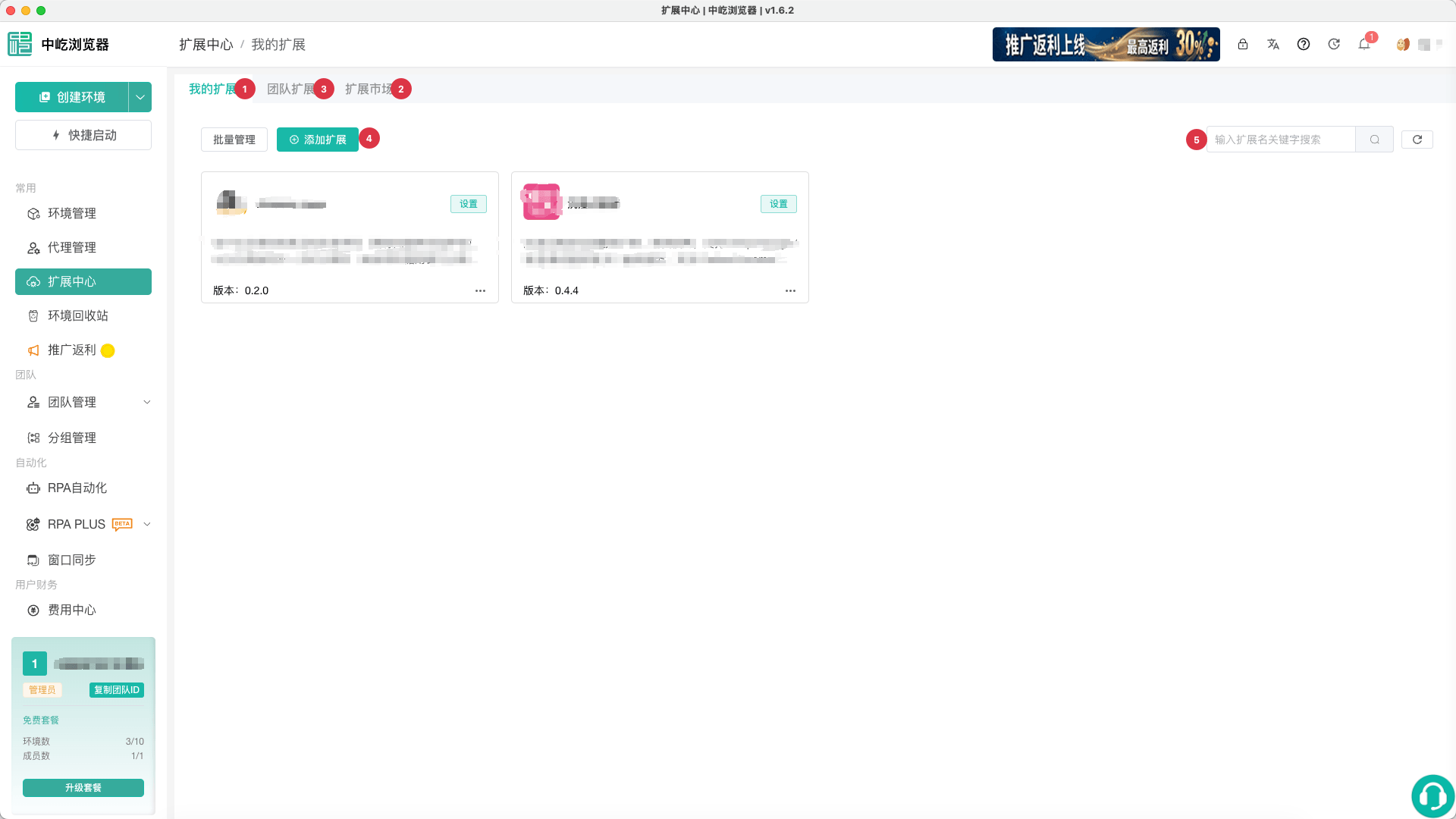
| No. | Feature | Description |
|---|---|---|
1 | Personal Extensions | Manage extensions added to the active team and configure where they load |
2 | Extension Marketplace | Install extensions from platform categories and search results |
3 | Team Extensions | View extensions shared with the active team by other members |
4 | Add Extension | Upload a local CRX package |
5 | Search and refresh | Filter the current list by extension name or refresh its status |
How Extensions Load
An extension can apply to All Profiles or selected profiles. The two scopes are mutually exclusive. With All Profiles enabled, individual profiles do not need to be selected. Disabling both clears the saved load scope. For extension options in the profile form, see Create and Edit a Browser Profile.
After an extension is set to Visible to Team, it loads for a team member only when that member launches a profile included in the extension's global or selected scope. Team visibility controls sharing; it does not automatically enable the extension for every member or profile.
Desktop Client and Permissions
Downloading, extracting, deleting local files, and loading extensions into browser profiles require the desktop client. If the extension is not ready locally, its card displays download progress. Wait for download and extraction to finish before opening Settings or launching a profile.
Team permissions control the available actions:
| Permission | Affected actions |
|---|---|
Add Extension | Upload a local CRX extension |
Install from Marketplace | Install an extension from the marketplace |
Edit Extension | Update an extension and configure team visibility and load scope |
Delete Extension | Delete one extension or use batch deletion |
To adjust a member's extension permissions, see Manage Members and Roles.
Next Steps
- Install from the Extension Marketplace: Find and install an extension supplied by the platform.
- Upload and Update Extensions: Upload and maintain a local CRX file.
- Configure Extension Scope: Load an extension in all or selected profiles.