Import and Export Workflows
Import and Export migrate or reuse a workflow canvas. Exported JSON contains only nodes and connections, not the workflow name, notes, or Workflow Settings, so it is not a complete workflow backup.
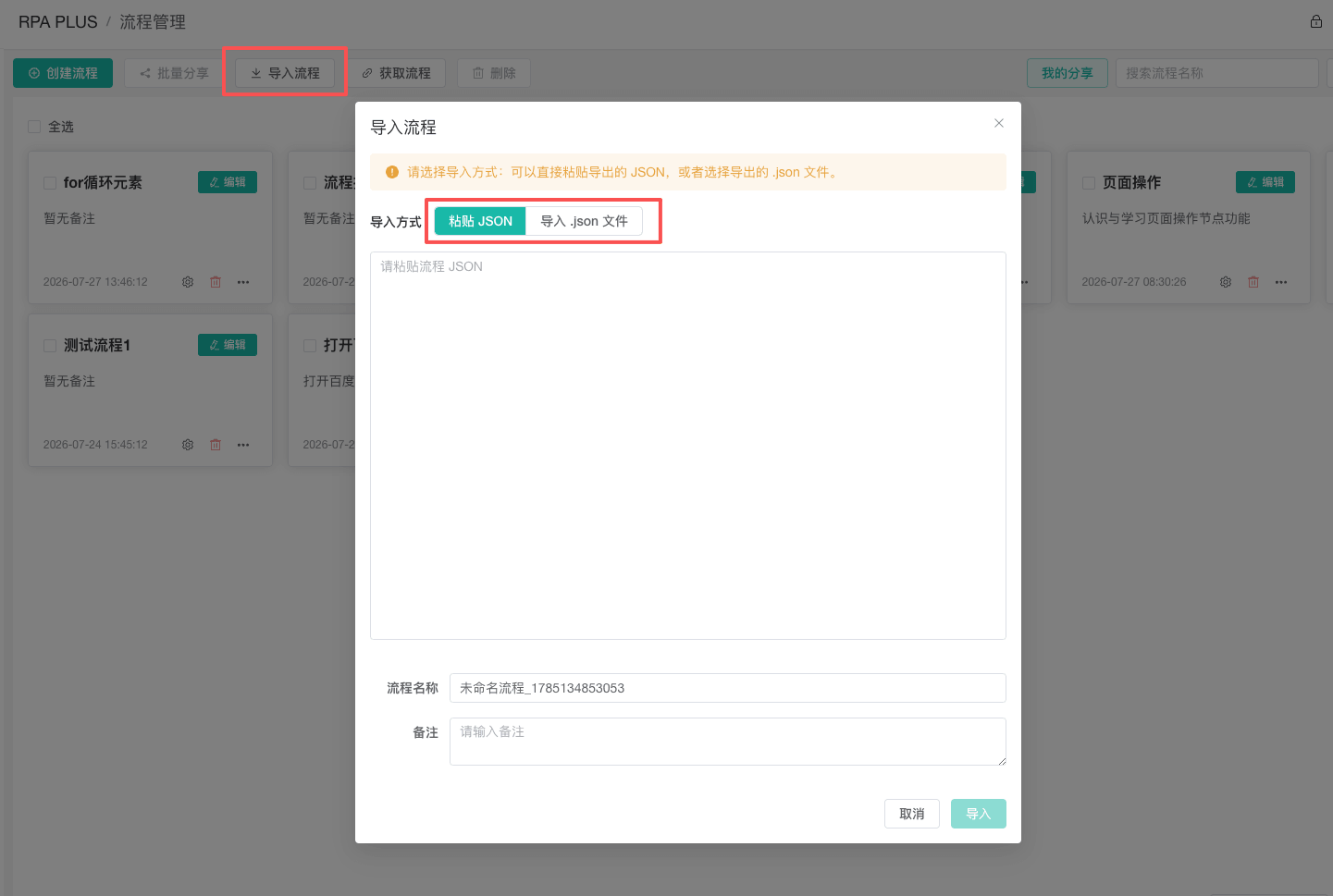
What an Export Contains
The file is Vue Flow canvas JSON containing:
- Canvas nodes.
- Connections between nodes.
It does not contain:
- Workflow name.
- Workflow notes.
- Workflow Settings.
- Other fields from Workflow Management.
After import, review the name, notes, and Workflow Settings, especially timeout, headless mode, close-on-completion, and launch arguments.
Export from Workflow Management
- Open RPA > Workflow Management.
- Find the workflow.
- Open More Actions on its card.
- Select Export Workflow.
- Save the generated JSON.
The list rereads the latest workflow before exporting instead of using a stale card snapshot.
Use a clear versioned name such as:
Daily_Product_Check_2026-07-24.json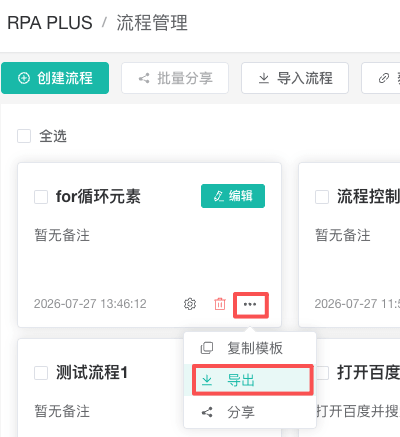
Export from the Editor
Click Export in the workflow editor toolbar to export the current canvas JSON.
Configure and save nodes before exporting so the saved list version matches the export and its source can be traced later.

Import from Workflow Management
Importing from Workflow Management creates a new workflow and does not replace an existing list item.
- Click Import Workflow at the top.
- Choose pasted JSON or a
.jsonfile. - Paste or load the export.
- Enter and review the new workflow name.
- Submit the import.
- Open the new workflow and review its canvas and settings.
To retain the original, import it as a new workflow and validate it in a test profile.
Import in the Editor
Editor import replaces the current canvas:
- Click Import on the toolbar.
- Paste JSON or select a
.jsonfile. - Wait for format and structure validation.
- Confirm and review the new canvas.
- Save manually to persist the imported content.
Import Replaces the Current Canvas
Editor import does not append nodes. It replaces the current canvas and still requires a manual save. Leaving without saving lets you discard the import.
Export the current canvas or copy a test workflow before importing when the current version must be preserved.

Import Validation
Import checks:
- Valid JSON.
- Complete and valid node fields.
- Complete and valid connection fields.
- A valid Start node.
- Valid node business configuration.
- Valid graph structure for IF, loops, terminal nodes, and multiple inputs.
Validation failures display errors and do not modify the current workflow or list.
Resolve Import Errors
Invalid JSON
Use the complete .json content. Confirm that a chat tool did not truncate it or add text before or after it. Do not change unfamiliar node fields directly.
Start Node Missing
The import must contain the fixed Start node. Obtain a complete export from a normal RPA workflow.
Invalid Node Configuration
The export may come from another version or have manually edited fields. Follow the validation message; if the field meaning is unclear, export again from a compatible version.
Branch or Loop Structure Error
Confirm that IF has both True and False, loops have Loop Start and a back edge to Loop End, and Close Profile has no standard output.
Imported Workflow Does Not Appear
When importing in the editor, click Save. Editor import replaces only the current canvas and does not persist automatically.
Migration Checklist
After importing to another computer or handing it to another user, verify:
- Workflow name and notes are clear.
- Workflow Settings match the target profile.
- Local file, Excel, and folder paths exist.
- CSS selectors, XPath, and text locations still work.
- Launch arguments suit the target device.
- Accounts, cookies, and authenticator secrets are supplied securely by the target profile.
- The debug profile uses an engine at least
118and supported by the platform. - The workflow was saved and debugged in a test profile.
Import/Export Compared with Sharing
| Method | Suitable use | Boundary |
|---|---|---|
| Import / Export | Offline canvas migration with a local JSON file | Contains only nodes and connections |
| Share / Get | Give a workflow to another user with a share code | Can limit redemptions and validity |
| Copy as Template | Quickly create a copy in the current list | Not intended for cross-user delivery |
For cross-user collaboration, see Share and Get Workflows.
Related Guides
- Workflow Management: Find, copy, and maintain workflows.
- Use the Workflow Editor: Resolve node and graph validation errors.
- Workflow Settings: Review runtime options after importing.