Share and Get Workflows
Workflow sharing gives another user one or more workflows through a share code. The share always includes the workflow name and content, and can optionally include notes.
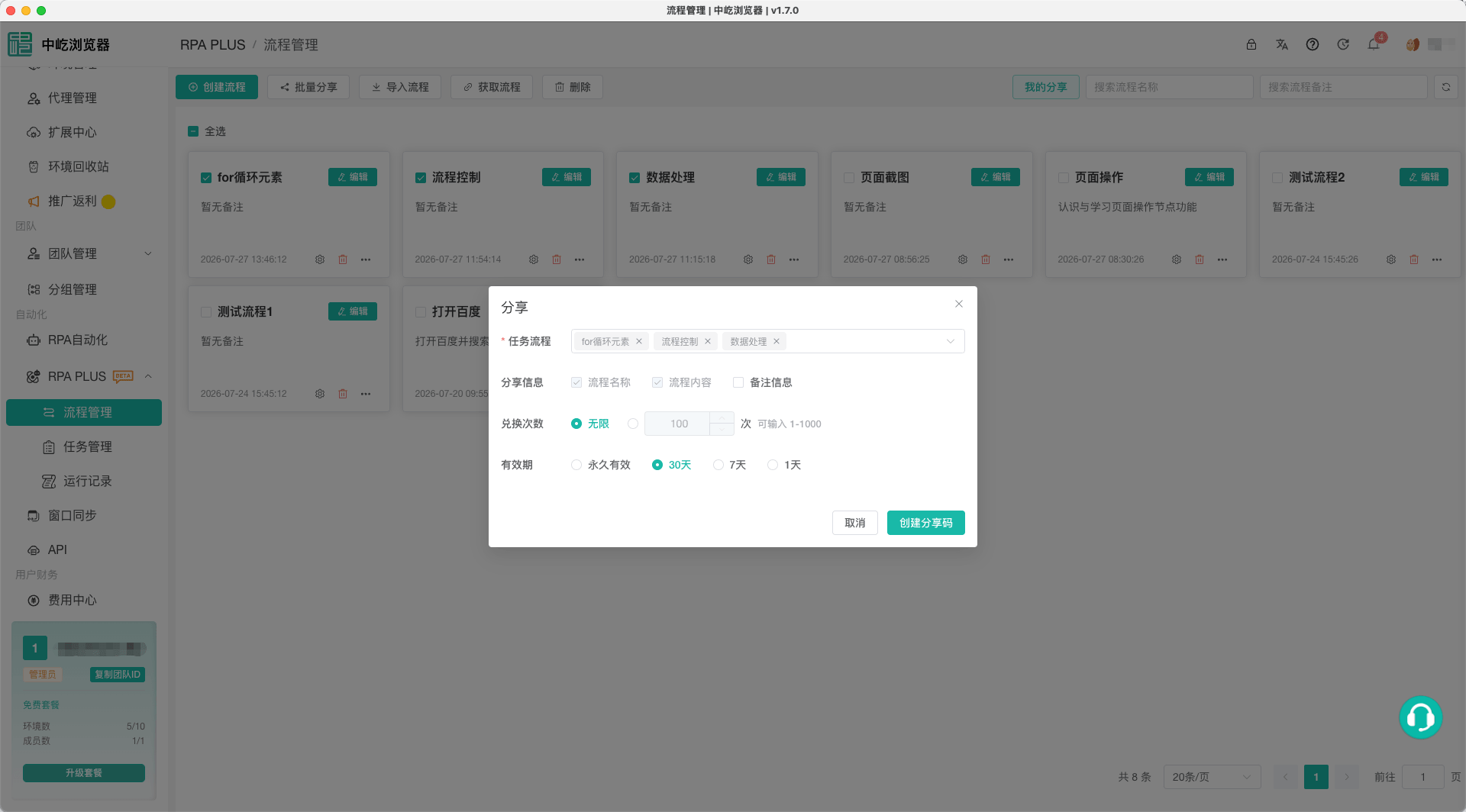
Share One Workflow
- Open RPA > Workflow Management.
- Find the workflow and open More Actions.
- Select Share.
- Review the workflow name and content.
- Include Notes if required.
- Set redemption count and validity.
- Create the share code.
Save and debug first. Remove test accounts, authenticator secrets, and local path details that should not be delivered.
Share Workflows in Bulk
- Select workflow cards.
- Click Share Workflows in Bulk at the top.
- Review the workflow list and content.
- Set one redemption count and validity for all.
- Create the share code.
Select All applies only to the current page. Review names and count to avoid sharing unrelated workflows.
Select Shared Content
Every share contains:
- Workflow name.
- Workflow content.
Notes are optional and can describe purpose, applicable pages, and prerequisites. Never include passwords, cookies, authenticator secrets, or other sensitive data.
Set Redemption Count
Choose:
- Unlimited.
- A limit from
1to1000.
Use a small limit for one recipient. Set it by expected recipient count for a shared template, or use Unlimited only after reviewing the risk.
After the limit is reached, other users cannot obtain the workflow from that share.
Set Validity
Choose:
- Permanent.
30days.7days.1day.
Use a limited period for temporary delivery. Review and delete permanent shares under My Shares when they are no longer needed.
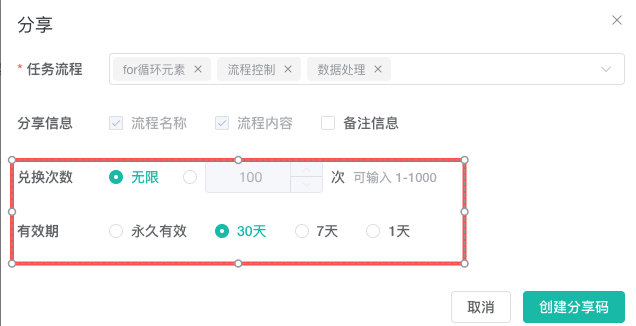
| Scenario | Redemption count | Validity | Suitable use |
|---|---|---|---|
| Temporary delivery to one person | Small fixed limit | 1 or 7 days | A delivery to a known recipient |
| Long-lived template for several people | Expected count or Unlimited after risk review | 30 days or permanent | A template intended for repeated reuse and maintenance |
Copy the Share Result
After creating a share, copy:
- Share code only.
- Complete share text with instructions and the code.
Verify the recipient and content before sending. A share code grants access to obtain the workflow and must not be posted in unrelated groups or public pages.
Manage My Shares
Click My Shares in Workflow Management to review shares you created.
Edit a share to extend or shorten validity or change redemptions. Delete it when no longer required to reduce further distribution.
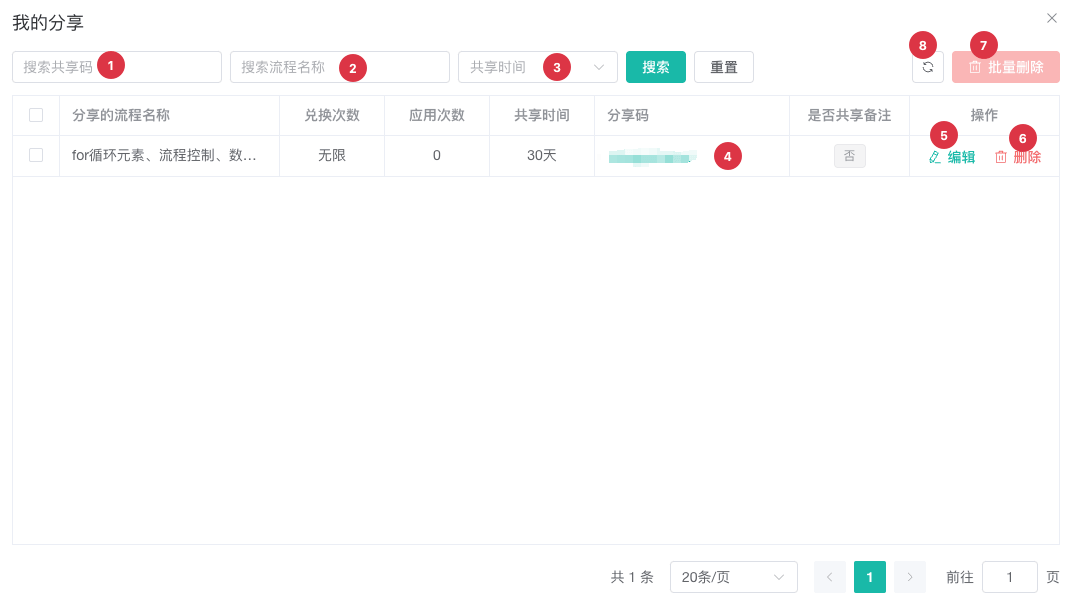
| No. | Feature | Description |
|---|---|---|
| 1 | Share code filter | Finds a record by a complete or known share code |
| 2 | Workflow name filter | Narrows shares by workflow name |
| 3 | Validity filter | Finds records by active or expired status |
| 4 | Copy share code | Copies the active code to the clipboard |
| 5 | Edit share | Changes redemption count or validity |
| 6 | Delete share | Deletes one share |
| 7 | Delete in bulk | Deletes selected shares |
| 8 | Refresh | Reloads the share list |
Get a Shared Workflow
- Click Get Workflow in Workflow Management.
- Paste a share code, complete share text, or URL containing the code.
- Submit and wait for parsing.
- Open the new workflow in the local list.
- Review nodes, variables, local paths, and settings, then save and debug.
The result is an independent editable workflow. Later local changes do not affect the sender's original.
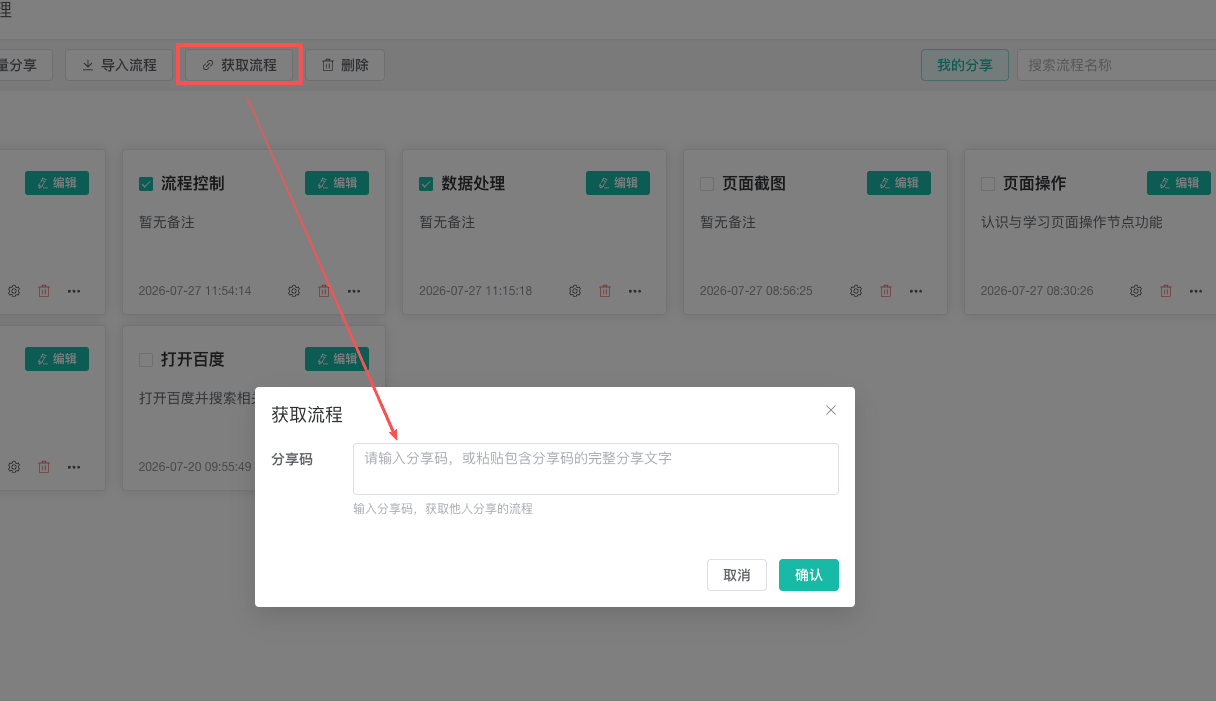
Accepted Share Code Input
The dialog recognizes a code from plain text, complete share text, or a URL.
Valid codes contain 8 to 64 characters and only:
- ASCII letters.
- Numbers.
- Underscore
_. - Hyphen
-.
If parsing fails, remove punctuation and spaces or ask the sender to copy the plain code again.
Security Check After Getting a Workflow
Before running someone else's workflow:
- Read every node and connection to understand its purpose.
- Inspect JavaScript nodes.
- Inspect Upload, Download, file-write, and Cookie nodes.
- Replace local files and directories with paths on this computer.
- Review launch arguments, headless mode, close-on-completion, and timeouts.
- Do not run it first in a production account profile.
- Debug it fully in a test profile before creating a task.
Troubleshooting
Invalid Share Code
Confirm 8-64 characters and only letters, numbers, underscores, and hyphens. Prefer the plain code supplied by the sender.
Cannot Get the Workflow
The share may have expired, reached its redemption limit, or been deleted. Ask the sender to review My Shares and create a new share if required.
Local File Node Fails After Getting It
Paths in a shared workflow may not exist on this computer. Select Excel, TXT, attachments, and output directories again and confirm permission.
Later Sender Changes Are Not Visible
Getting a workflow creates an independent local copy and does not sync changes. Ask the sender for a new share and get it again.
Sharing Compared with Exporting
| Method | Delivery | Management |
|---|---|---|
| Share Workflow | Share code or complete share text | Limit redemptions and validity and manage it under My Shares |
| Export Workflow | Local JSON file | Suitable for offline migration; contains only canvas nodes and connections |
See Import and Export Workflows for offline migration boundaries.
Related Guides
- Workflow Management: Select and maintain workflows.
- Import and Export Workflows: Migrate a canvas with JSON.
- Debug Automation Workflows: Validate a workflow you obtained.