Task Management and Scheduling
A task combines a saved workflow, browser profiles, and an execution plan. The workflow defines what to do; the task defines where, when, and at what concurrency.
Task List
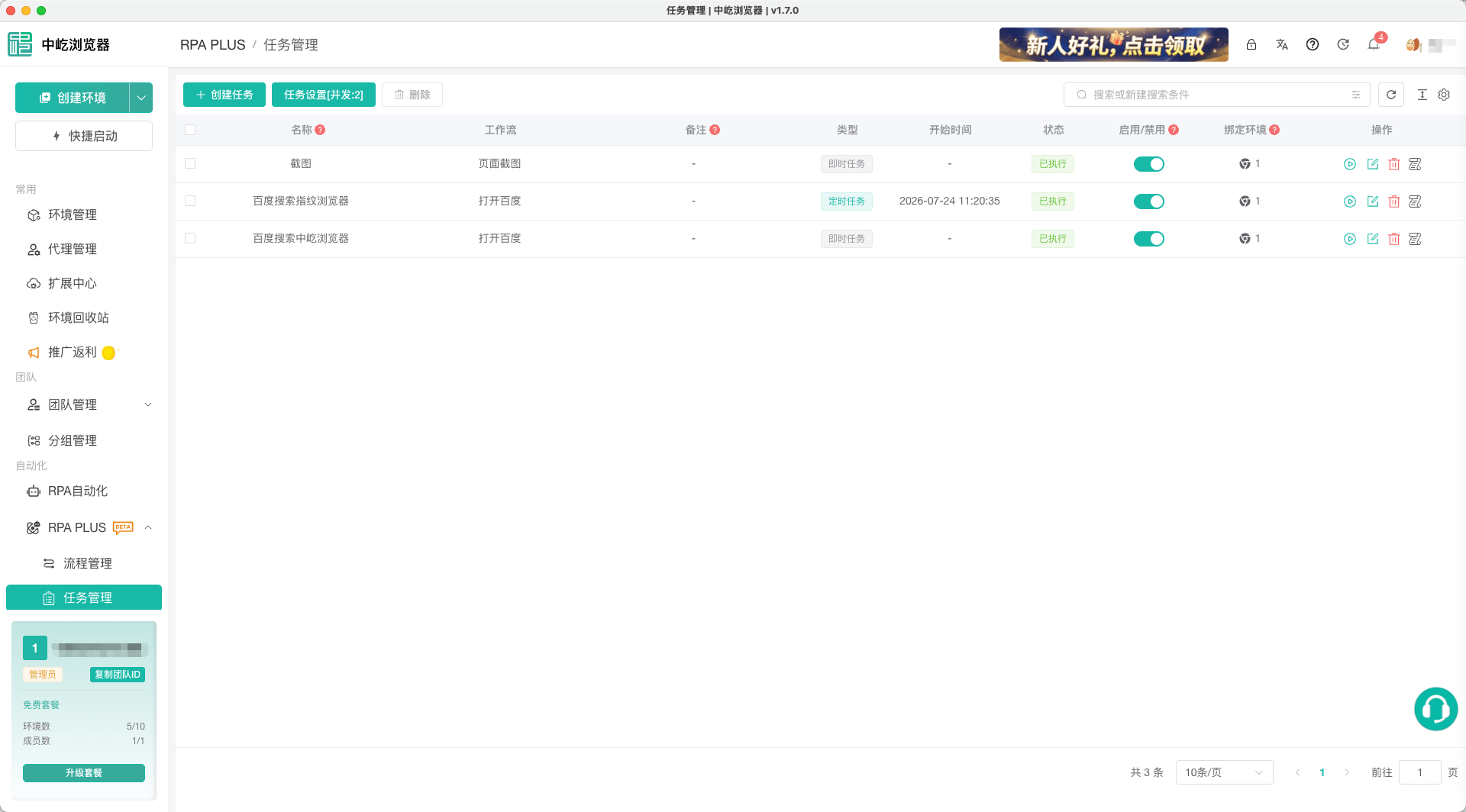
Task Management displays:
- Task name.
- Workflow.
- Notes.
- Task type.
- Start time.
- Current status.
- Enabled state.
- Bound profiles.
- Actions.
Edit names and notes inline. Row actions include start or stop, edit, delete, and view Run History.
Create a Task
- Open RPA > Task Management.
- Click Create Task.
- Enter a name and notes.
- Select a saved workflow.
- Bind one or more browser profiles.
- Set profile concurrency and per-profile timeout.
- Choose Run Now, Run Once, or Repeat.
- Complete the time settings and save.
Workflow selection supports remote search and pagination. If no workflow exists, use the form entry to create one.
Defaults:
- Run Now.
- Enabled.
- Per-profile timeout
100seconds. - A required profile concurrency no greater than the number of bound profiles.
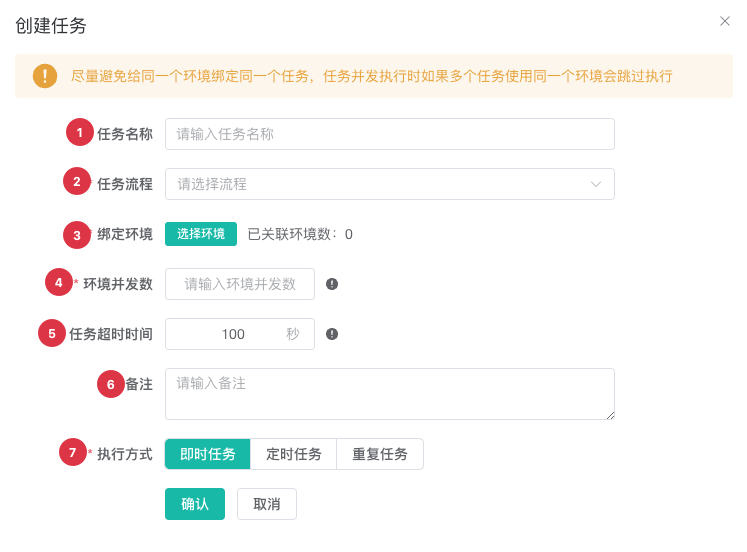
| No. | Setting | Description |
|---|---|---|
| 1 | Task name | Name that is easy to identify in the list and logs |
| 2 | Workflow | Search and select an existing saved workflow |
| 3 | Bound profiles | Profiles that execute the workflow |
| 4 | Profile concurrency | Number of profiles that run in parallel; cannot exceed the selected profile count |
| 5 | Task timeout | Limits execution per profile; 0 means unlimited |
| 6 | Notes | Records purpose, applicable profiles, or maintenance information |
| 7 | Run mode | Run Now, Run Once, or Repeat with the corresponding time settings |
Select a Workflow
Only an existing saved workflow can be assigned. If it was deleted, the task displays Workflow Missing and cannot be submitted or started.
Before a formal run, the task reloads the latest task and workflow, so it does not rely on a stale list snapshot. Debug a workflow again after changing it before starting its task.
Bind Browser Profiles
Bind at least one profile. A task can bind several profiles for the same workflow.
Use View and Find Browser Profiles to verify Profile IDs, accounts, proxies, and statuses before binding.
Each profile should:
- Have the account and business state required by the workflow.
- Have usable paths, proxy, cookies, and other runtime conditions.
- Avoid a business conflict caused by identical actions running concurrently.
Set Profile Concurrency
Profile concurrency is the number of bound profiles from one task that run at the same time. It cannot exceed the task's profile count.
For example, with 10 bound profiles and concurrency 3, the scheduler passes profiles to the executor in batches of up to 3.
Higher concurrency increases pressure on CPU, memory, network, and the target website. Start with a small value and adjust based on device load and success rate.
Set Per-profile Timeout
Per-profile timeout limits one workflow run in one profile in seconds. 0 means unlimited.
It is independent of Workflow Settings timeout. Review both for long waits or loops so the smaller limit does not terminate the run unexpectedly.
Choose a Task Type
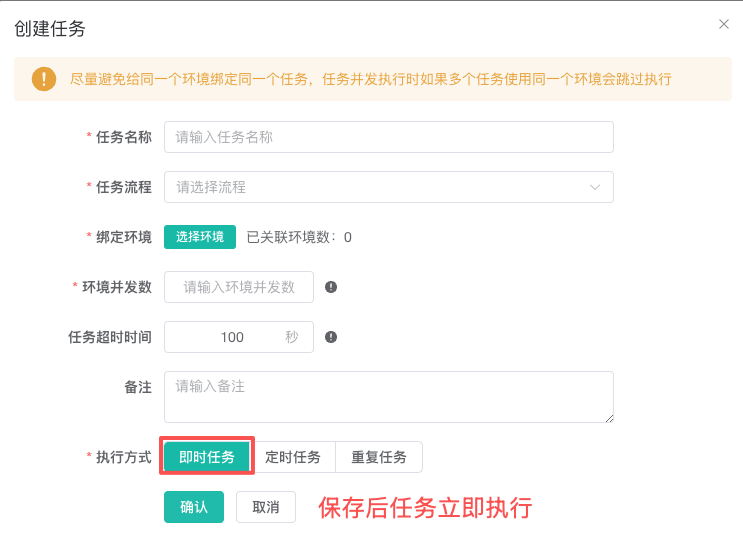
Run Now
Run Now requires no start time. A new or edited task starts automatically after a successful save and can later be started manually.
Verify workflow, profiles, concurrency, and timeout before saving because the task can create a run record immediately.
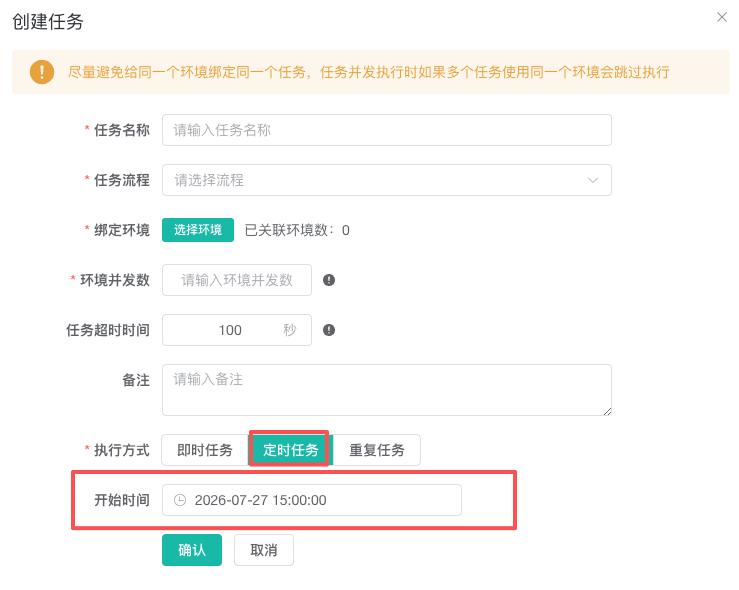
Run Once
Run Once executes one time at a specified start time, which must be later than now.
Keep the task enabled and ensure the client and local scheduler are running at the start time.
Repeat
Repeat runs at the selected interval from a start time until an end time.
Configure:
- Interval.
- Unit: minutes, hours, or days.
- A future start time.
- An end time no earlier than the start.
End time is required. Set an interval longer than normal workflow duration and allow for network variation so runs do not overlap unnecessarily.
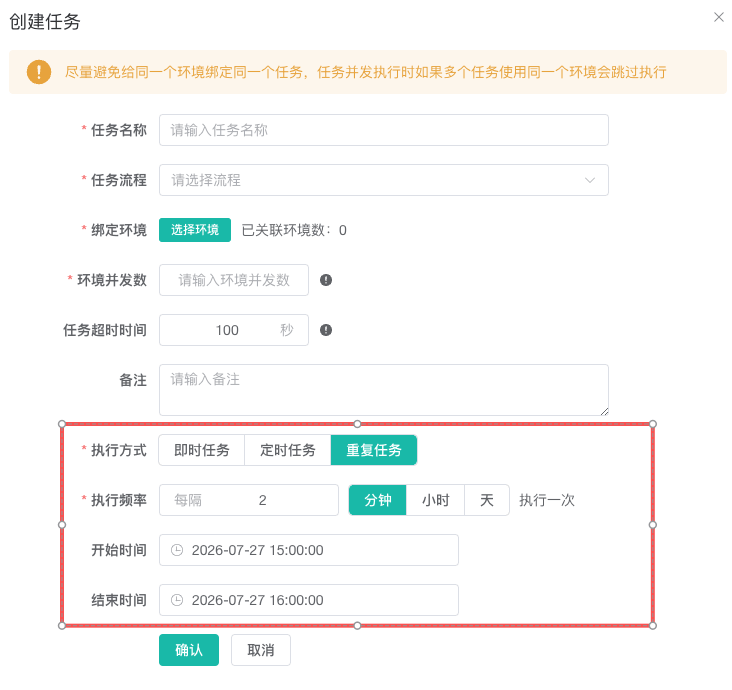
| Mode | Execution | Time requirement |
|---|---|---|
| Run Now | Starts after the new task is saved | No start time |
| Run Once | Runs once at a specified time | Start must be later than now |
| Repeat | Runs at a minute, hour, or day interval | Future start and end no earlier than start are required |
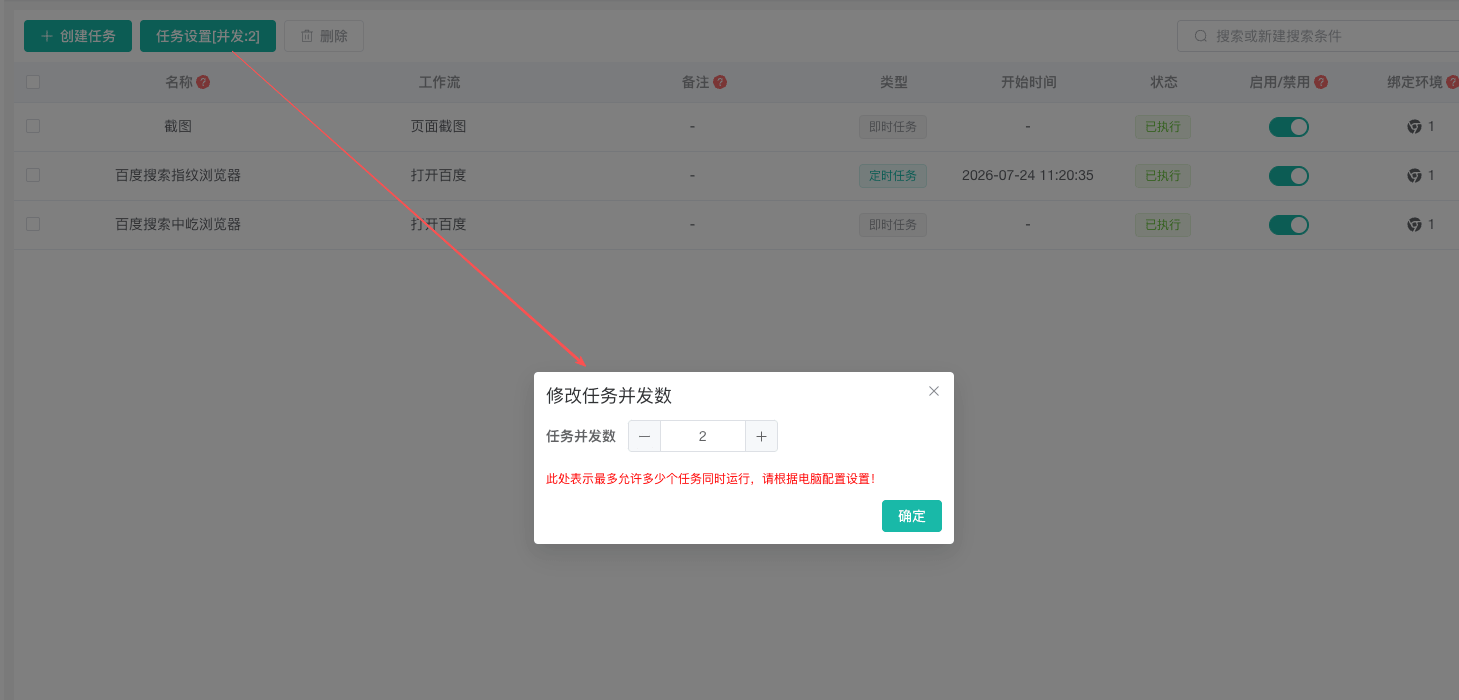
Task Concurrency
Task concurrency is the number of task threads the scheduler allows on the current computer, default 2.
It differs from profile concurrency in the task form:
- Task concurrency is global and limits tasks running at one time.
- Profile concurrency is per task and limits profiles running at one time.
RPA and legacy RPA share the same local device concurrency. Evaluate both workload types before changing it.
Enabled and Runtime Status
Runtime statuses are pending, running, and executed.
The task also has an independent enabled switch. A formal run requires that the task exists and remains enabled.
The web app cannot start or stop device tasks or change device task concurrency. These controls require the desktop client and local scheduler.
Start and Stop a Task
Start
Before manual start, the system reloads the latest task and workflow. Profiles run in batches according to profile concurrency and the global task concurrency limit.
Stop a Task
Request a stop from the task list while it is running. The request is sent to active workflows and the local scheduler queue; the local runtime service updates the final state.
Review Run History afterward to confirm which profiles completed, were cancelled, or failed.

| Status | Meaning | Main action |
|---|---|---|
Pending | Created or waiting for scheduling | Start, edit, or view logs according to the task configuration |
Running | Currently executing | Request a stop; a running enabled task cannot be deleted |
Executed | One scheduled execution completed | Review Run History for profile results |
Edit a Task
Edit the name, notes, workflow, profiles, concurrency, timeout, and schedule. Updated Run Once and Repeat times must still pass validation.
Device tasks have web limitations: their concurrency and local start/stop controls cannot be changed in the web app.
Delete a Task
A running enabled task cannot be deleted or selected for batch deletion.
Deleting also clears its local IndexedDB run records and log details. Preserve diagnostics before deletion when required.
Scheduling Recommendations
- Start a new workflow with one test profile and low concurrency.
- Include Run Now's automatic start in the change plan and verify every value before saving.
- Set a Repeat interval longer than normal workflow duration plus network allowance.
- Evaluate profile and device concurrency together.
- Keep the client and local service running for scheduled execution.
- Review Error, Timed Out, and Cancelled records after a formal batch run.
Troubleshooting
Workflow Missing on Save
The assigned workflow may have been deleted. Select another saved workflow or create and save one in Workflow Management.
Profile Concurrency Decreased Automatically
It cannot exceed the number of bound profiles. Bind more profiles or use a value no greater than the current count.
Scheduled Task Cannot Be Saved
Confirm that the start is later than now. Repeat also requires an end time no earlier than the start.
Run Now Starts Immediately After Saving
This is expected. Verify workflow, profiles, concurrency, and timeout before creating the task.
Task Cannot Be Deleted
Running enabled tasks cannot be deleted. Stop it, wait for status update, and delete afterward.
Related Guides
- Debug Automation Workflows: Validate a workflow before formal execution.
- Workflow Settings: Configure workflow timeout and browser behavior.
- Run History: Filter task results and review logs.