API Management
API Management configures the local Local API, allowing scripts and automation frameworks on your computer to control ZYBrowser. This page is available only in the desktop client; the web app does not provide API service settings or local request logs.
For endpoints, request parameters, and response examples, see the Local API documentation.
Enable the API Service
On first use, generate and save an API Key, then enable Enable API. The complete key is displayed only once in the dialog immediately after generation or reset. It cannot be viewed again after the dialog closes. Resetting the key invalidates the previous one immediately, so update every connected script or service at the same time.
The top of the page displays Running, Stopped, or Startup Failed. If startup fails, review the error and click Retry. The refresh button in the upper-right corner reloads the current service status.
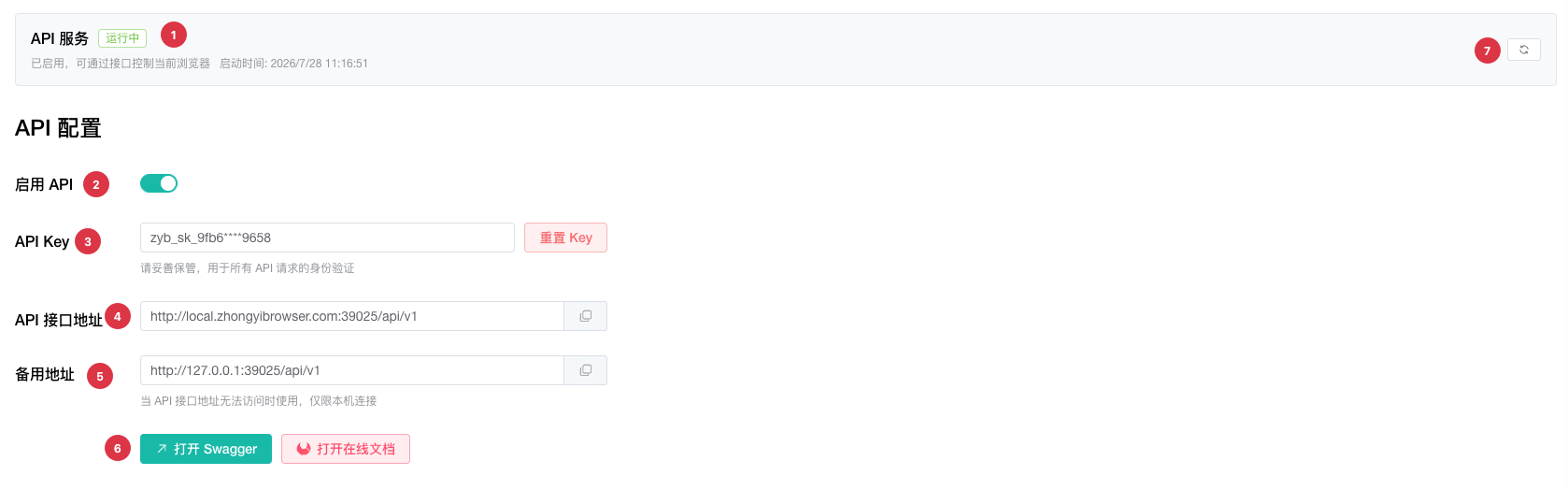
| No. | Feature | Description |
|---|---|---|
1 | Service status | Displays whether the API is running, startup error details, and the start time |
2 | Enable API | Available only after an API key has been generated |
3 | API Key | Generates or resets the credential required for API requests |
4 | API endpoint | Default is http://local.zhongyibrowser.com:port/api/v1; copy it into a local application |
5 | Alternative endpoint | Uses the same port on 127.0.0.1; use it only from the local computer if the primary endpoint is unavailable |
6 | Documentation | Opens local Swagger while the service is running or the online documentation |
7 | Refresh service status | Reloads the current API service status |
WARNING
An API Key is an access credential for the local API. Never include it in screenshots, logs, public repositories, or chats. Supply it to applications through an environment variable or a secure secret manager.
Review Documentation and Integration Examples
When the service is running, click Open Swagger to view interactive documentation at the local endpoint. To read the complete reference outside the client, click Open Online Documentation or visit the Local API documentation.
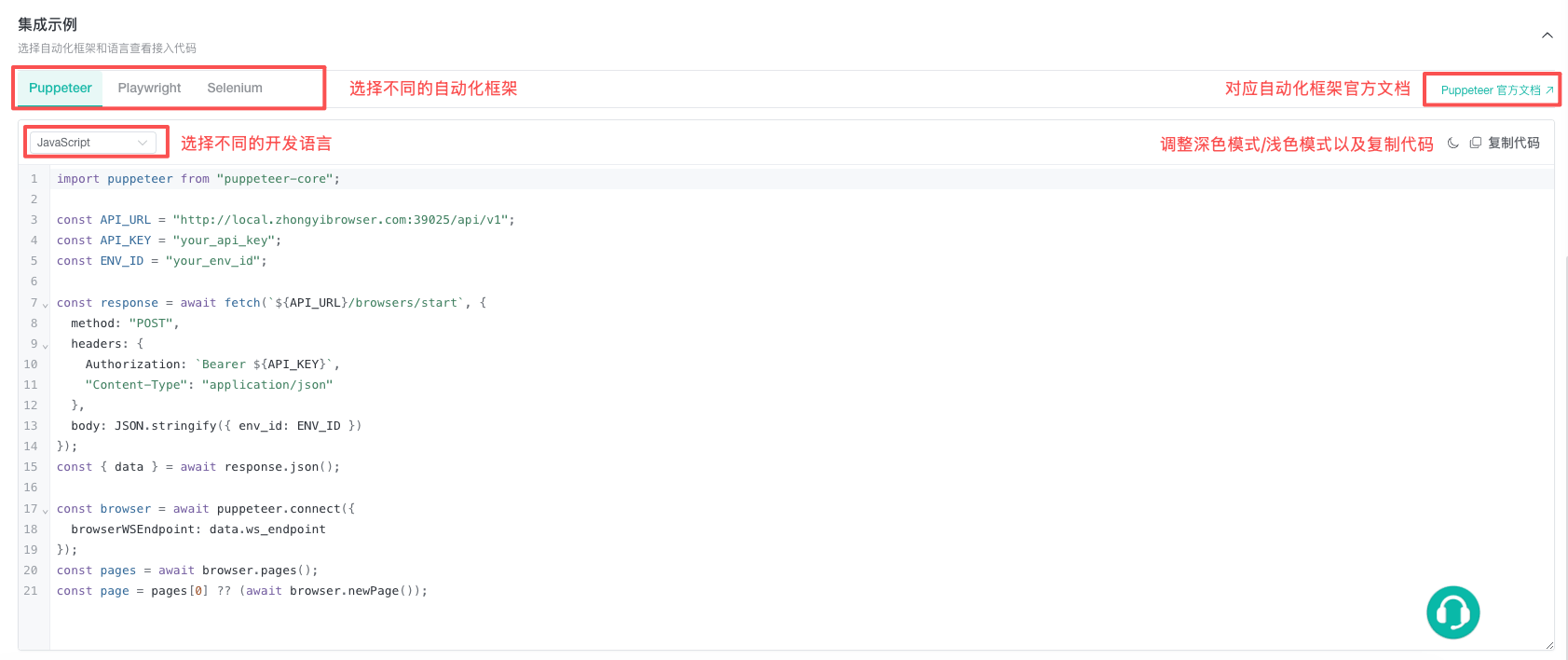
Expand Integration Examples at the bottom for Puppeteer, Playwright, and Selenium. Select a framework and an available language such as JavaScript, TypeScript, Python, or Java. Copy the sample and replace its API key and Profile ID. Find the Profile ID under Profile List Fields. Each framework tab also links to its official documentation.
Troubleshoot API Requests
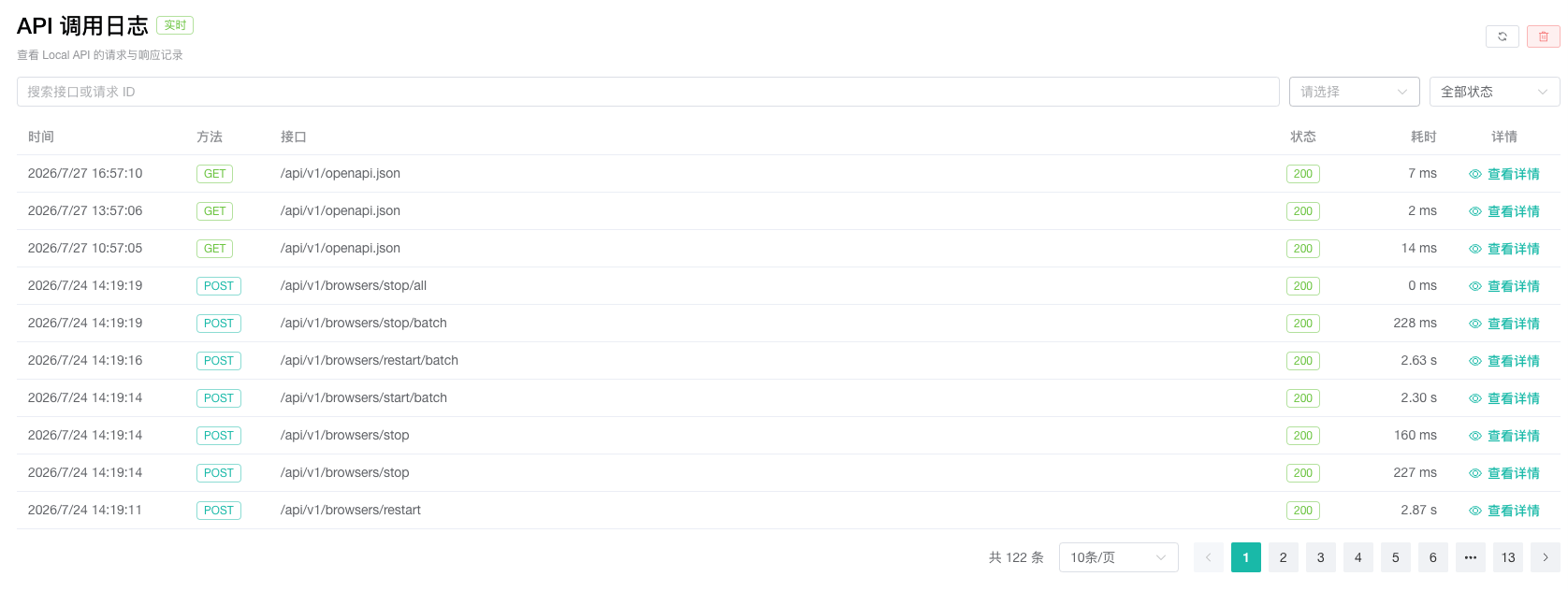
API Request Logs records Local API requests and responses. Search by endpoint path or request ID and filter by request method and success or failure. The list displays time, method, path, status code, and duration. Open View Details to inspect and copy request and response headers, path parameters, query parameters, body, and response content separately.
Logs support manual refresh, pagination, and clearing. Clearing cannot be undone. During troubleshooting, record the time, request ID, and response details of failed requests before removing the logs.
For Startup Failed, resolve the error shown on the status card and retry. For an unsuccessful request, confirm the endpoint, API key, request method, and response in the logs. Refer to the Local API documentation for field definitions, authentication format, and complete error codes.