Data Collection and Storage Nodes
Data Collection nodes read from pages, the browser, local files, or network requests and save results to workflow variables. Storage nodes write workflow data to local files. This guide covers all 17 Data Collection nodes.
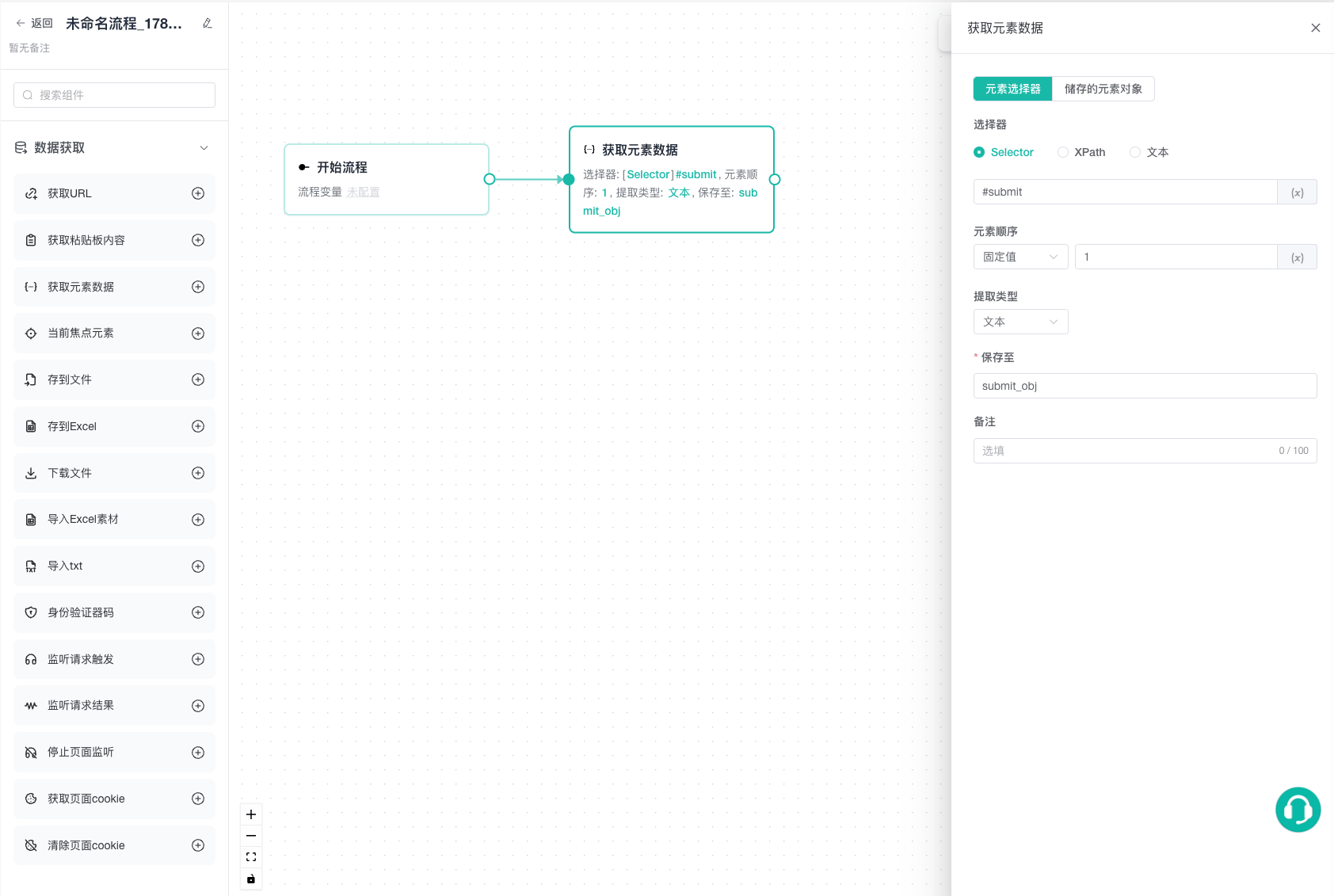
Data
Get URL
Reads the active tab URL and saves the result to a variable.
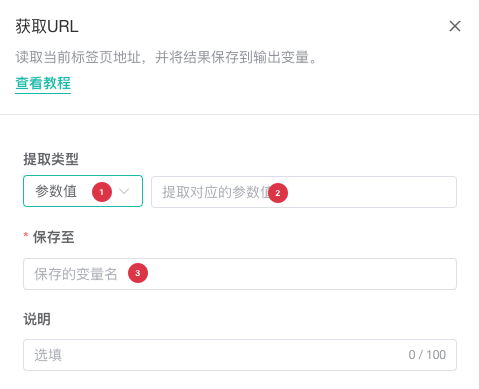
| No. | Setting | Description |
|---|---|---|
| 1 | Extraction type | Select Full URL, Root URL, or Query Parameter |
| 2 | Parameter name | For Query Parameter, enter the parameter to read |
| 3 | Save to | Enter a valid output variable name |
For this URL:
https://example.com/products?page=2&category=booksFull URL returns the complete address, Root URL returns https://example.com, and Query Parameter with page returns 2.
Get Clipboard Content
Reads text from the system clipboard and saves it to a variable.

| No. | Setting | Description |
|---|---|---|
| 1 | Save to | Enter a valid output variable name |
Clipboard access requires the ZYBrowser desktop client and operating system permission. Confirm that the source is trusted so credentials are not written to downstream logs or files.
Get Element Data
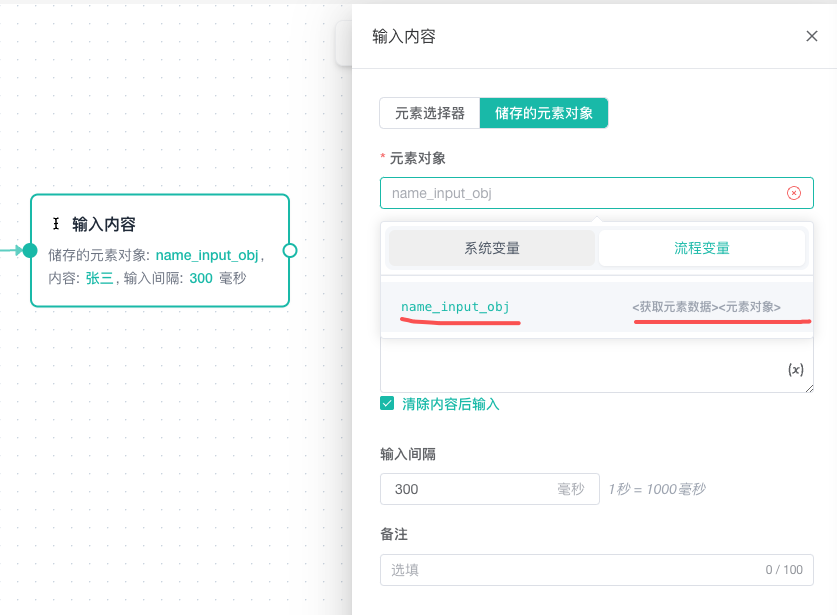
Locates a page element and extracts selected content. DOM, iframe, and child-element results can be used by downstream click, input, and hover nodes.
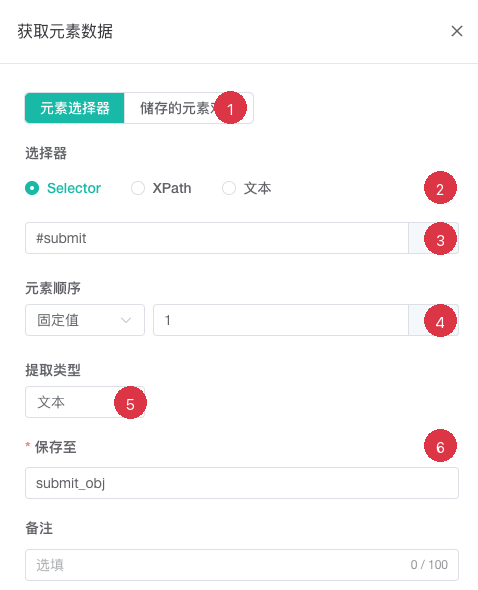
| No. | Setting | Description |
|---|---|---|
| 1 | Element source | Use an element selector or switch to an upstream saved element object |
| 2 | Selector type | Select Selector, XPath, or Text |
| 3 | Selector | Enter the target element location; variables are supported |
| 4 | Element order | Select a fixed value or random range and enter the corresponding positions |
| 5 | Extraction type | Select text, DOM object, iframe, source, attribute, or child element; attributes and children also require a target |
| 6 | Save to | Enter a valid output variable name |
For an attribute, enter its actual name, such as href, src, or data-id. For a child element, enter its location rule.
Get Focused Element
Reads the element that currently has focus and saves it as an element object.
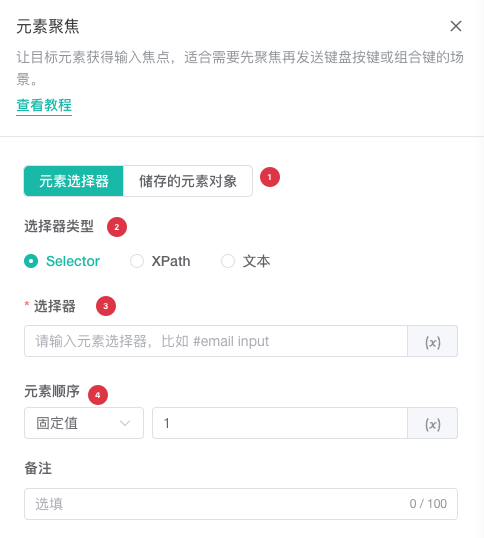
| No. | Setting | Description |
|---|---|---|
| 1 | Save to | Enter a valid element object variable name |
Example:
Focus Element → Get Focused Element → Enter TextThe final node can select the saved focused element object without entering another selector.
Query Excel
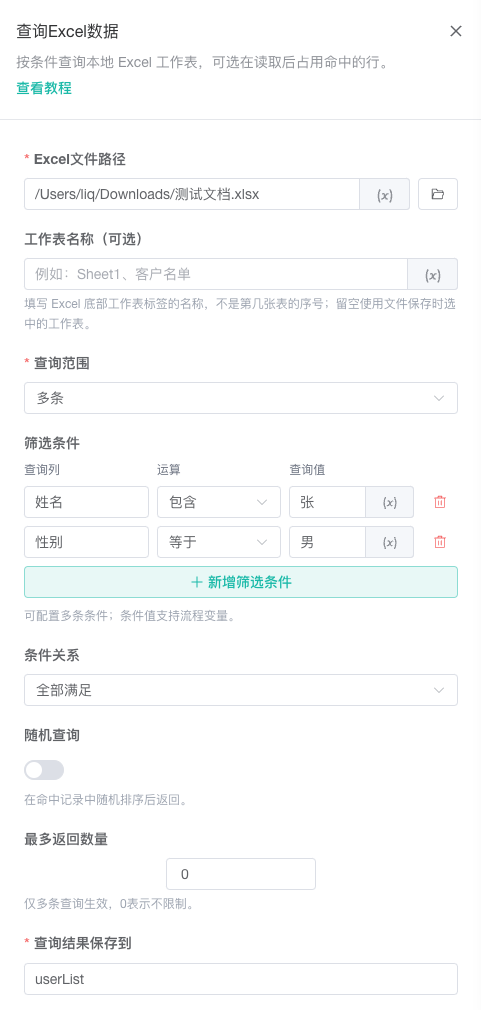
Queries a local Excel worksheet and saves the result to one workflow variable. The first row is the header; each later row is a record. Headers may use Chinese or custom business names, and empty rows are ignored.
| No. | Setting | Description |
|---|---|---|
| 1 | Excel file path | Select a local Excel file or enter a variable path |
| 2 | Worksheet name (optional) | Enter the worksheet tab name; leave empty to use the saved active worksheet |
| 3 | Query range | Select All, Single, or Multiple; All returns every non-empty row, Single returns one object, and Multiple returns an array |
| 4 | Filter conditions | Add query column, operator, and value rows; an empty list means no filter and variables are supported |
| 5 | Condition relation | With multiple conditions, choose All conditions or Any condition |
| 6 | Random query | Randomizes matched rows; hidden for the All range |
| 7 | Result limit | Applies only to Multiple; 0 means unlimited |
| 8 | Save results to | Enter the workflow variable for the result |
| 9 | Reserve rows after reading | Writes a status, generated ID, and current time to returned rows when enabled; disabled means read only |
Supported operators include equal, not equal, contains, does not contain, greater than, greater than or equal, less than, less than or equal, empty, not empty, in, and not in. Empty and Not Empty do not need a query value. To coordinate multiple workflows, use the same file, worksheet, reservation columns, status value, and timeout. Use Write Excel to clear a reservation early.
Save Data to Files
Save to File
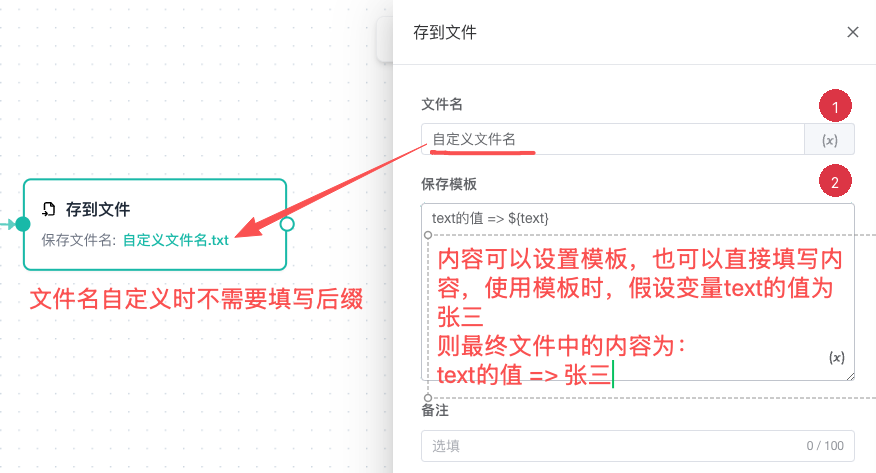
Writes a text template to a local text file in the system download directory.
| No. | Setting | Description |
|---|---|---|
| 1 | File name | Enter a variable-enabled name; leave blank for the default, and the executor adds .txt |
| 2 | Template | Enter text that combines fixed content and variables |
Task: ${task_name}
Profile: ${browser_name}
Result: ${product_title}
Save to Excel
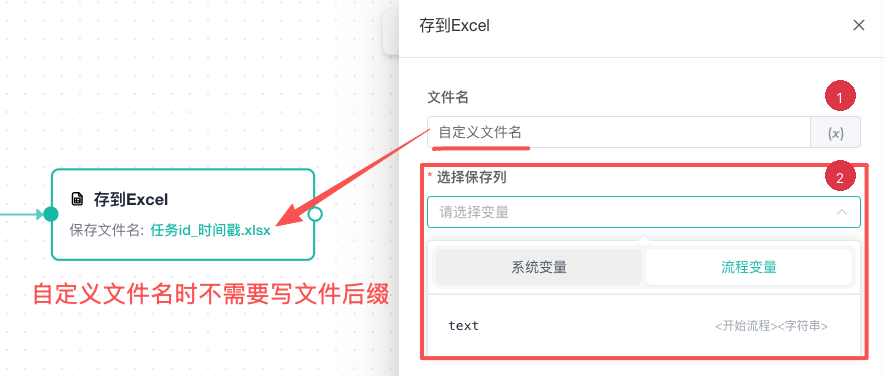
Writes selected variables as columns in a local Excel file in the system download directory.
| No. | Setting | Description |
|---|---|---|
| 1 | File name | Enter a variable-enabled name; leave blank for the default, and the executor adds .xlsx |
| 2 | Columns | Select the available system and workflow variables to write |
When no file name is entered, Save to File and Save to Excel use the same base name within one run:
taskId_second-level-timestampLocal File Dependency
Writing text and Excel files requires the ZYBrowser desktop client and local file permission. After moving a workflow to another computer, confirm that its download directory is writable.
Edit Excel
Adds a row to a local Excel worksheet or updates matching rows. Only configured columns are changed; variables are supported in values, missing columns are added, and other cell values are preserved.
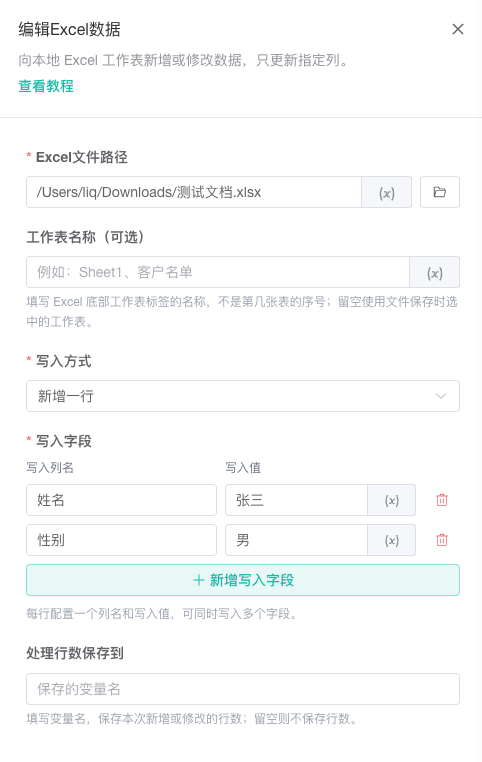
| No. | Setting | Description |
|---|---|---|
| 1 | Excel file path | Select a local Excel file or enter a variable path |
| 2 | Worksheet name (optional) | Enter the worksheet tab name; leave empty to use the saved active worksheet |
| 3 | Write mode | Add a row, Update matched rows, or Update or add |
| 4 | Match conditions | Required for Update matched rows and Update or add; all conditions must match, using the same operators as Query Excel |
| 5 | Multiple match handling | Update first, Update all matched rows, or Fail on multiple matches |
| 6 | Fields to write | Add column/value rows; multiple fields can be written in one operation |
| 7 | Save processed count to | Optional variable for the number of added or updated rows |
Write a New Record
Select Add a row and enter the new record's column names and values in Fields to write. The node appends one record to the worksheet, creating headers from those columns if no headers exist. Match conditions and multiple match handling are hidden in this mode. One operation can write several fields but adds only one record.
Edit Existing Records
Select Update matched rows, locate records with Match conditions, and specify the columns and values in Fields to write. Only specified columns change; other columns retain their values. Leave a configured write value empty to clear that cell.
If nothing matches, no record is added and the processed row count is 0. If several rows match, choose Update first, Update all matched rows, or Fail on multiple matches. Select Update all matched rows for batch editing.
Edit if Found, Otherwise Write
Select Update or add and configure both match conditions and fields to write. Matching records follow the editing rules above. If nothing matches, the node appends one record using the fields to write, so include all columns and values needed for a new record in that configuration.
Download File
Downloads content from a file URL to a selected local directory.
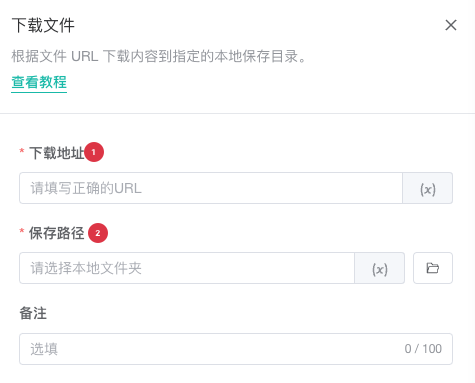
| No. | Setting | Description |
|---|---|---|
| 1 | File URL | Enter a complete file address; variables are supported, and static values are validated |
| 2 | Save directory | Select an existing writable directory on the task computer; variables are supported |
Import Local Materials
Import Excel Material
Reads a local Excel file, creates workflow variables from its header row, and optionally saves the complete table to an array variable.
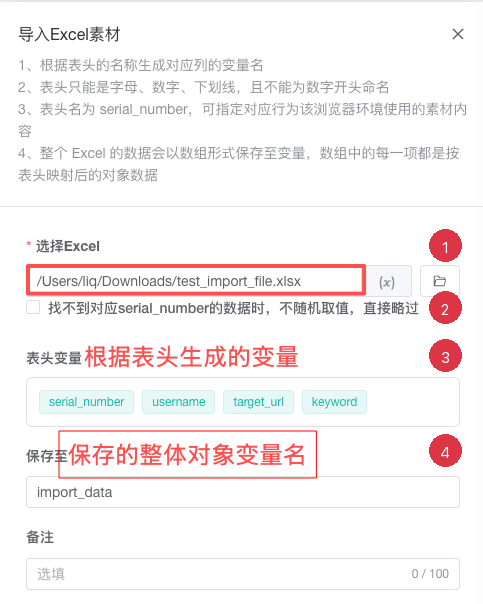
| No. | Setting | Description |
|---|---|---|
| 1 | Excel file | Select a local file or enter a variable path; only a static path reads headers during design |
| 2 | Skip missing profile sequence | If no row matches serial_number, skip instead of selecting a random row |
| 3 | Header variables | Shows read-only variables generated from row one after a valid file is parsed |
| 4 | Save to | Enter the variable that stores the complete table array |
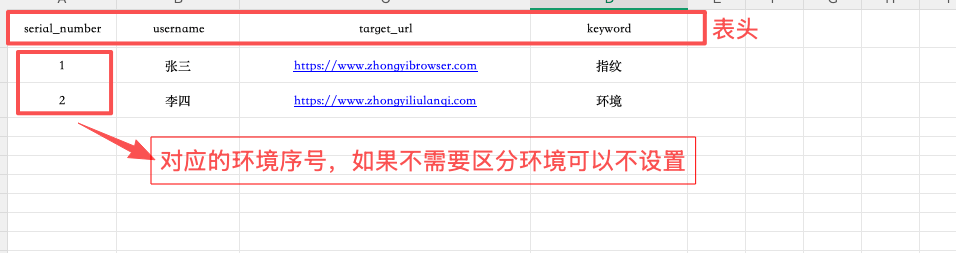
Every header must convert to a valid, unique variable name. Prefer lowercase English with underscores, such as username, target_url, and keyword.
The node can use serial_number to assign a corresponding row to each browser profile. Use the complete table array with For Each Data Item to process every row.
Import TXT
Reads a local text file and saves all content to a variable.
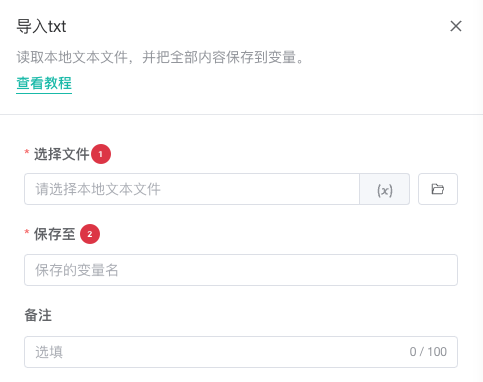
| No. | Setting | Description |
|---|---|---|
| 1 | File | Select a local text file; variable paths are supported |
| 2 | Save to | Enter a valid output variable name |
If the path exists only on one computer, select the file again after moving the workflow.
Authenticator Code
Generates an authenticator code from a secret and saves it to a variable.
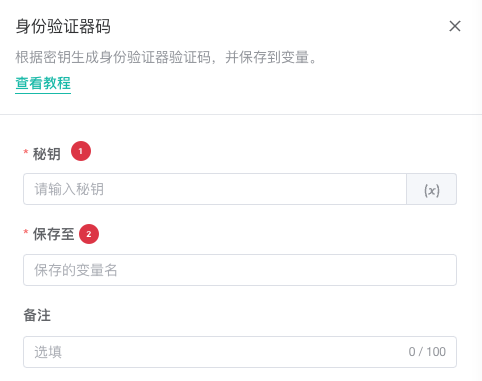
| No. | Setting | Description |
|---|---|---|
| 1 | Secret | Enter the authenticator secret; variables are supported |
| 2 | Save to | Enter the output variable for the generated code |
The secret is a sensitive credential. Do not place it in notes, screenshots, debugging guidance, or public shares.
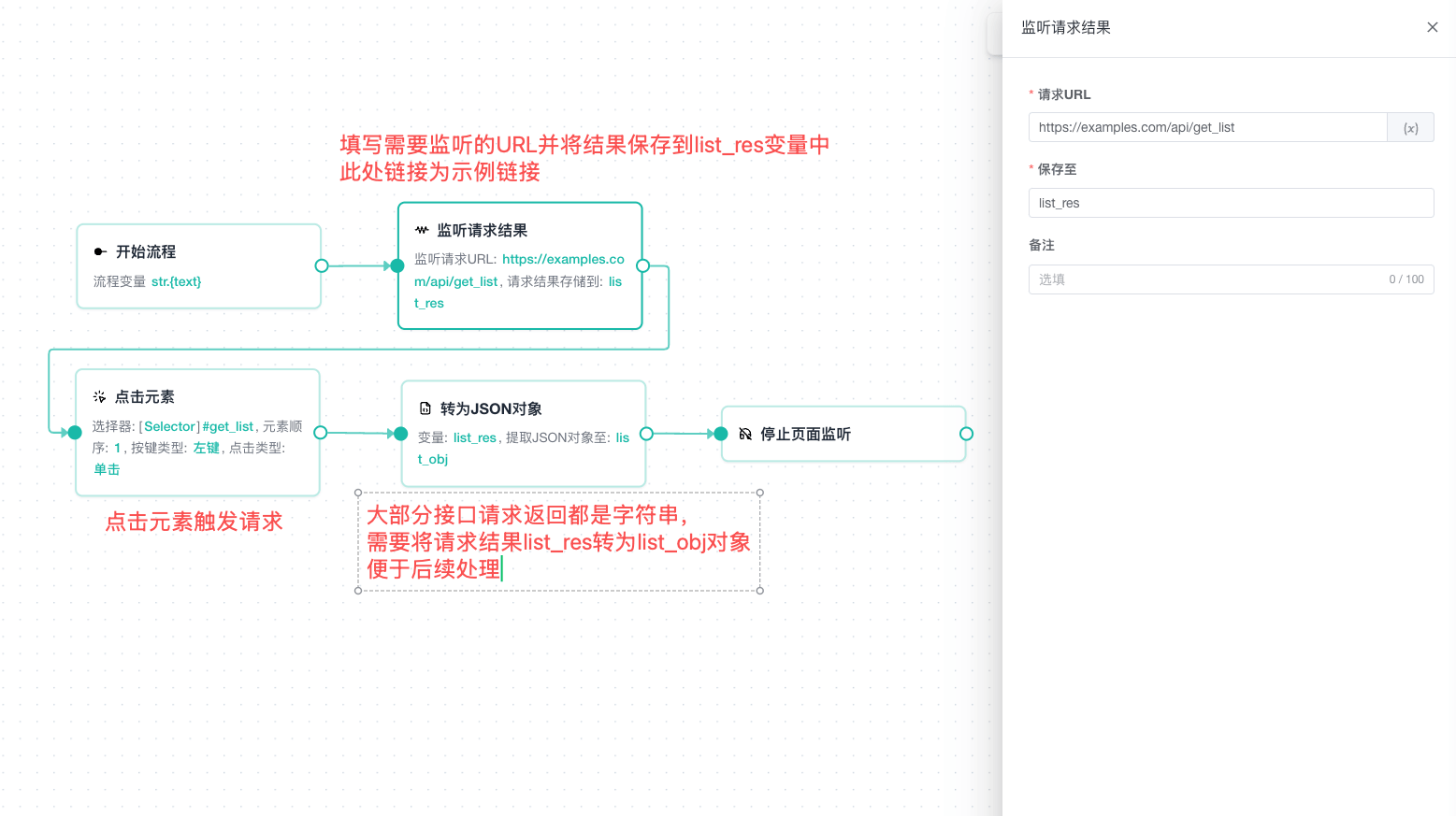
Listen to Page Requests
Listen for Request
Listens for a request matching the target URL and extracts request content.
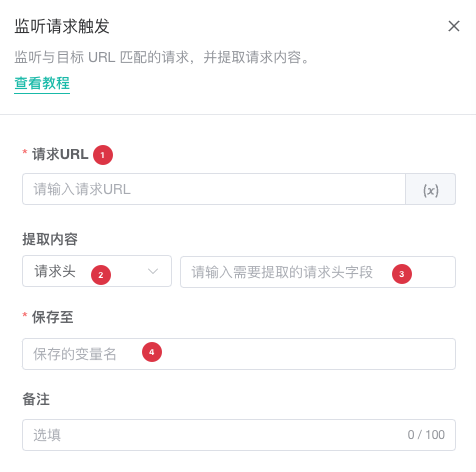
| No. | Setting | Description |
|---|---|---|
| 1 | Request URL | Enter the target URL; variables are supported |
| 2 | Extract | Select Full URL, Headers, GET Parameters, or POST Data |
| 3 | Field name | For Headers or GET Parameters, enter the specific field name |
| 4 | Save to | Enter a valid output variable name |
Configure the listener before the page action that triggers the request. Use a stable match rule that identifies the endpoint without matching unrelated requests.
Listen for Response
Listens for a response matching the target URL and saves the result.
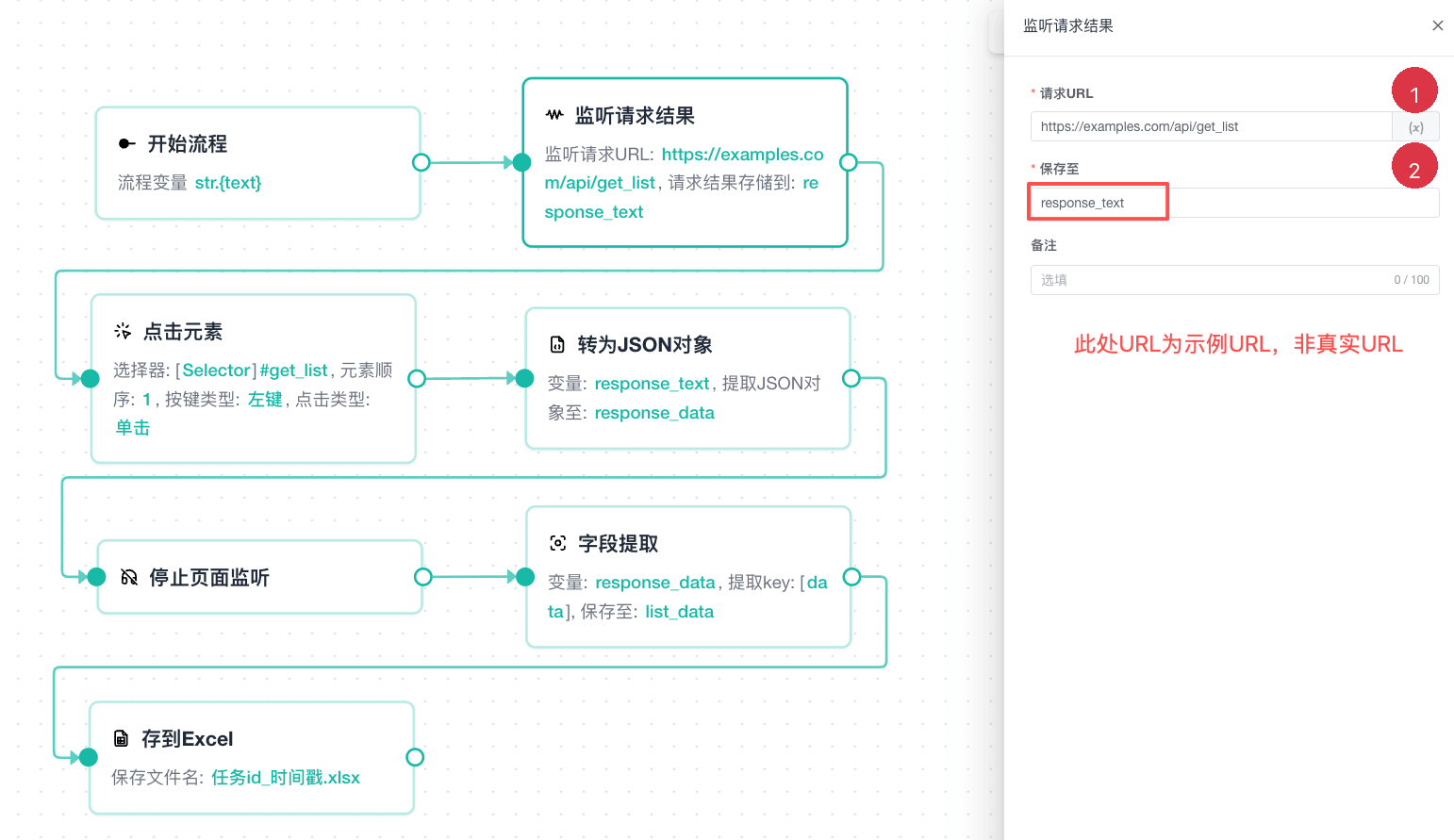
| No. | Setting | Description |
|---|---|---|
| 1 | Request URL | Enter the target URL; variables are supported |
| 2 | Save to | Enter a valid response output variable name |
Pass the response to Parse JSON or Extract Field for further processing.
Stop Page Listener
Stops request listening on the active page and has no business configuration. Stop listening when the related operation is complete to prevent unrelated downstream requests from being collected.
Cookie Nodes
Get Page Cookies
Reads cookies from the active page and saves them to a variable.

| No. | Setting | Description |
|---|---|---|
| 1 | Save to | Enter a valid cookie output variable name |
Clear Page Cookies
Clears cookies for the active page and has no business configuration. This can sign the page out or alter business state, so place it near workflow end and validate in a test environment.
Protect Sensitive Data
Cookies, authenticator secrets, accounts, and request headers can contain credentials. Do not put real values in public files, screenshots, shared text, or uncontrolled logs.
Common Issues
An Output Variable Is Missing Downstream
Confirm that the output name is valid and the consumer is on a downstream reachable path. A variable from one branch is not automatically available in a separate branch.
Excel Header Validation Fails
Check for empty headers, unsupported characters, or duplicate normalized names. Prefer short, unique, lowercase English names.
A Saved File Cannot Be Found
Save to File and Save to Excel write to the system download directory. Review the run log for the saved path.
A Dynamic Excel Path Shows No Headers
This is expected during design. Only a static local Excel path is read in advance; a variable path is resolved at runtime.
Related Guides
- Data Processing Nodes: Parse JSON, use regular expressions, and extract fields.
- Variables and Data: Understand output variables, arrays, and objects.
- Flow Control Nodes: Loop through complete Excel arrays or page elements.
- Run History: Locate output files from production task logs.