Create a Profile with a SiYeTian Proxy
If you already purchased proxy IPs from SiYeTian, synchronize the SiYeTian Proxy into ZYBrowser, select one, and immediately create and launch a browser profile. Synchronization, authorization, and launching require the desktop client.
Download and install the client first, then register or sign in. The SiYeTian account must already contain a SiYeTian Proxy that can be synchronized, and authorization must use the mobile number bound to that account.
Synchronize a SiYeTian Proxy
Open Proxies, go to Integrated Proxies, and click Sync SiYeTian Proxy.
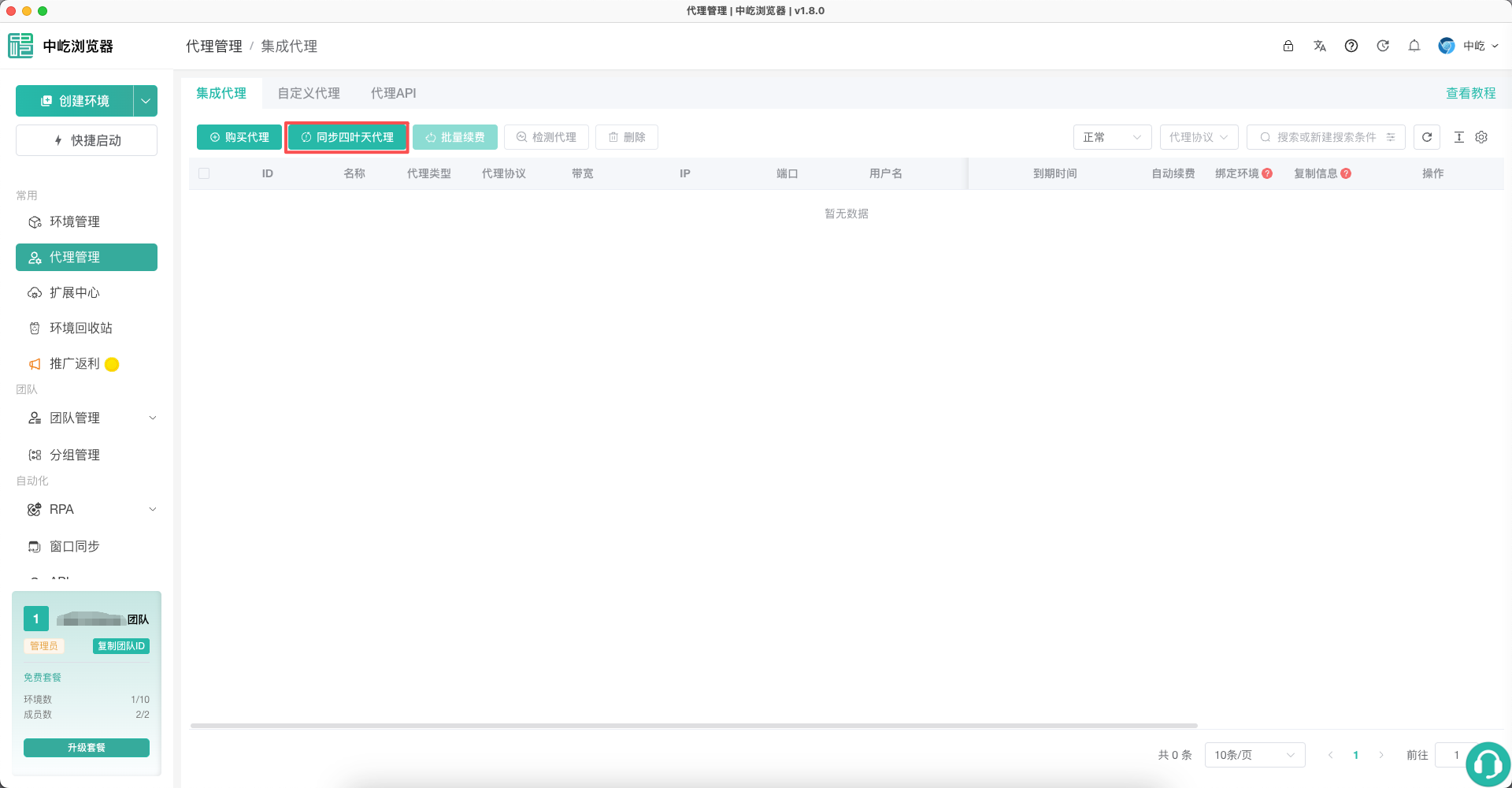
The confirmation dialog explains that a SiYeTian Proxy purchased from SiYeTian will be synchronized into ZYBrowser. Review the message and click Sync.
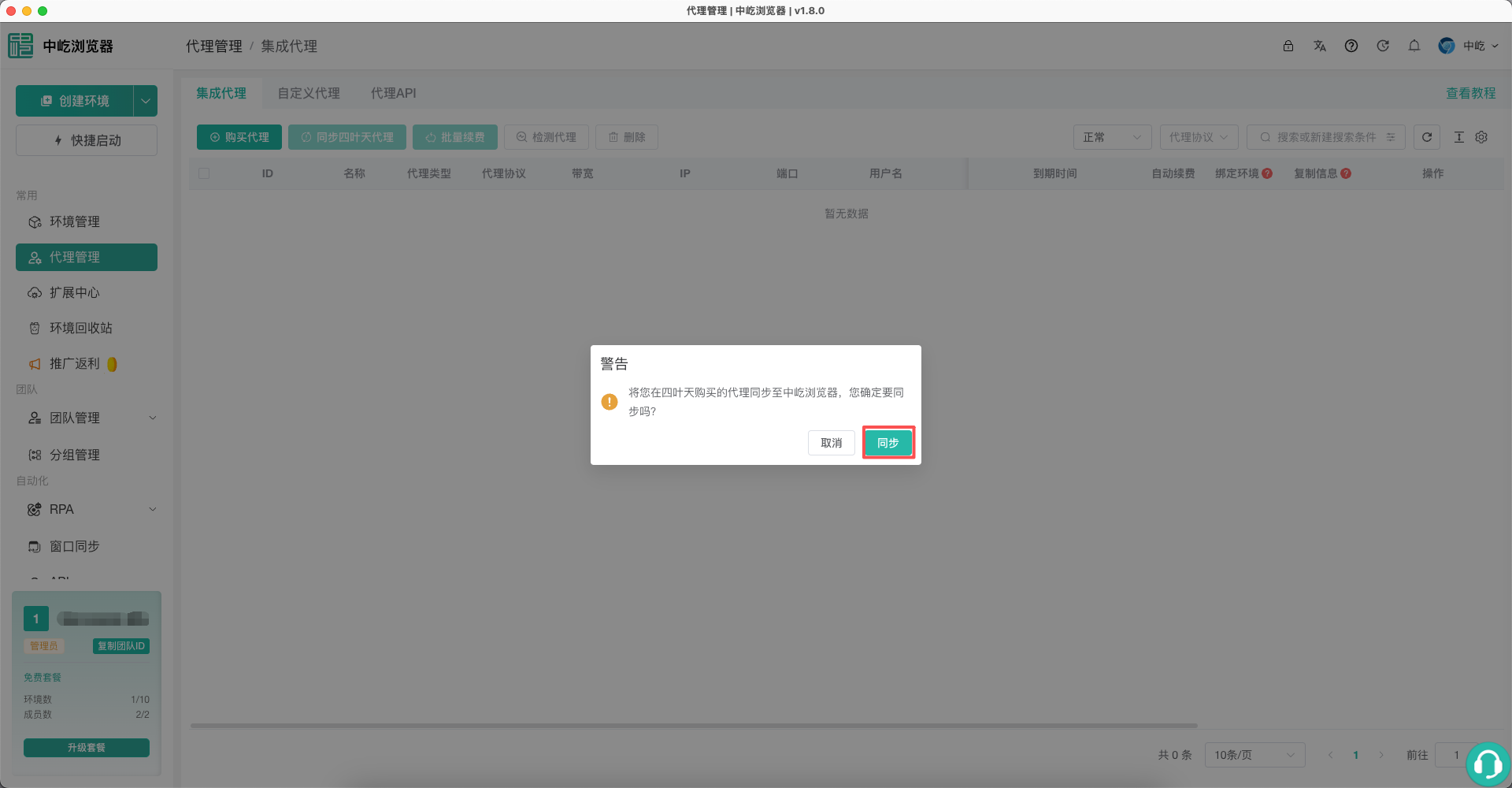
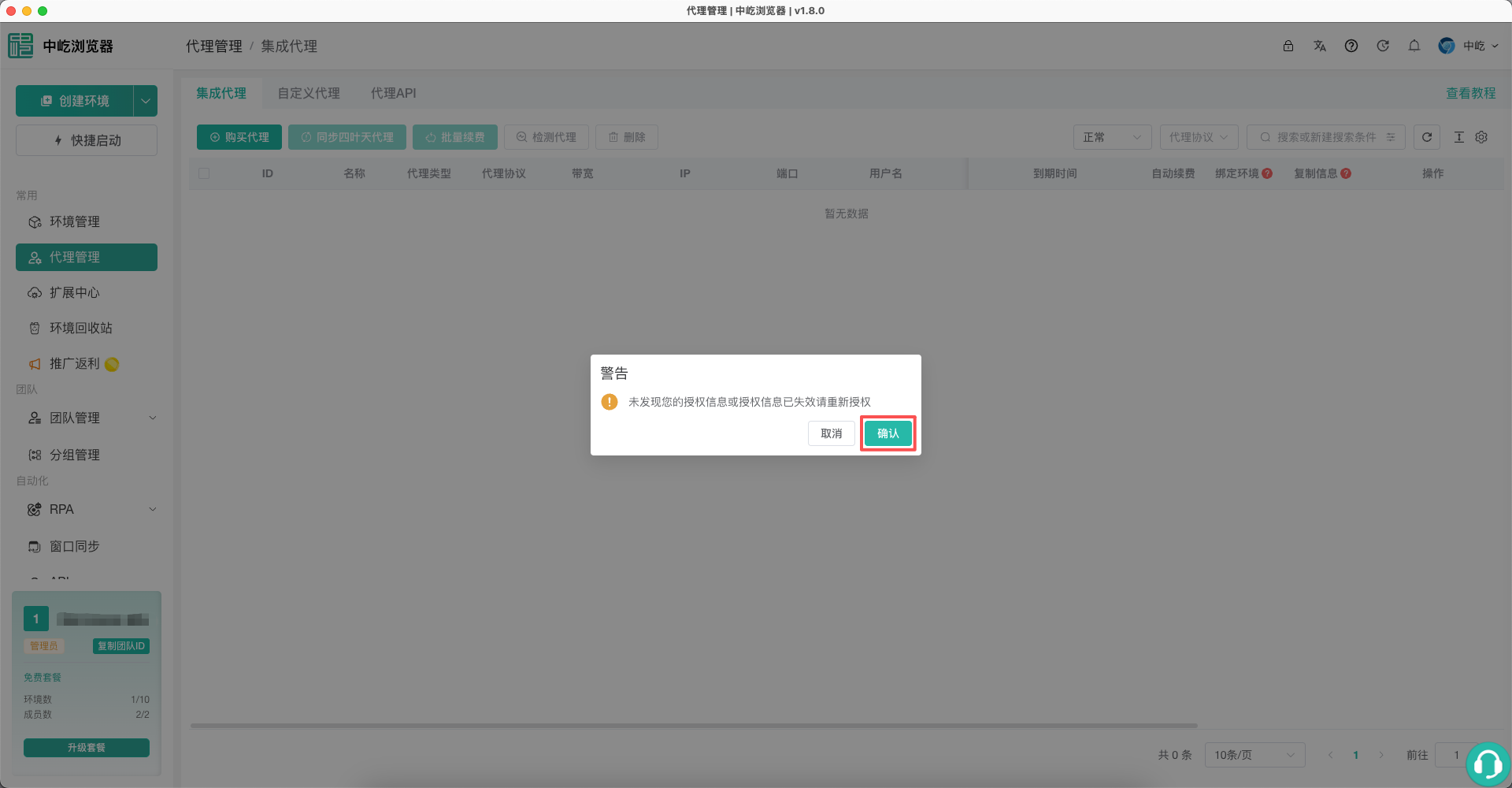
If the current authorization is still valid, the client starts synchronization immediately. If it reports that authorization is missing or expired, click Confirm. The client opens the system browser; do not quit ZYBrowser before authorization finishes.
On the SiYeTian sign-in page, authorize access with the mobile number used to purchase the SiYeTian Proxy.
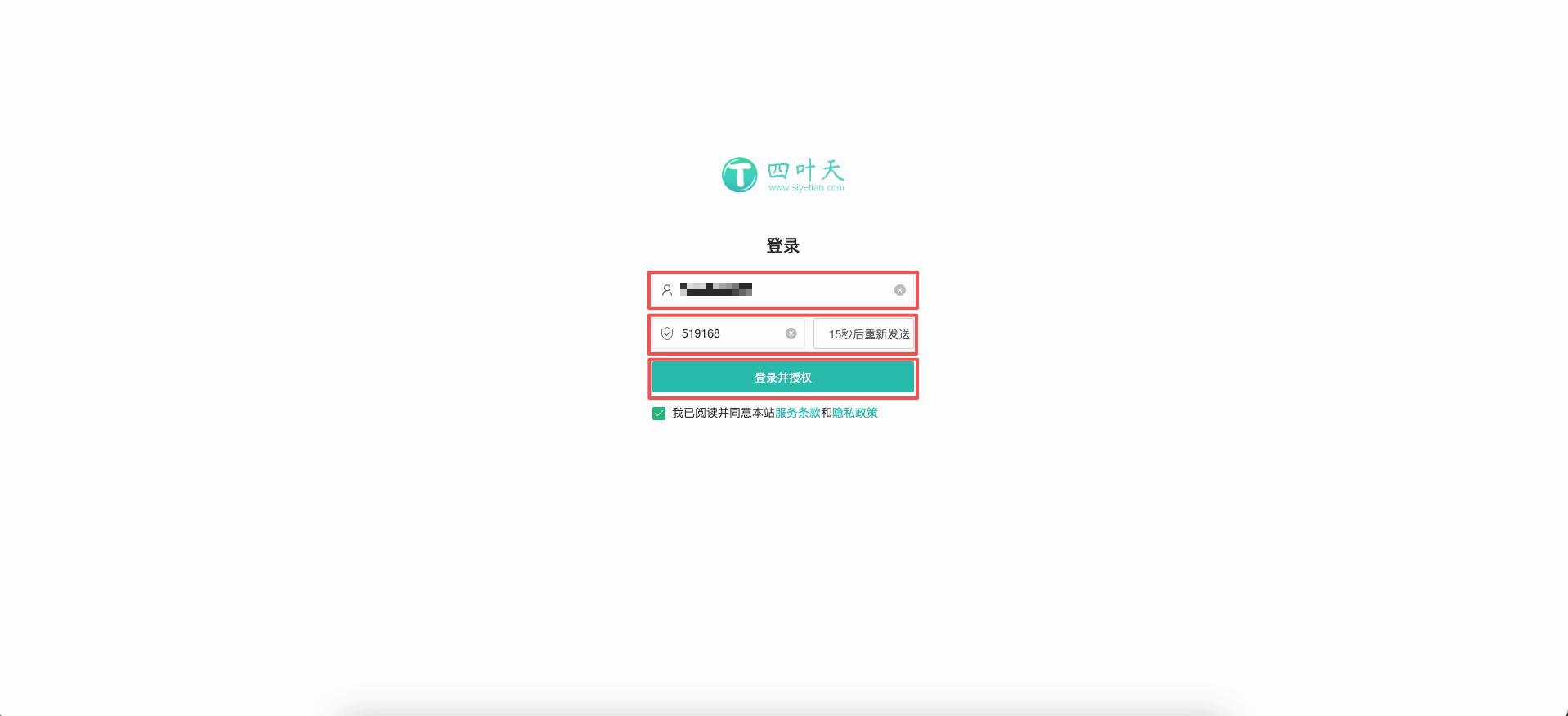
| No. | Feature | Description |
|---|---|---|
1 | Mobile number | Enter the mobile number bound to the SiYeTian account |
2 | Verification code | Request the SMS code and enter it |
3 | Sign in and authorize | Accept the terms of service and privacy policy, then allow ZYBrowser to read the purchased proxies |
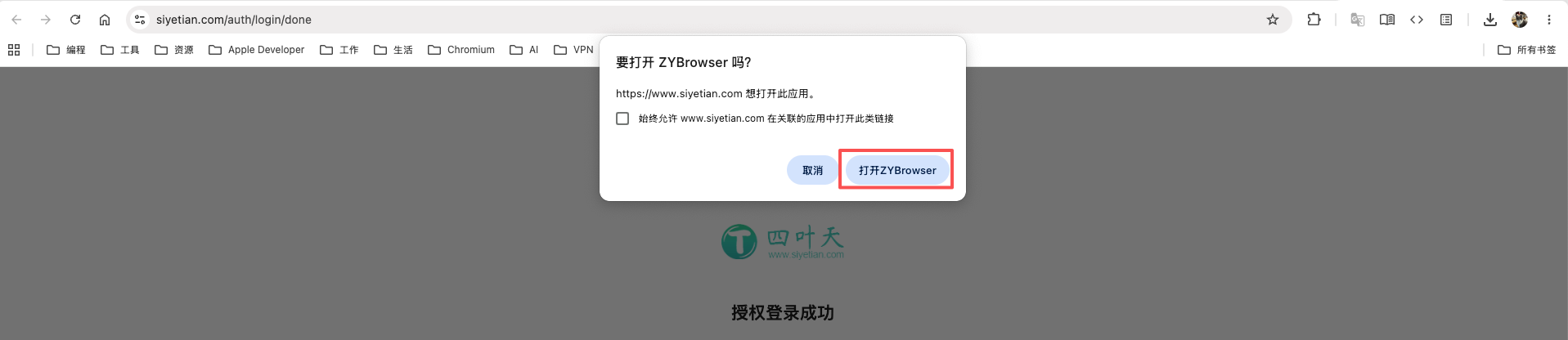
After the page shows that authorization succeeded, the system browser asks whether to open ZYBrowser. Click Open ZYBrowser to return to the client.
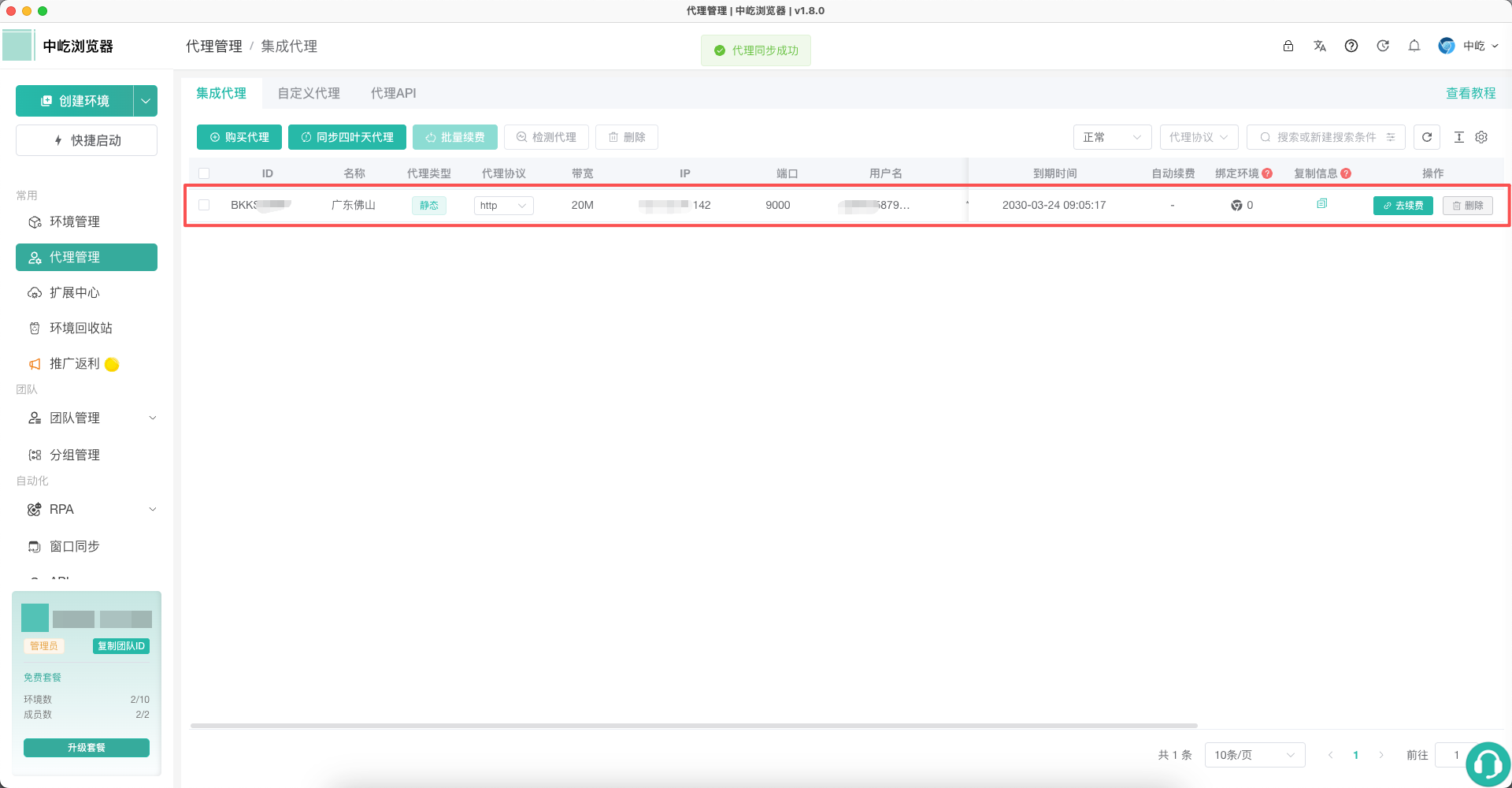
Back on Integrated Proxies, the page reports that synchronization succeeded and lists the SiYeTian Proxy received from SiYeTian. Check the name, proxy type, protocol, and expiration time. Renew at Provider in the actions column opens SiYeTian; a SiYeTian Proxy cannot be renewed inside ZYBrowser. For testing, assignment, and deletion, see Manage Integrated Proxies.
Create and Launch a Profile
After synchronization, create a browser profile with one of these proxies and open its browser window.
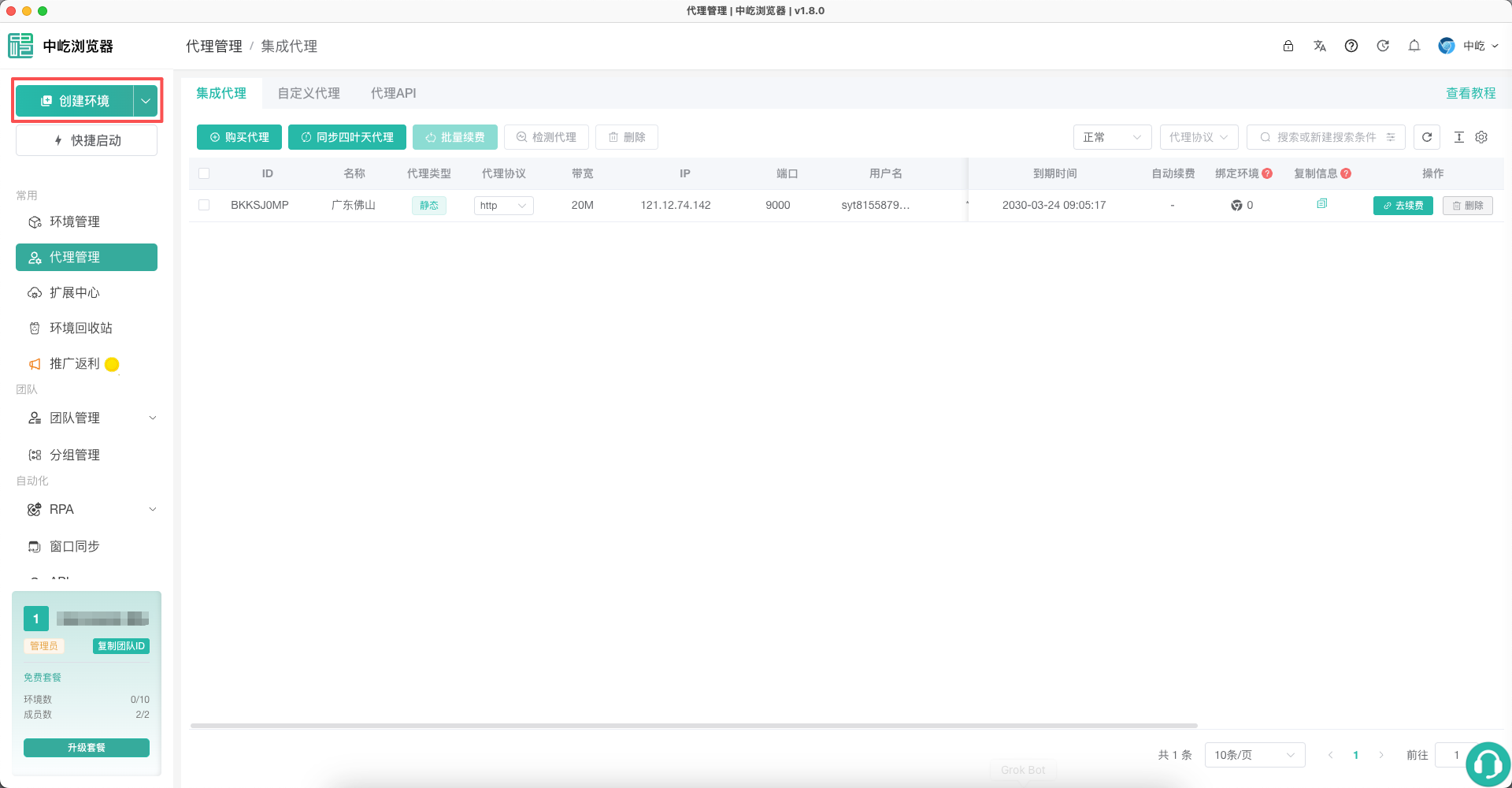
Click Create Profile in the left sidebar.
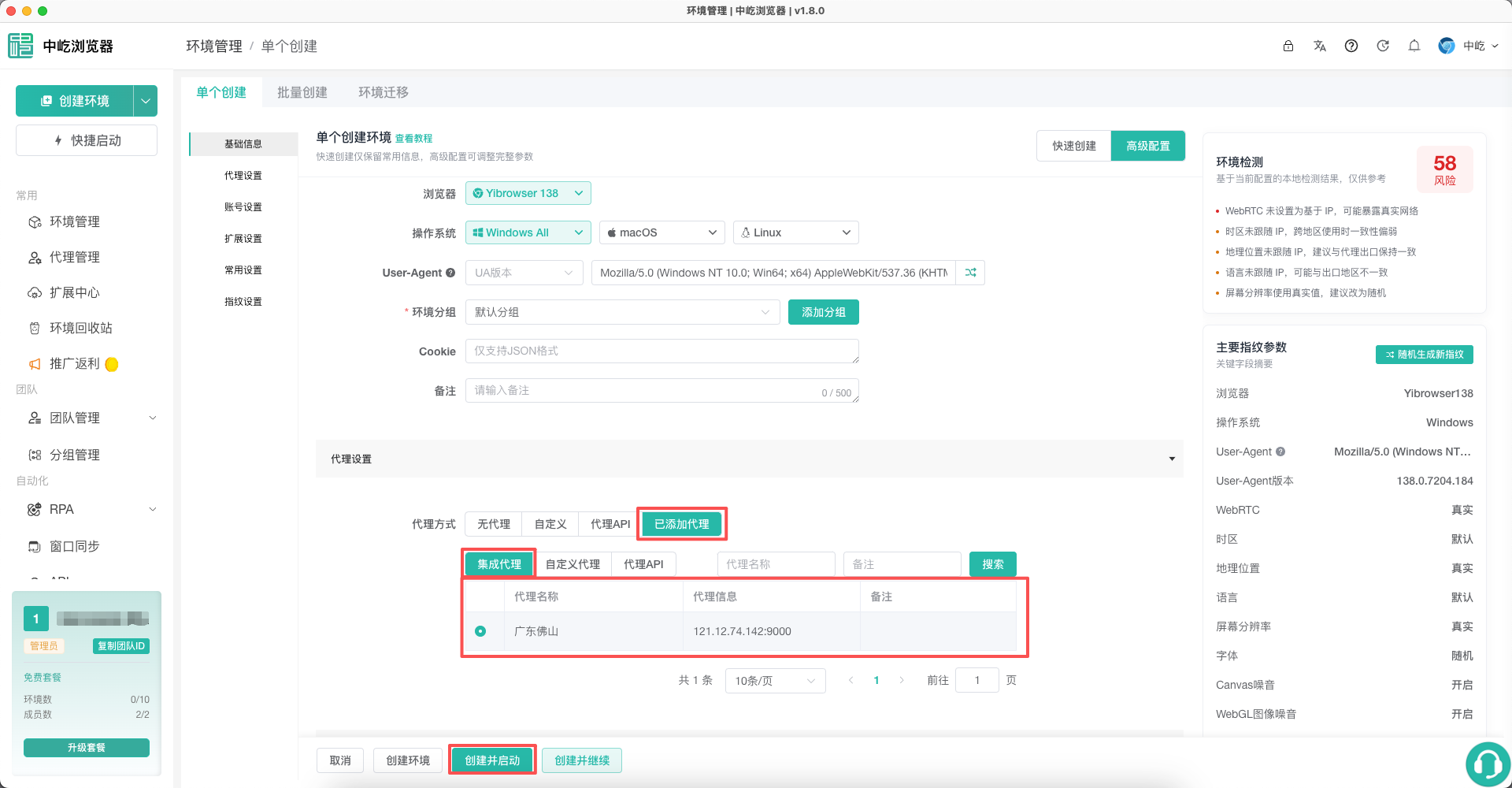
Under Basic Information, enter a recognizable Profile name. The browser, operating system, and other fingerprint settings can stay at their defaults for this trial. Then select a synchronized proxy under Proxy Settings and launch the profile.
| No. | Feature | Description |
|---|---|---|
1 | Saved Proxy | Uses a record already synchronized into Proxies, without entering the host and port again |
2 | Proxy list | Under Integrated Proxy, select a synchronized SiYeTian Proxy; a selection is required before saving |
3 | Create and Launch | Saves the profile and immediately opens its browser window in the desktop client |
The web app cannot launch a profile. If you are using the web app, switch to the desktop client for this step. For launch status, see Launch a Browser Profile.
Next Steps
- Create Your First Browser Profile: Review the profile name, browser engine, and other basic fields.
- Manage Integrated Proxies: Test, assign, or renew a synchronized SiYeTian Proxy at SiYeTian.