Lock and Unlock the Client
When stepping away from your computer without signing out, you can lock the ZYBrowser desktop client. The lock screen covers the client interface until you enter the lock screen password or complete phone verification.
Screen lock is available only in the desktop client. Its password is separate from your account password, is stored locally on the current device, and does not sync to other devices. Signing out does not automatically clear a saved lock screen password.
Lock the Client for the First Time
- Click the lock icon in the upper-right corner of the client. If the current layout does not show the icon, open the avatar menu and click
Lock screen. - In
Set lock screen password, enter a password of at least6characters, then enter the same password again. - Click
Confirm. The client locks immediately after saving the password.
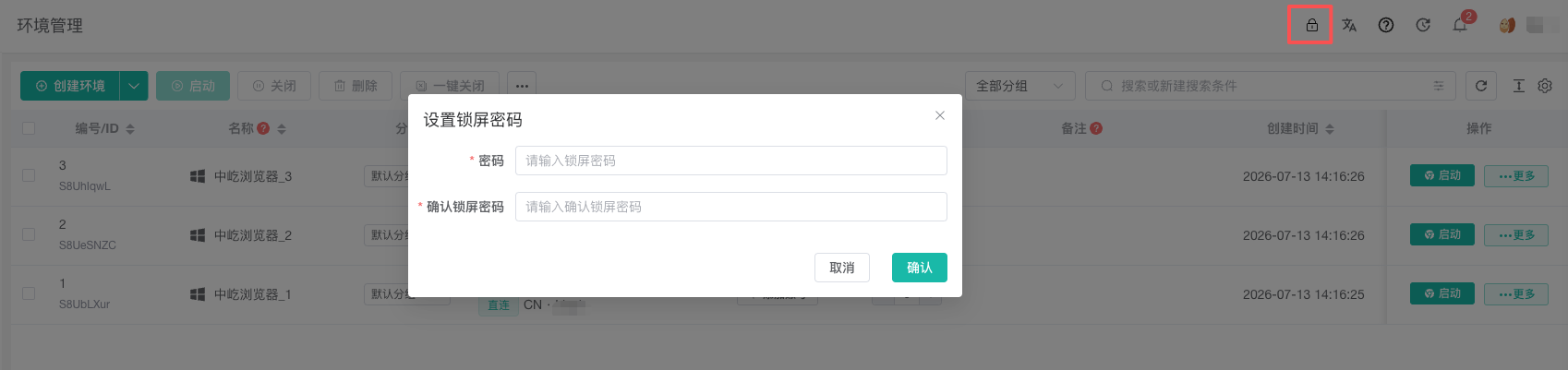
The next time you click the lock icon or Lock screen in the avatar menu, the client locks with the password already saved on this device and does not display the setup dialog again.
Unlock the Client
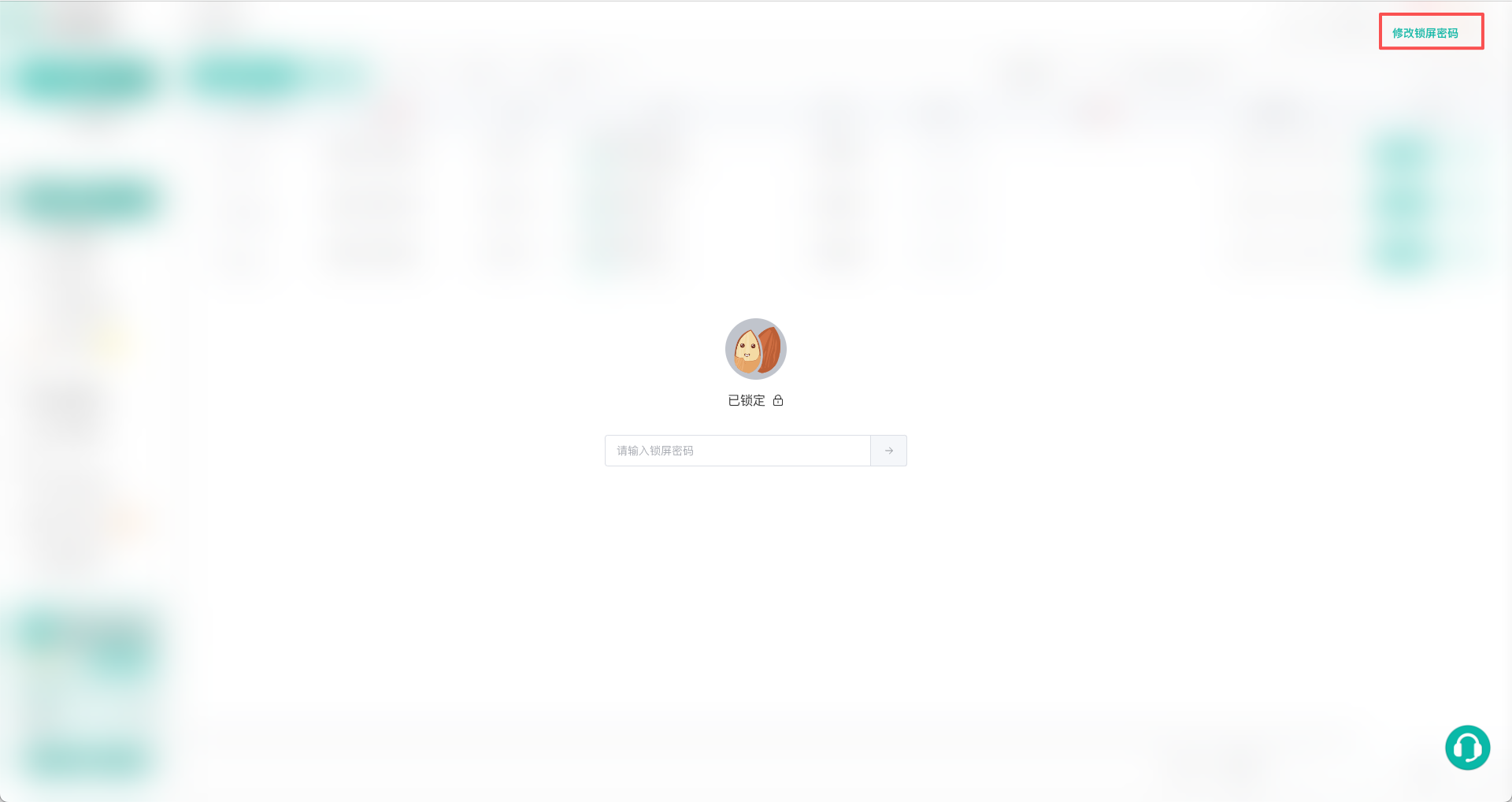
Enter the lock screen password, then press Enter or click the arrow button on the right side of the field. After the password is verified, the client returns to the interface shown before it was locked.
The lock state is saved on the current device. If you close and reopen the client while it is locked, you must still unlock it first.
Change the Lock Screen Password
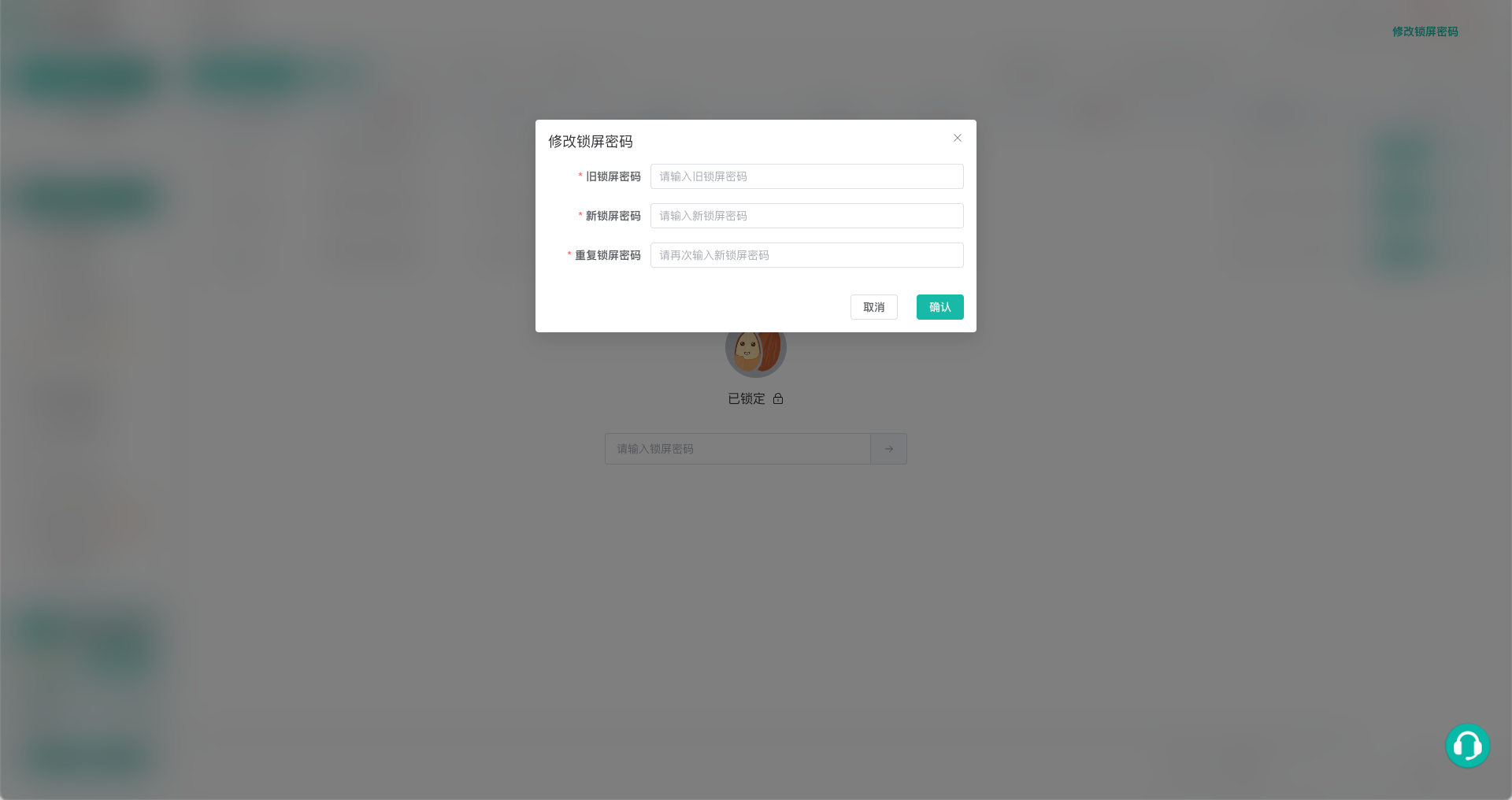
- Click
Change lock screen passwordin the upper-right corner of the lock screen. - Enter the current lock screen password, then enter and confirm a new password of at least
6characters. - Click
Confirm. The client remains locked after the password changes; use the new password to unlock it.
Reset a Forgotten Lock Screen Password
After 3 consecutive incorrect attempts, the lock screen displays Forgot password? Reset lock screen password. Click it, request an SMS code, and enter the code sent to the phone number bound to the current account.
After phone verification succeeds, the client unlocks and clears the lock screen password from the current device without signing out. The next time you click Lock screen, you must set a new lock screen password.
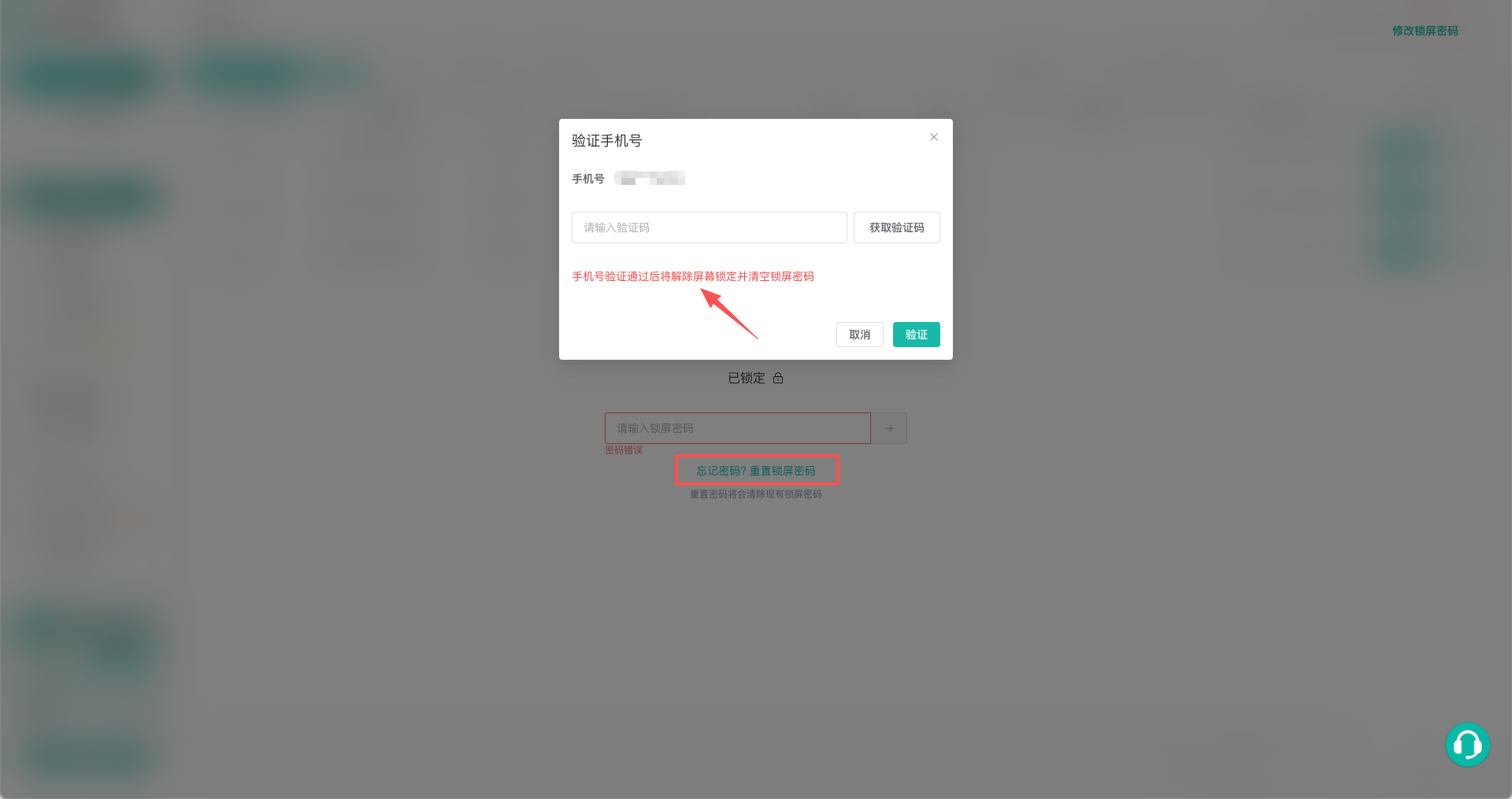
If the code does not arrive, confirm that the phone number bound to the current account is still available and see FAQ.
What Continues Running While Locked
Screen lock restricts access only to the ZYBrowser client interface. It does not:
- Sign out of the current account or switch teams.
- Close regular browser profiles that are already running.
- Pause or stop running legacy RPA or RPA tasks.
- Lock the operating system or cover browser profile windows that are already open separately.
WARNING
ZYBrowser screen lock does not replace the operating system lock screen. When leaving the computer, also lock the operating system if other people must not access open browser profile windows or other applications.
When you have finished using the current account or need to close related browser profiles and end the session, follow the sign-out instructions.