Migrate Existing Browser Profiles
If you previously managed accounts in another browser, use migration links to collect its fingerprint information and cookies and create new profiles in ZYBrowser. This is not a configuration file import. Each source browser profile must open its corresponding link once to complete collection.
Before You Begin
Confirm that:
- The active team has enough profile capacity.
- A group exists for the new profiles.
- You can open each generated migration link separately in the source browser.
- The target account and cookies in each source profile are in the state you want to migrate.
Important
A migration link triggers profile data collection. Do not share it with unrelated people or expose the complete link in public screenshots, chats, or documentation.
Generate Migration Links
- Go to
Browser Profiles. - Click the arrow next to
Create Profile. - Select
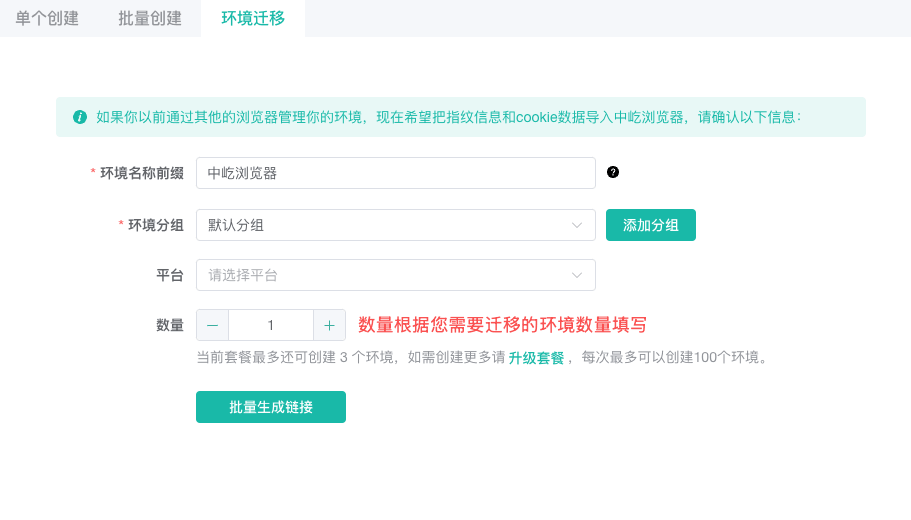
Migrate Profiles. - Enter a
Profile Name Prefix. - Select a profile group and platform information.
- Enter the number of profiles to migrate.
- Click
Generate Links.
You can generate up to 100 migration profiles at once, subject to the team's remaining plan capacity. Each generated profile name combines the prefix with a sequence number.
Collect Data in the Source Browser
After the links are generated, the page displays a countdown and one link for each profile. Links remain valid for 12 hours.
- Copy the first migration link.
- Open it in the source browser profile you want to migrate.
- Follow the page instructions to complete collection.
- Return to ZYBrowser and wait for the record to display
Migrated. - Repeat with a different link for each remaining source profile.
Each link corresponds to one destination profile. Do not reuse a link in multiple source profiles because the resulting account-to-profile mapping may be incorrect.
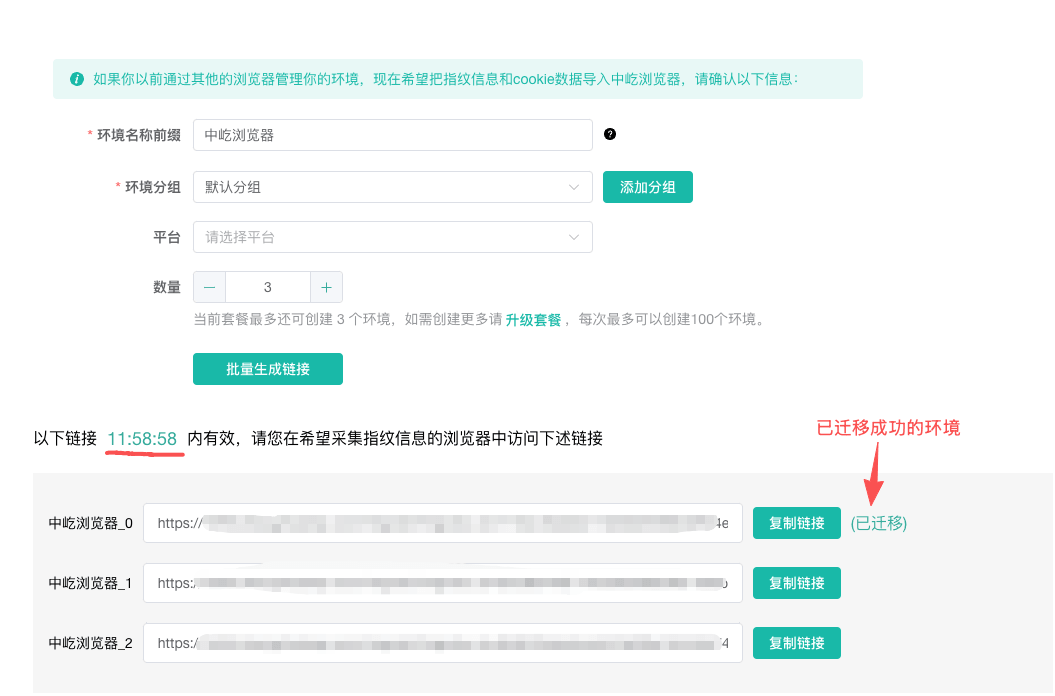
The client refreshes migration statuses periodically. When every link is complete, it also refreshes the team's profile count.
Verify the Migration
- Return to
Browser Profiles. - Search for the new profiles by name prefix or group.
- Open
Editin a target row and review the browser, operating system, cookies, and fingerprint summary. - Configure a proxy that matches the actual network egress.
- Launch one test profile and confirm that the login session and target website work before processing the remaining profiles.
Migration collects available data from the source browser but does not select an appropriate proxy for the new profile. Review the proxy, location, time zone, and language based on how each new profile will be used.
Troubleshooting
Link Expired
After 12 hours, return to the migration page and generate new links. Do not mix links from different batches.
The Status Never Changes to Migrated
Confirm that the link opened completely in the intended source browser and that all page prompts were completed. Keep the network connected while waiting for the status to refresh. If the migration page was closed, search the profile list by name prefix to check whether the profile was created.
Insufficient Migration Capacity
The team plan's remaining capacity limits the number of profiles. Remove profiles you no longer need or purchase a team plan, then generate the links again.
Next Steps
- View and Find Browser Profiles: Find migrated profiles by prefix or group.
- Configure Fingerprints and Common Settings: Check fingerprint consistency after migration.
- Launch and Maintain Browser Profiles: Launch a test profile and maintain its proxy, account, and cookies.
- Proxy Overview: Select and maintain network egresses for migrated profiles.