Register, Sign In, and Sign Out
The same ZYBrowser account works in both the desktop client and the web app. Register an account before selecting your preferred sign-in method.
Register an Account
- Open the ZYBrowser desktop client and click
Registeron the login page. You can also register in the ZYBrowser web app or on the ZYBrowser website. - Enter a username and phone number, click
Get Code, and enter the SMS verification code.
Tip
If you do not receive an SMS verification code, confirm that the phone number is correct, check blocked messages, and request another code after the countdown ends. If the number is correct and the code still does not arrive, contact support.
- Enter and confirm a password. It must contain at least
8characters, including bothlettersandnumbers. - If you have an invitation code, enter it under
Invitation Code. - Read and accept the Terms of Service and Privacy Policy, then click
Register.
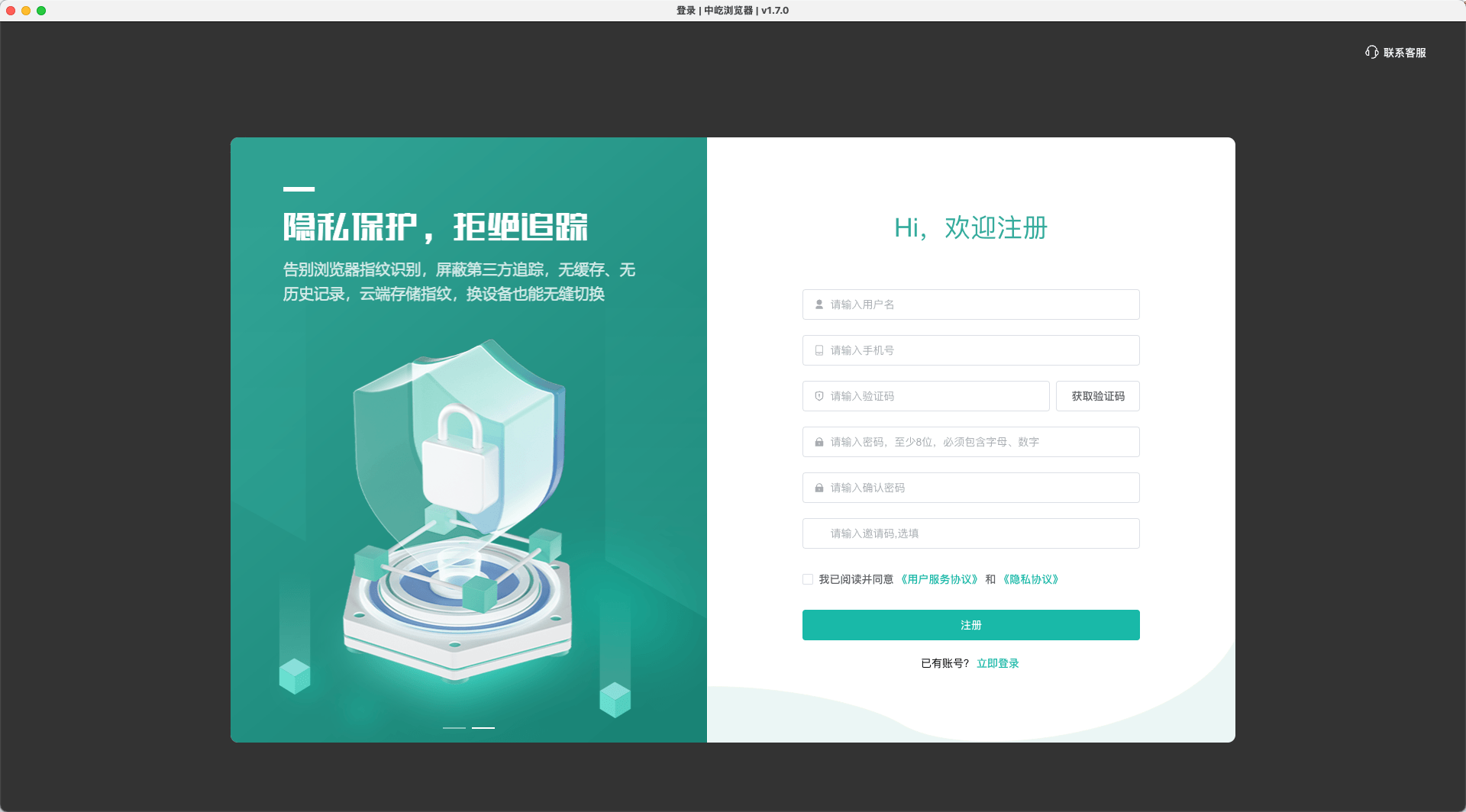
After registration, you will return to the login page. Sign in with the account you just created.
Sign-in Methods
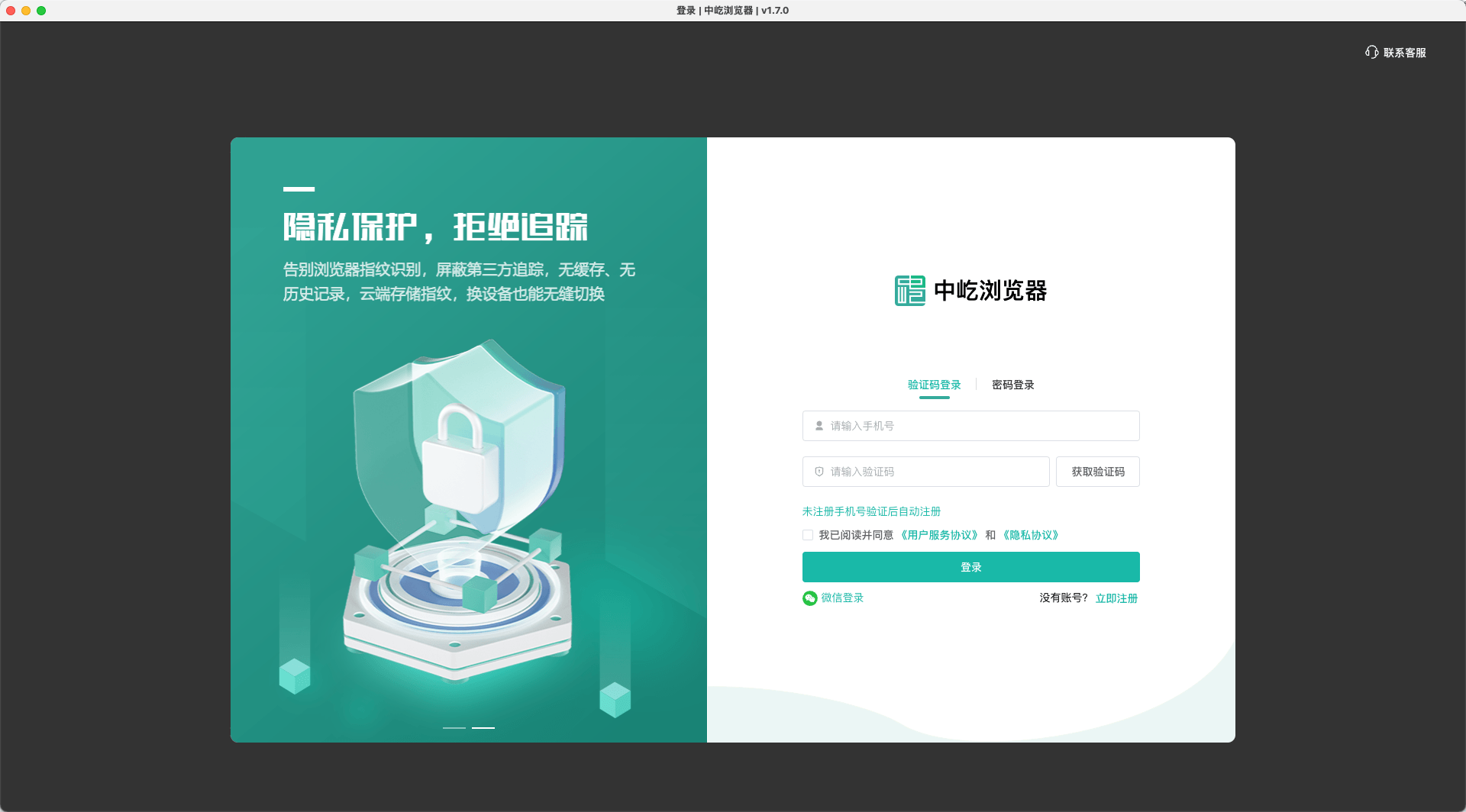
SMS Verification Code
Select Verification Code Login, enter your phone number, request an SMS code, and click Sign In after entering the code. On first use, you must read and accept the Terms of Service and Privacy Policy.
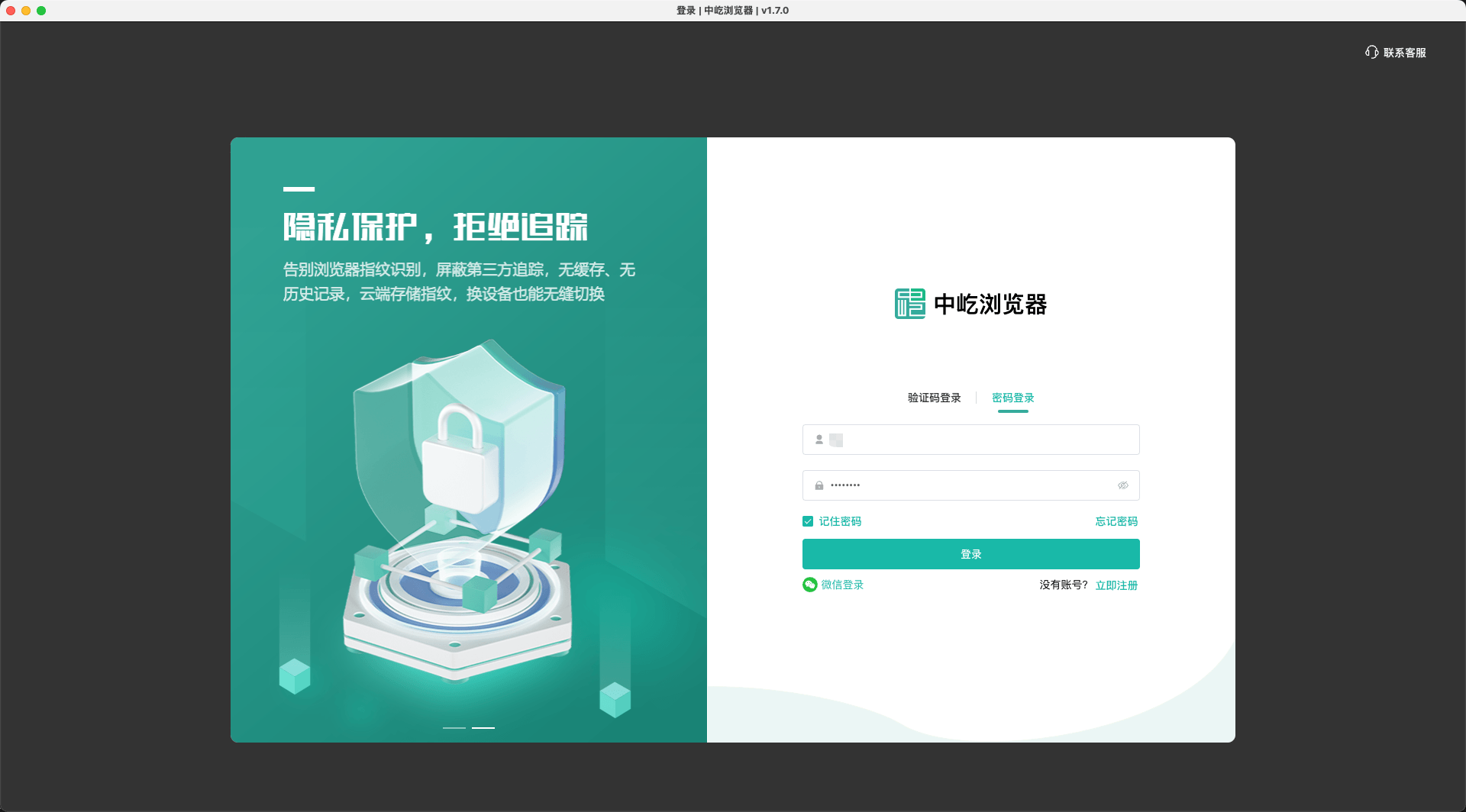
Username and Password
Select Password Login, enter your username and password, and click Sign In. Select Remember Password to reuse the saved credentials next time. Do not enable this option on a shared device.
If you forget your password, click Forgot Password and reset it using your phone number and an SMS verification code.
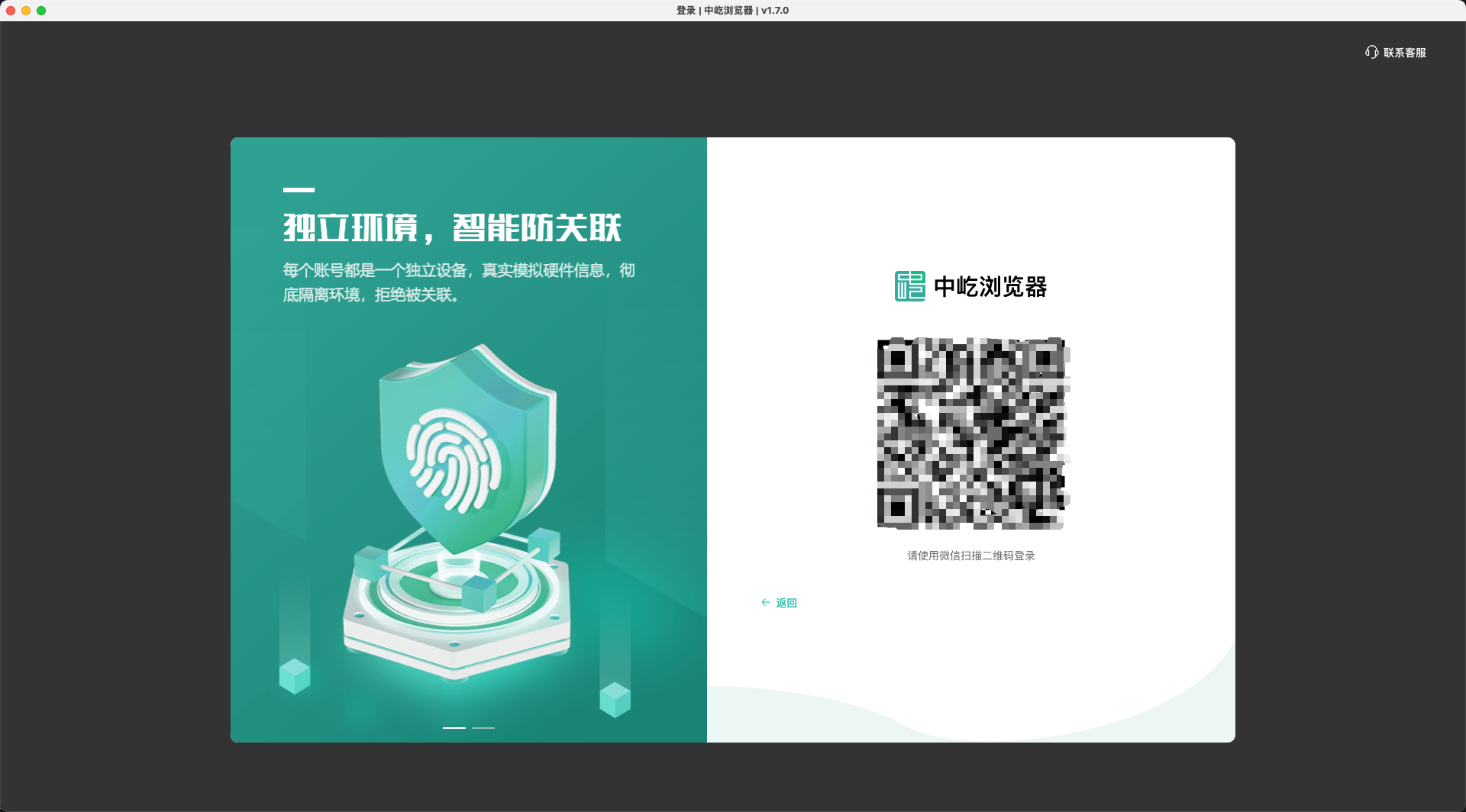
WeChat QR Code
Click the WeChat entry on the login page and scan the QR code in WeChat. Follow the official account and link your ZYBrowser account as prompted. After linking, you can sign in quickly by scanning a WeChat QR code.
Web App and Desktop Client
Open the ZYBrowser web app to use the features available online and quickly review or manage cloud data.
To launch browser profiles, test proxy availability, or perform other operations that require local resources, use the ZYBrowser desktop client instead.
Sign Out
If you are only stepping away and want to keep the current session and running browser profiles, use screen lock to restrict access to the client.
Click Sign Out from the avatar menu in the upper-right corner of the client. The desktop client checks local browser profiles and RPA activity before handling the request:
| State when signing out | What happens |
|---|---|
| No browser profiles are open and no RPA tasks are running | Signs out immediately without displaying a profile closure confirmation |
| Regular browser profiles are open, or an RPA run has finished but its browser window remains open | Displays a closure confirmation; after confirmation, closes every open profile and signs out |
| An RPA task is running | Displays an RPA activity notice; after confirmation, does not immediately stop the task or force-close its profile, but waits for every RPA task to finish, closes any remaining profiles, and signs out automatically |
Do not launch a regular browser profile or another RPA task while waiting for RPA to finish because those profiles will also close before the automatic sign-out. Canceling the confirmation keeps the current session and running profiles unchanged.
WARNING
Signing out may close browser profiles. Save unsubmitted content in regular profiles first. To sign out immediately, stop RPA tasks manually and confirm their final state in run history.
The web app does not run local browser profiles. Confirming Sign Out ends only the current web session. Team switching handles active profiles differently; see Switch or Create a Team.
Next Steps After Login
After signing in, create your first browser profile, then launch the browser profile.